> For the complete documentation index, see [llms.txt](https://docs.ilert.com/llms.txt). Markdown versions of documentation pages are available by appending `.md` to page URLs; this page is available as [Markdown](https://docs.ilert.com/ai-and-agents/agents/sre-agent.md).

# AI SRE

Set up an AI SRE agent, connect the tools it reads from, and run your first root cause analysis.

## Getting started with AI SRE

**AI SRE** analyzes alerts and incidents, correlates signals across your observability stack, and helps identify the root cause of incidents. You configure it as one or more **agents**: an agent reads logs, metrics and deployment events through the tools you connect, and it starts working when you ask it to — in an investigation chat or from an operational incident.

This guide walks you through setting up and running your first agent.

### Optional preparation

We recommend making sure that [**deployment events**](/alerting/deployment-events.md) are sent to ilert.\
This allows the agent to correlate incidents with recent code changes and rollouts, often a key signal for identifying root causes.

<details>

<summary>👉 Learn more in <a href="/alerting/deployment-events.md">Deployment events</a></summary>

If you haven't yet integrated deployment events, you can do so using:

* [GitHub Actions](/integrations/deployment-integrations/github.md)
* [GitLab CI/CD](/integrations/deployment-integrations/gitlab.md)
* [Azure DevOps](/integrations/deployment-integrations/azuredevops.md)
* [ArgoCD](/integrations/deployment-integrations/argo-cd-deployment-pipeline.md)
* [Custom HTTP or REST API integrations](/integrations/deployment-integrations/api.md)
* the full list of [deployment integrations](/integrations/deployment-integrations.md)

</details>

### Create your agent

Creating an agent runs through a **three-step wizard**.

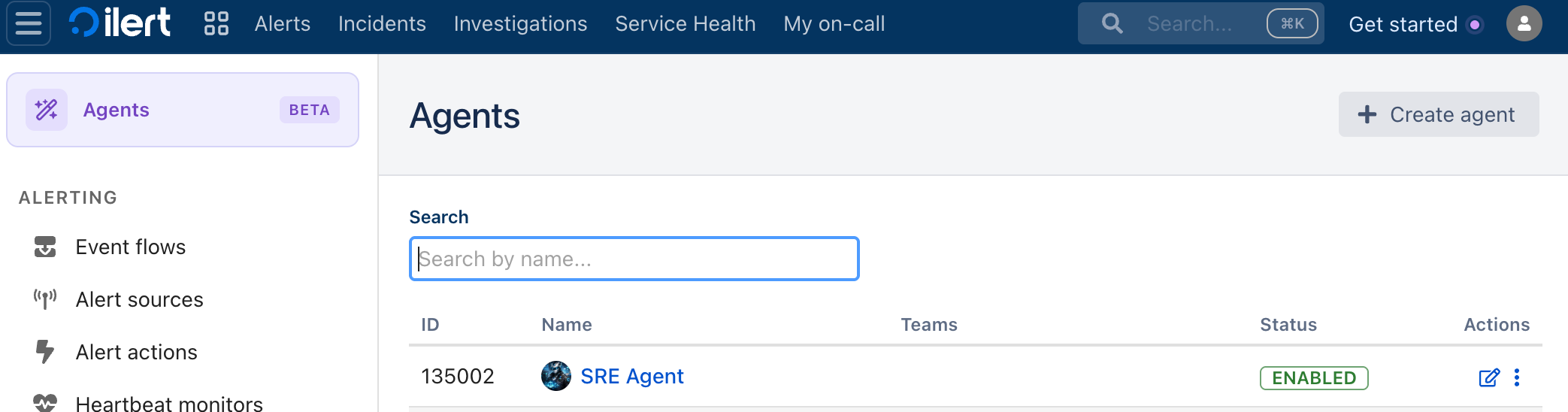
1. Navigate to **Agents** and click **Create agent**

   <figure><img src="https://3394882078-files.gitbook.io/~/files/v0/b/gitbook-x-prod.appspot.com/o/spaces%2F-M76ygPnS4HUcFSX8ulm%2Fuploads%2Fgit-blob-41fa7a2287393b3cf66a642e059fb8ffebfb2dcc%2Fsre-agent-list.png?alt=media" alt=""><figcaption></figcaption></figure>
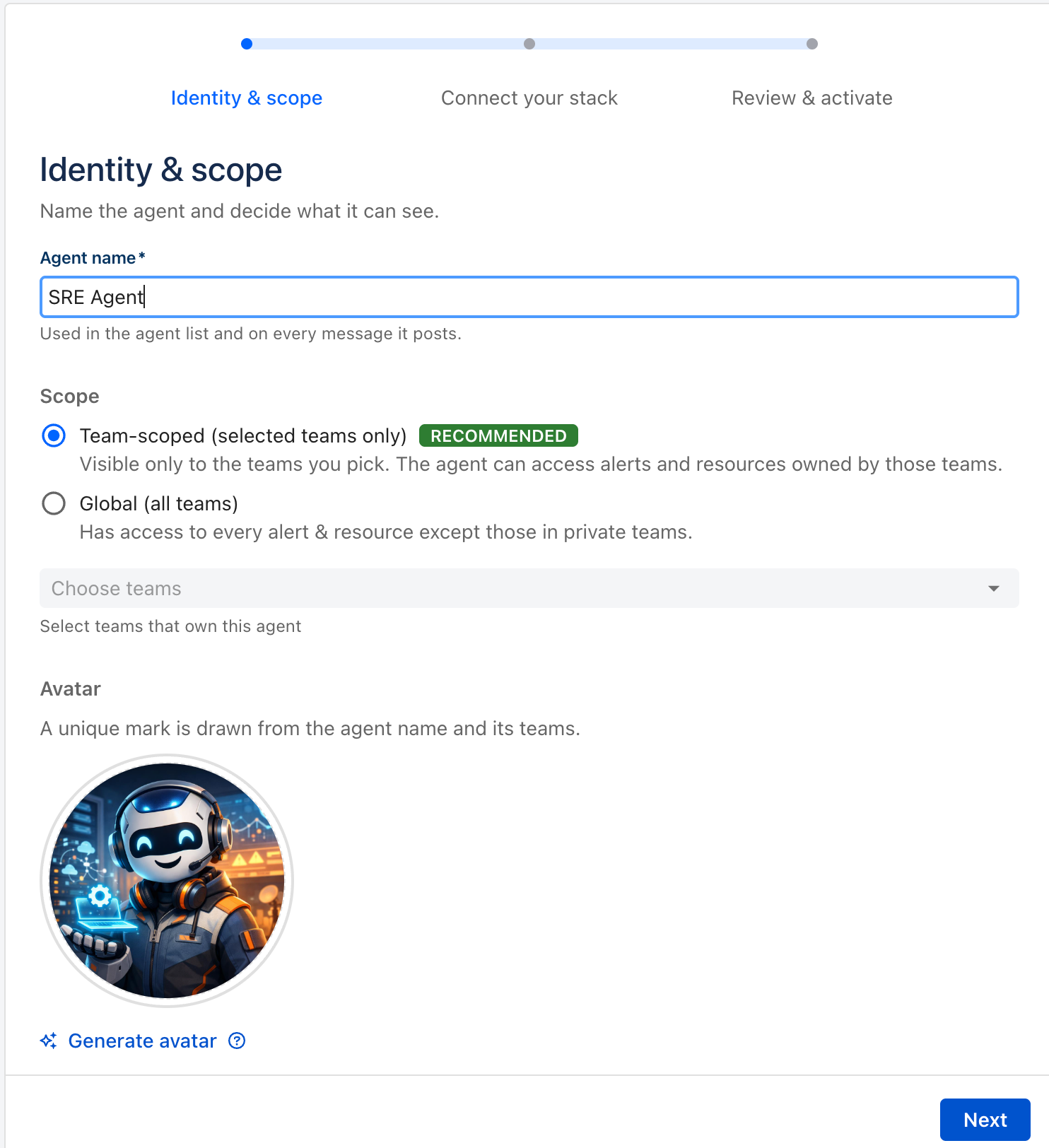
2. **Identity & scope** — *Name the agent and decide what it can see.*

   * **Name**\
     Enter a descriptive name (e.g. *Infra RCA Agent* or *SRE Team Agent*). It is used in the agent list and on every message the agent posts.
   * **Scope**
     * **Global (all teams)** — has access to every alert and resource except those in private teams. Only admins can set an agent to global.
     * **Team-scoped (selected teams only)** — the agent is visible only to the teams you pick and can access alerts and resources owned by those teams.
   * **Avatar**\
     Upload your own or click **Generate avatar** to draw one from the agent name and its teams.

   <figure><img src="https://3394882078-files.gitbook.io/~/files/v0/b/gitbook-x-prod.appspot.com/o/spaces%2F-M76ygPnS4HUcFSX8ulm%2Fuploads%2Fgit-blob-5b9398a504286840b61bf7ad4f74a94f45d76d96%2Fsre-agent-wizard-identity-scope.png?alt=media" alt=""><figcaption></figcaption></figure>
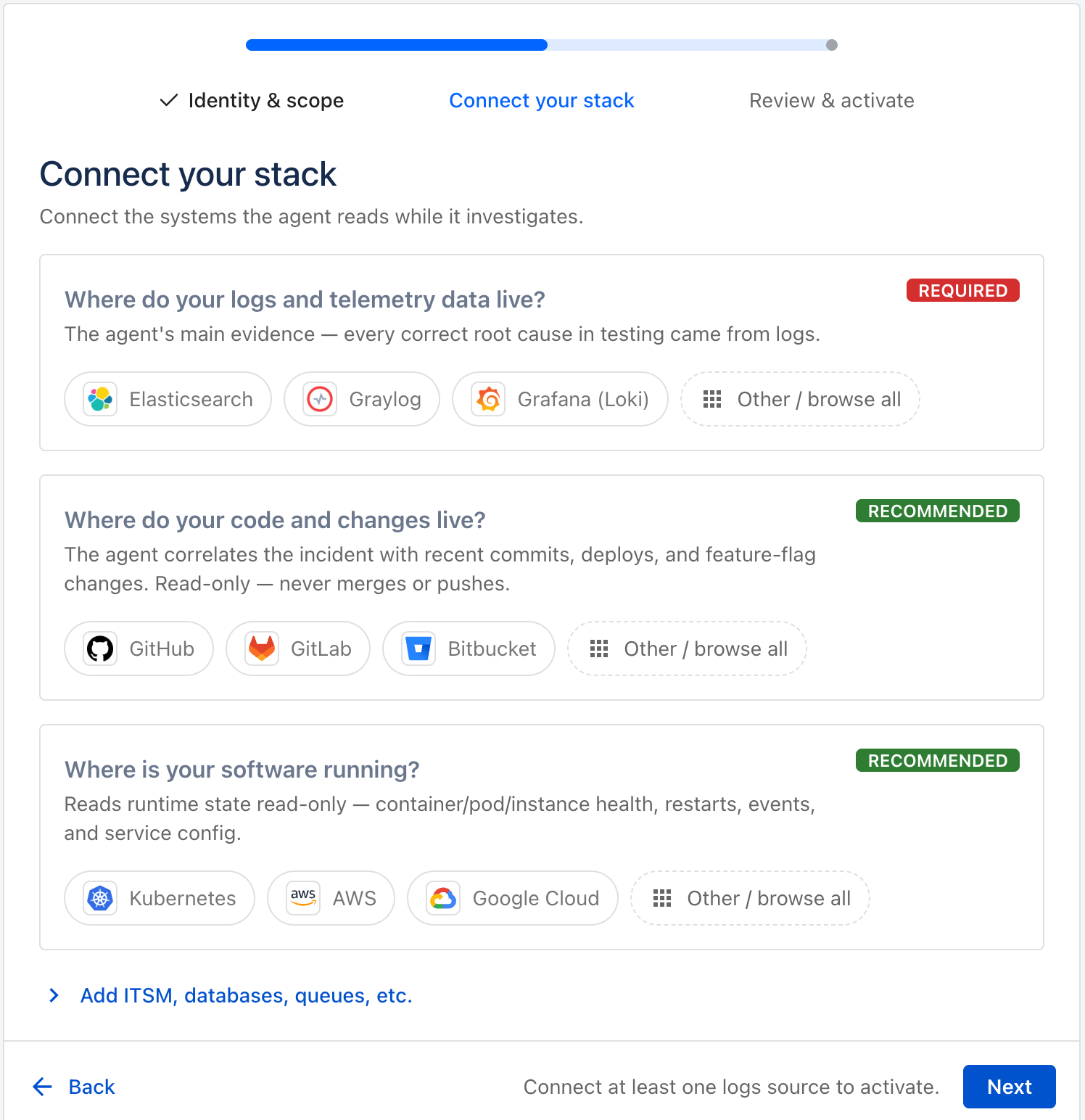
3. **Connect your stack** — *Connect the systems the agent reads while it investigates.*

   Each category asks one question and lists the connectors that answer it:

   * **Logs & telemetry** (*required*) — "Where do your logs and telemetry data live?"
   * **Code & changes** (*recommended*) — "Where do your code and changes live?"
   * **Where it runs** (*recommended*) — "Where is your software running?"
   * **Add ITSM, databases, queues, etc.** — the optional categories **Metrics**, **ITSM** and **Databases & queues**, behind a disclosure at the bottom

   On each connector you enter the credential and click **Connect & verify**. ilert then queries the available MCP tools with the credentials you provided and shows the resulting status. Credentials are stored encrypted and are never logged or echoed back. If a system you use is not in the catalog, **Add custom MCP** connects your own MCP server in the same step.

   <figure><img src="https://3394882078-files.gitbook.io/~/files/v0/b/gitbook-x-prod.appspot.com/o/spaces%2F-M76ygPnS4HUcFSX8ulm%2Fuploads%2Fgit-blob-976f0761bb633f9266dbbf24b7ab11c565ae30e7%2Fsre-agent-wizard-connect-stack.png?alt=media" alt=""><figcaption></figcaption></figure>

   <div data-gb-custom-block data-tag="hint" data-style="info" class="hint hint-info"><p>At least one <strong>logs</strong> source is required: <em>Connect at least one logs source to activate.</em> Everything else can be added later.</p></div>
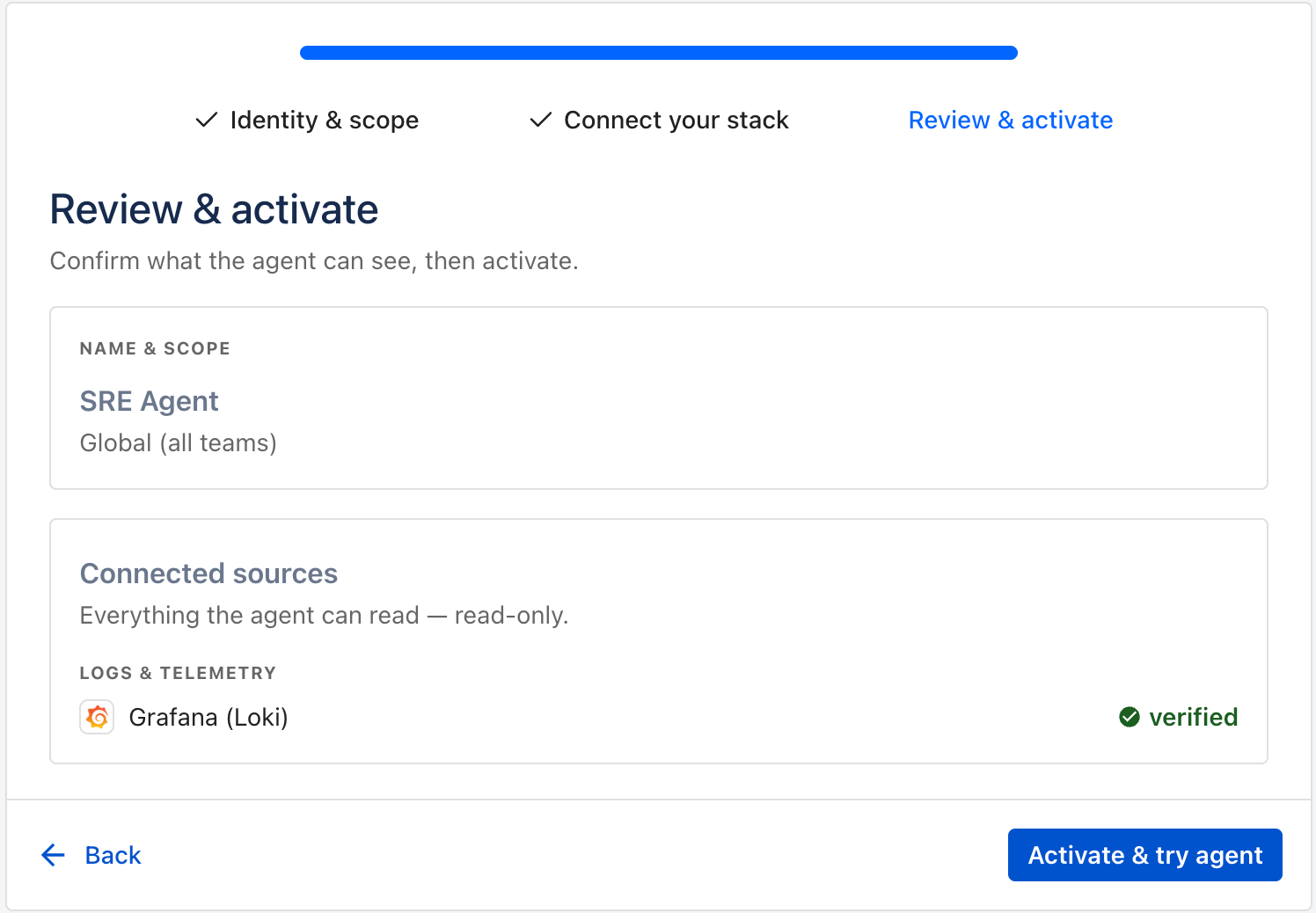
4. **Review & activate** — *Confirm what the agent can see, then activate.*

   The review step lists the agent's name and scope plus every connected source with its state — *verified*, *pending* or *not verified*. Click **Activate & try agent** to create the agent and open a conversation with it.

   <figure><img src="https://3394882078-files.gitbook.io/~/files/v0/b/gitbook-x-prod.appspot.com/o/spaces%2F-M76ygPnS4HUcFSX8ulm%2Fuploads%2Fgit-blob-410527e88503d0fc7d6316f4c87d3dae21fc195b%2Fsre-agent-wizard-review-activate.png?alt=media" alt=""><figcaption></figcaption></figure>

### Agent settings

Open **Agents** and select an agent to change it. Every agent has three tabs:

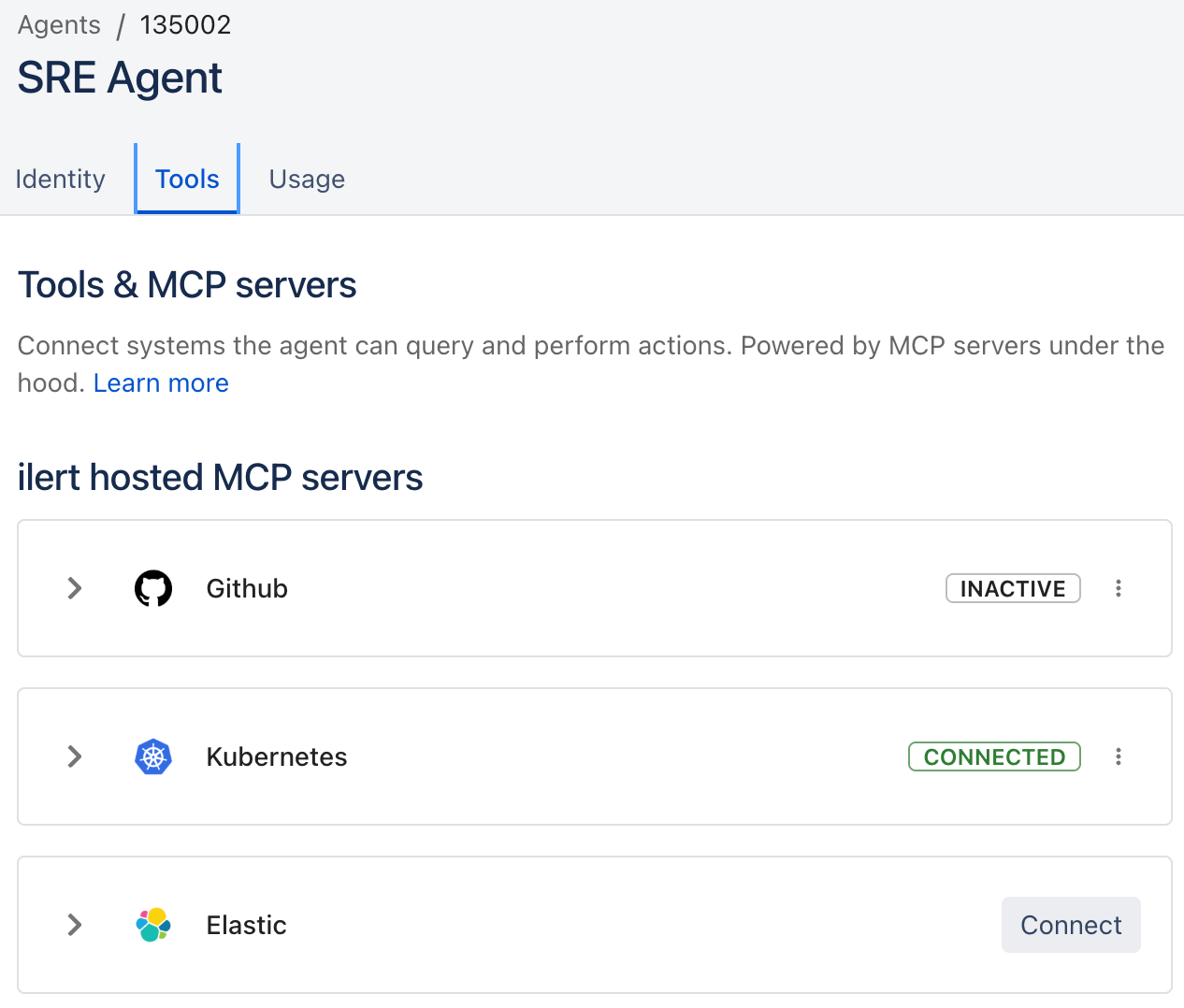
<table><thead><tr><th width="150">Tab</th><th>What you do there</th></tr></thead><tbody><tr><td><strong>Identity</strong></td><td>Name, scope and avatar — the same fields as the first wizard step.</td></tr><tr><td><strong>Tools</strong></td><td>Connect more MCP servers and enable or disable the individual tools the agent may call.</td></tr><tr><td><strong>Usage</strong></td><td>Daily credit consumption and the agent's AI credits usage over a period you choose.</td></tr></tbody></table>

The **Tools** tab is where you can configure individual MCP tools and extend the agent with new MCP servers:

<figure><img src="https://3394882078-files.gitbook.io/~/files/v0/b/gitbook-x-prod.appspot.com/o/spaces%2F-M76ygPnS4HUcFSX8ulm%2Fuploads%2Fgit-blob-debcf6c6aca00fc53a67e11630fae3395292c99c%2Fsre-agent-tools.png?alt=media" alt=""><figcaption></figcaption></figure>

{% content-ref url="/pages/QINO4jIrPbW0wxTtIsfo" %}
[Hosted by ilert](/ai-and-agents/mcp/hosted.md)
{% endcontent-ref %}

{% content-ref url="/pages/CTQI2V3MRG8vq5QsyjHm" %}
[External](/ai-and-agents/mcp/external.md)
{% endcontent-ref %}

### Run your first Root Cause Analysis

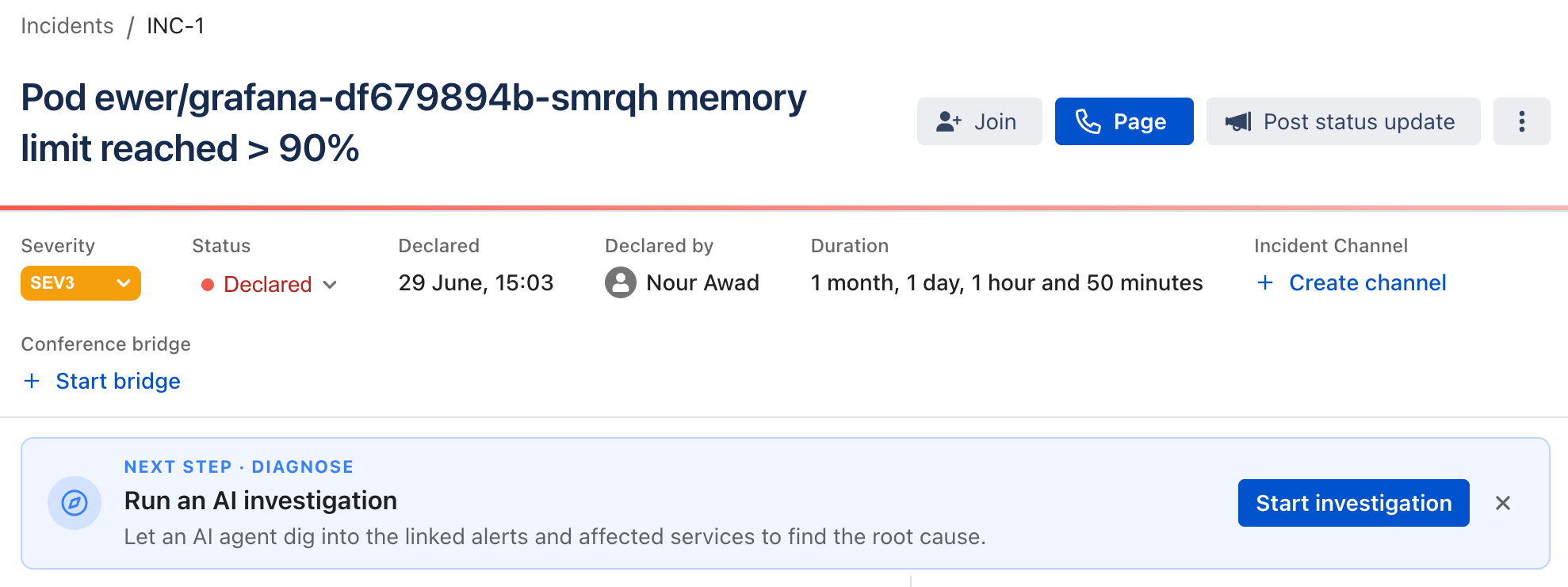
1. Open a chat with your agent — from the **Investigations** page, or an Incident.

<figure><img src="https://3394882078-files.gitbook.io/~/files/v0/b/gitbook-x-prod.appspot.com/o/spaces%2F-M76ygPnS4HUcFSX8ulm%2Fuploads%2Fgit-blob-d91bbb6a072361639aabcbcc421408cebe7db4da%2Fsre-agent-start-from-incident.png?alt=media" alt=""><figcaption></figcaption></figure>

2\. @mention the agent and ask it to investigate, for example \_"@SRE Team Agent investigate this alert"\_ or \_"start an RCA for the checkout latency"\_. Add what you already know — timestamps, affected services, recent deployments — the agent passes it on as context. 3. The agent begins investigating:

```
* Collecting logs and metrics from connected observability tools
* Checking for recent deployments related to the affected service
* Reviewing related alerts and changes in your source control

<figure><img src="../../../.gitbook/assets/sre-agent-investigation-progress.png" alt=""><figcaption></figcaption></figure>
```

If the agent cannot tell what you want next, it offers the possible next steps as buttons instead of guessing — one of them starts a full investigation. Two more entry points hand a ready-made scope to an investigation: the **Investigate** button on an [alert triage](/ai-and-agents/agents/sre-agent/alert-triage.md) cluster, and **Start investigation** on an operational incident.

{% hint style="info" %}
An agent needs at least one connected MCP server to run an investigation. Without one, the agent replies that a server has to be configured first.
{% endhint %}

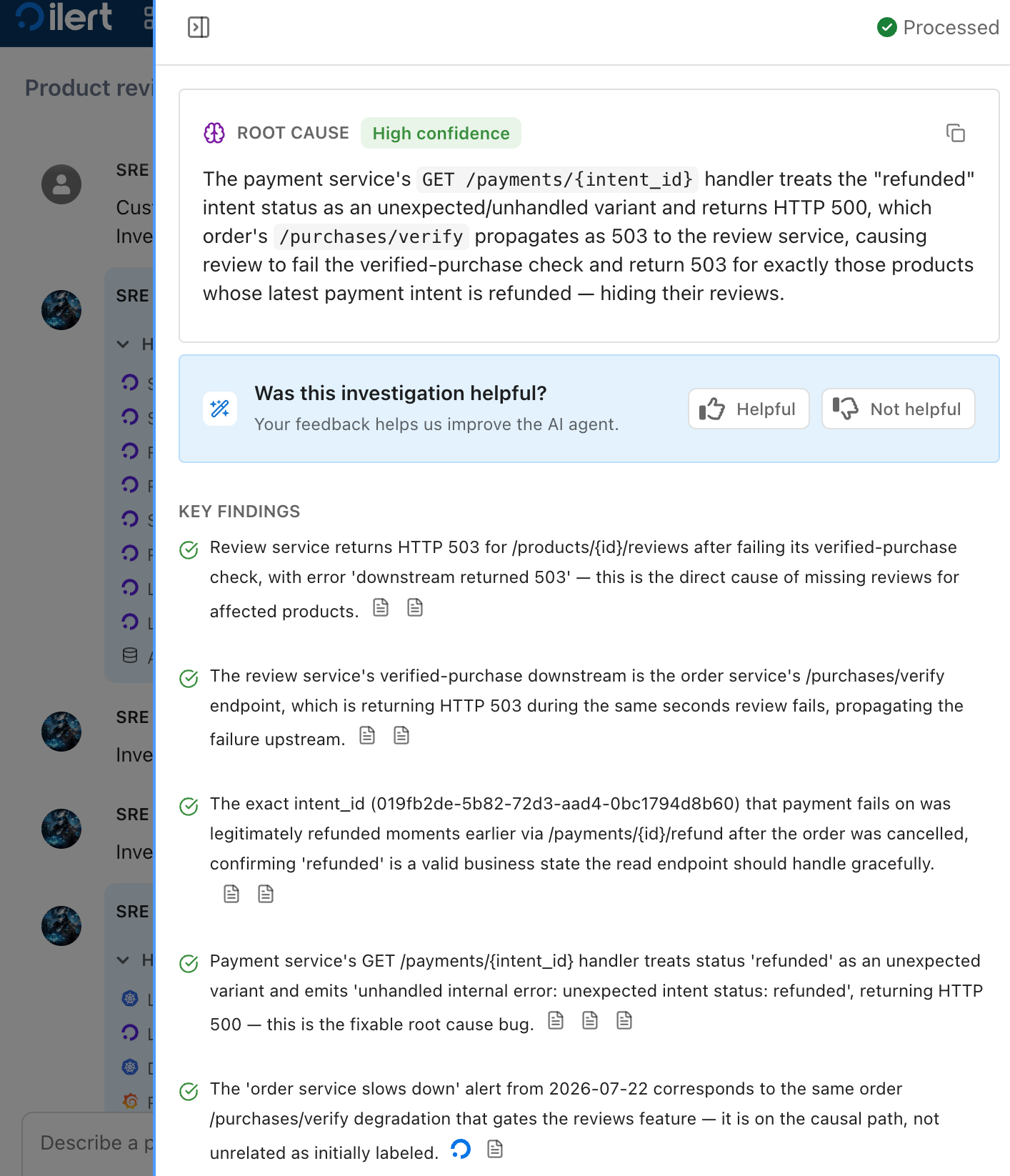
After completion, you get the investigation result in the conversation. It consists of:

* Root cause of the issue
* Key findings
* Recommended actions
* Evidence

  <figure><img src="https://3394882078-files.gitbook.io/~/files/v0/b/gitbook-x-prod.appspot.com/o/spaces%2F-M76ygPnS4HUcFSX8ulm%2Fuploads%2Fgit-blob-9f781710e8fd9f19b98cde0d4d19007de1ec8da2%2Fsre-agent-investigation-results.png?alt=media" alt=""><figcaption></figcaption></figure>

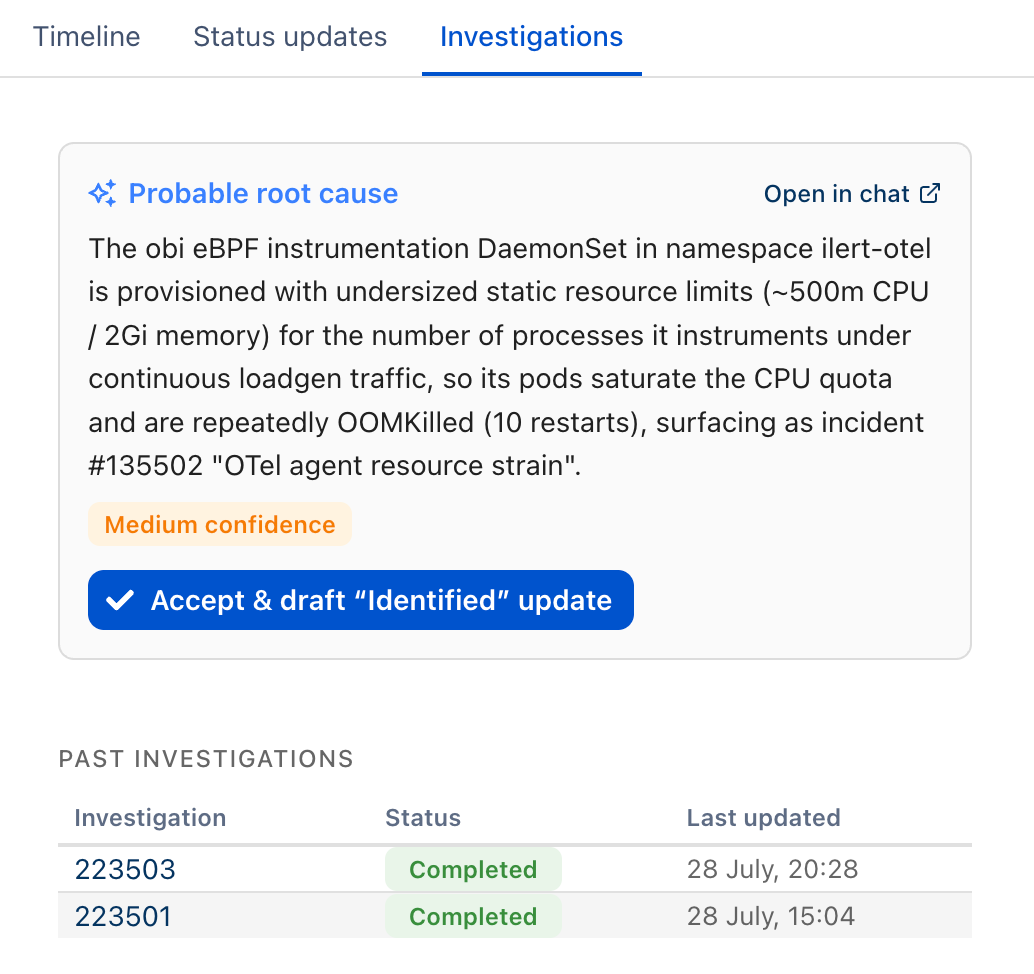
When the investigation belongs to an incident, the incident page shows the root cause with a shortcut to the full investigation.

<figure><img src="https://3394882078-files.gitbook.io/~/files/v0/b/gitbook-x-prod.appspot.com/o/spaces%2F-M76ygPnS4HUcFSX8ulm%2Fuploads%2Fgit-blob-bccb83df75e7add0d84cc1807d7abe0aaab9f9bf%2Fsre-agent-investigation-incident-results.png?alt=media" alt=""><figcaption></figcaption></figure>

{% content-ref url="/pages/6LFduDATho4yJd9qTaI2" %}
[Alert triage](/ai-and-agents/agents/sre-agent/alert-triage.md)
{% endcontent-ref %}

### Chatting with the agent

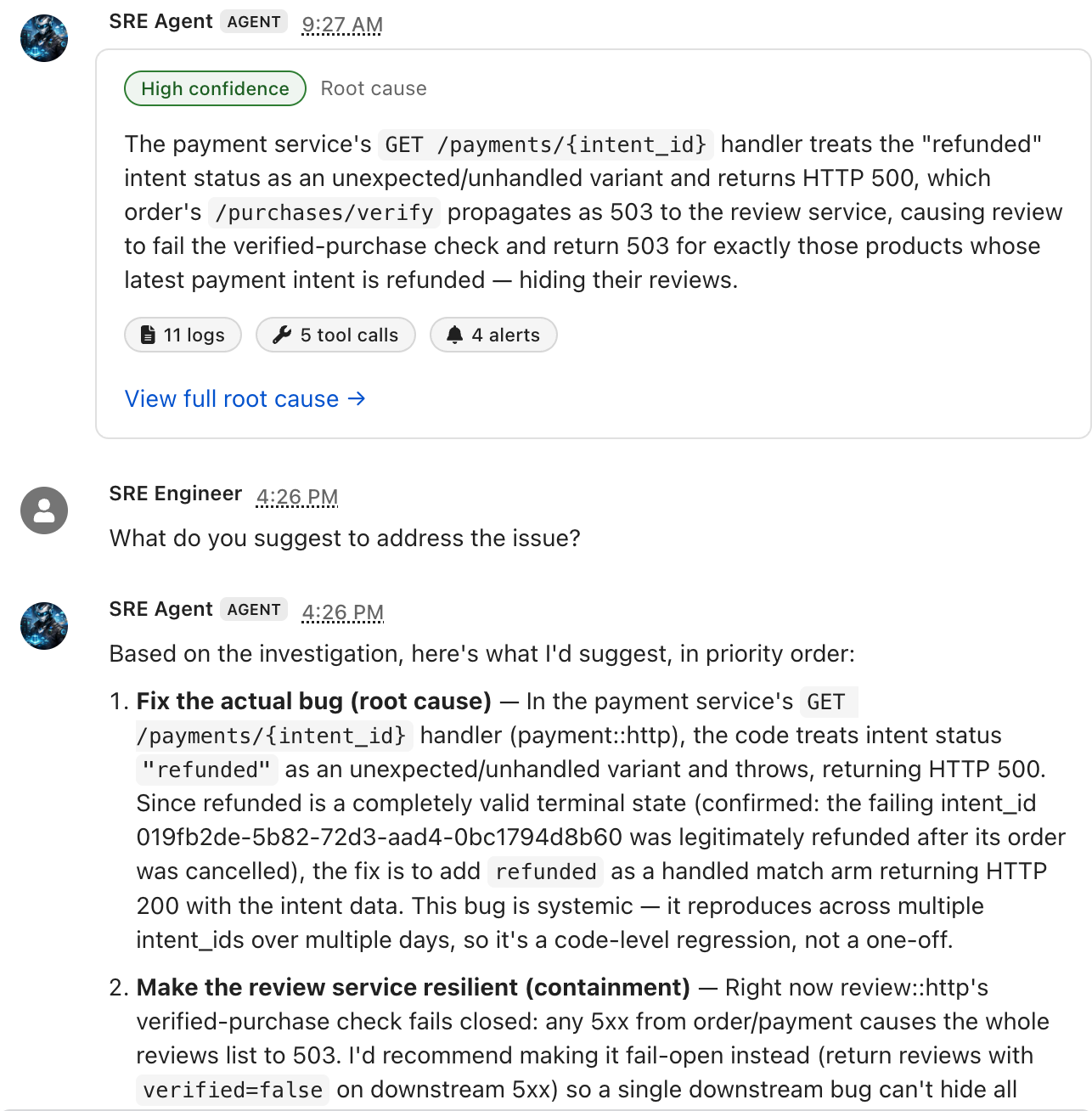
You can interact directly with the agent via **chat**, which allows for conversational analysis. You can ask follow-up questions or ask the agent to perform actions.

<div align="left"><figure><img src="https://3394882078-files.gitbook.io/~/files/v0/b/gitbook-x-prod.appspot.com/o/spaces%2F-M76ygPnS4HUcFSX8ulm%2Fuploads%2Fgit-blob-29c268f47dd18d88a1209e2aa600bd58ba52646d%2Fsre-agent-investigation-followup.png?alt=media" alt=""><figcaption></figcaption></figure></div>

The agent uses natural language understanding to interpret your question and respond using correlated data from your observability and version control systems.

{% hint style="info" %}
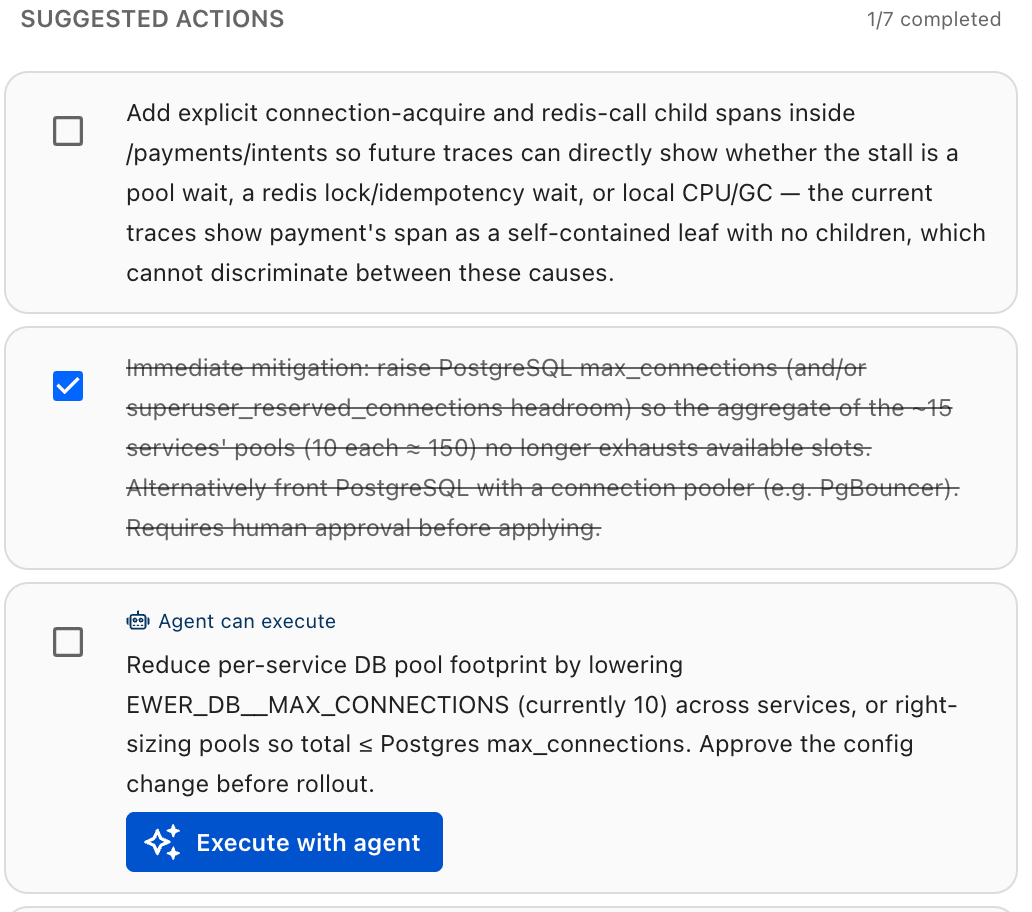
**Approving agent-proposed actions**

If you have equipped the agent with tools that allow making changes, the agent will by default suggest them as actions and only execute them after human approval.

<img src="https://3394882078-files.gitbook.io/~/files/v0/b/gitbook-x-prod.appspot.com/o/spaces%2F-M76ygPnS4HUcFSX8ulm%2Fuploads%2Fgit-blob-3b651bed4329b1e60e314023d304e533530643c4%2Fsre-agent-investigation-run-action.png?alt=media" alt="" data-size="original">
{% endhint %}

### FAQs

**Q: Does the agent start investigations on its own?**\
No. Agents are created in manual mode — an investigation starts when you ask for one in a chat, from an alert triage cluster, or from an operational incident. An agent also never merges alerts, declares incidents or changes a connected system without your confirmation in this mode.

**Q: How often can the agent run investigations?**\
Default limits apply to prevent overuse: at most **3 investigations every 10 minutes per agent**. You can monitor consumption on the agent's **Usage** tab, which shows the **Daily consumption** against your quota and the **AI credits usage** over a period you choose.

**Q: Why is an investigation sometimes delayed before it starts?**\
Investigations are scheduled and run in a queue. To ensure fair resource allocation between customers, the number of concurrent investigations is limited per tenant as well as globally on our platform. A queued request stays valid for **10 minutes**. If its turn comes later than that, it is skipped. We aim to deliver investigations in under 3 minutes, but this is also highly dependent on your tool stack and how fast concrete evidence can be selected.


---

# Agent Instructions
This documentation is published with GitBook. GitBook is the documentation platform designed so that both humans and AI agents can read, navigate, and reason over technical content effectively. Learn more at gitbook.com.

## Querying This Documentation
If you need additional information that is not directly available in this page, you can query the documentation by asking a question.

Perform an HTTP GET request on the following URL with the `ask` and `goal` query parameters:

```
GET https://docs.ilert.com/ai-and-agents/agents/sre-agent.md?ask=<question>&goal=<user_goal>
```

`ask` is the immediate question: it should be specific, self-contained, and written in natural language.
`goal` is what the user is ultimately trying to achieve, the reason they need the answer. Sharing it helps GitBook give you a better, more relevant answer. A goal is most helpful when it describes the outcome the user wants rather than restating the question. For example, with `ask=how do I create an API token`, a goal like `automate deployments from our CI pipeline` lets GitBook tailor the answer to that use case.

The response will contain a direct answer to the question and relevant excerpts and sources from the documentation.

Use this mechanism when the answer is not explicitly present in the current page, you need clarification or additional context, or you want to retrieve related documentation sections.