> For the complete documentation index, see [llms.txt](https://docs.ilert.com/llms.txt). Markdown versions of documentation pages are available by appending `.md` to page URLs; this page is available as [Markdown](https://docs.ilert.com/ai-and-agents/mcp/hosted/netdata.md).

# Netdata

Give an agent read-only access to Netdata Cloud with an API token.

#### Required permissions

<table><thead><tr><th width="197.515625">Tool</th><th width="158.515625">Required Permission</th><th>Description</th></tr></thead><tbody><tr><td><code>list_alarm_rooms</code></td><td><code>read</code></td><td>List rooms in the Netdata Cloud space with warning and critical alarm counts per room. Useful for spotting which rooms have firing alarms.</td></tr><tr><td><code>list_rooms</code></td><td><code>read</code></td><td>List every room in the space, including non-default rooms. Useful for broad discovery across the whole space.</td></tr><tr><td><code>list_nodes</code></td><td><code>read</code></td><td>List nodes in a room with hardware, OS, and cloud-provider labels, plus per-node alert counts.</td></tr><tr><td><code>list_alerts</code></td><td><code>read</code></td><td>List currently raised alerts in a space or room, including per-node instances with their current status and value.</td></tr><tr><td><code>get_alert_details</code></td><td><code>read</code></td><td>Get full detail for one or more alert transitions: old and new status and value, context, instance, summary, component, and units.</td></tr><tr><td><code>query_alert_metrics</code></td><td><code>read</code></td><td>Return time-series data for a metric context over a window, optionally filtered or grouped by label. Useful for seeing what a metric looked like when the alert fired.</td></tr><tr><td><code>query_alert_logs</code></td><td><code>read</code></td><td>Search log entries from a backend function (for example <code>systemd-journal</code>) on a single node over a time window.</td></tr></tbody></table>

All Netdata tools are read-only. The agent cannot silence alarms, change configuration, or write anything back to Netdata Cloud.

#### Create a Netdata Cloud API token

Using the Netdata MCP server requires a Netdata Cloud API token.

{% stepper %}
{% step %}
Sign in to [Netdata Cloud](https://app.netdata.cloud) and open your user profile settings.
{% endstep %}

{% step %}
Go to **API Tokens** and create a new token. A read-only token is sufficient — the agent never writes to Netdata.
{% endstep %}

{% step %}
Copy your token and temporarily paste it somewhere secure (e.g. a private note). You will later need the token when setting up the Netdata MCP server in ilert.
{% endstep %}
{% endstepper %}

#### Verify Netdata access

Confirm that your token works and list the spaces it can reach:

```bash
curl -H "Authorization: Bearer your_netdata_token" \
  https://app.netdata.cloud/api/v2/spaces
```

The response contains one entry per space, each with an `id` — the space UUID. The agent needs a space UUID to start from and discovers rooms and nodes from there on its own, so the API token is the only thing you have to configure in ilert.

{% hint style="info" %}
The Netdata tools take the space and room as UUIDs passed per call, not as part of the connector. If you work with a single space, mention its UUID (or just its name, so the agent can look it up) when you ask the agent to investigate.
{% endhint %}

#### Connect Netdata with agent

To connect Netdata with your AI SRE agent:

{% stepper %}
{% step %}
Navigate to **Agents** in the ilert navigation menu
{% endstep %}

{% step %}
Open the agent detail view for the agent you want to configure
{% endstep %}

{% step %}
Go to the **Tools** tab
{% endstep %}

{% step %}
Under the **ilert hosted MCP servers** section, locate the **Netdata** card
{% endstep %}

{% step %}
Click **Connect** on the Netdata card
{% endstep %}

{% step %}
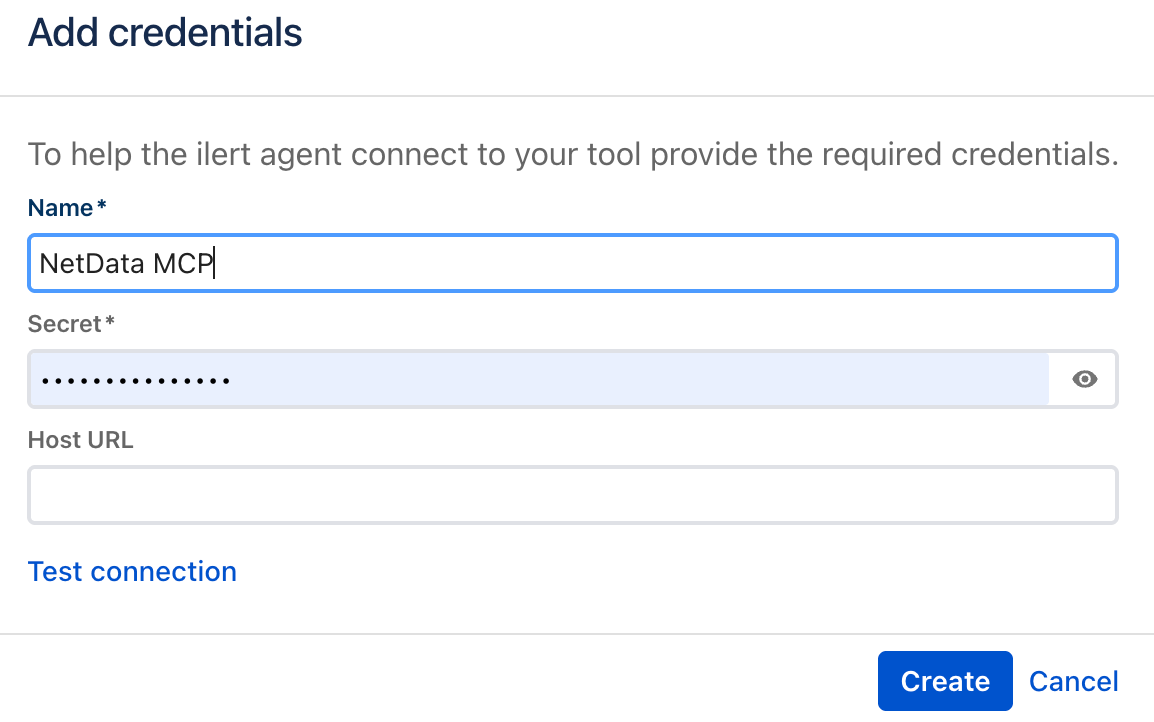
In the connection dialog that appears:

* **Select connector:** Choose "Create new connector" (or select an existing connector if you have one)
* **Type:** Select **Bearer Token** from the dropdown
* **Secret name:** Enter a name for your connector (e.g., "Netdata Production" or "Netdata Main")
* **Secret value:** Paste the Netdata Cloud API token you created earlier
* **Host URL:** Leave this field empty

<figure><img src="https://3394882078-files.gitbook.io/~/files/v0/b/gitbook-x-prod.appspot.com/o/spaces%2F-M76ygPnS4HUcFSX8ulm%2Fuploads%2Fgit-blob-47e0dbb47890866ee1118b42f3b666f615a22462%2Fnetdata-mcp-connect-dialog.png?alt=media" alt=""><figcaption></figcaption></figure>
{% endstep %}

{% step %}
Click **Connect** to complete the connection
{% endstep %}

{% step %}
After connecting, you can enable or disable specific tools needed for alert investigation, such as:

* `list_alarm_rooms` - List rooms with warning and critical alarm counts
* `list_rooms` - List every room in the space
* `list_nodes` - List nodes in a room with labels and alert counts
* `list_alerts` - List currently raised alerts
* `get_alert_details` - Get full detail for alert transitions
* `query_alert_metrics` - Return time-series data for a metric context
* `query_alert_logs` - Search log entries on a node
  {% endstep %}
  {% endstepper %}

{% hint style="info" %}
**Note:** Netdata Cloud is reached at `https://app.netdata.cloud`, which is why the **Host URL** field stays empty. Self-hosted Netdata agents that are not connected to Netdata Cloud are not supported by this integration.
{% endhint %}

The Netdata integration is now connected and ready to use for root cause analysis.


---

# Agent Instructions
This documentation is published with GitBook. GitBook is the documentation platform designed so that both humans and AI agents can read, navigate, and reason over technical content effectively. Learn more at gitbook.com.

## Querying This Documentation
If you need additional information that is not directly available in this page, you can query the documentation by asking a question.

Perform an HTTP GET request on the following URL with the `ask` and `goal` query parameters:

```
GET https://docs.ilert.com/ai-and-agents/mcp/hosted/netdata.md?ask=<question>&goal=<user_goal>
```

`ask` is the immediate question: it should be specific, self-contained, and written in natural language.
`goal` is what the user is ultimately trying to achieve, the reason they need the answer. Sharing it helps GitBook give you a better, more relevant answer. A goal is most helpful when it describes the outcome the user wants rather than restating the question. For example, with `ask=how do I create an API token`, a goal like `automate deployments from our CI pipeline` lets GitBook tailor the answer to that use case.

The response will contain a direct answer to the question and relevant excerpts and sources from the documentation.

Use this mechanism when the answer is not explicitly present in the current page, you need clarification or additional context, or you want to retrieve related documentation sections.