> For the complete documentation index, see [llms.txt](https://docs.ilert.com/llms.txt). Markdown versions of documentation pages are available by appending `.md` to page URLs; this page is available as [Markdown](https://docs.ilert.com/alerting/configure-alerting/alert-sources/using-ilert-ai-for-alert-grouping.md).
# Intelligent alert grouping with ilert AI
Group events into an open alert by what they say rather than by their alert key, choose the grouping window, and tune the similarity threshold.
AI grouping adds an incoming event to an open alert that says much the same thing, even when the two carry different alert keys. Use it for tools that report one problem in many slightly different ways, where [default grouping](/alerting/configure-alerting/alert-sources.md#event-grouping) by alert key would open a separate alert for each.
{% hint style="info" %}
**AI grouping requires the** [**Scale plan**](https://www.ilert.com/pricing) **or higher.** It does not use AI credits.
{% endhint %}
## How it decides
AI grouping only handles events that no alert key has matched: an event whose alert key matches an open alert always joins that alert first. For every other event, ilert:
1. compares the event's summary and details with the alert source's unresolved alerts reported in the last 24 hours;
2. of the alerts that meet your [similarity threshold](#similarity-threshold), picks the most recently reported, not the most similar;
3. adds the event to that alert, if the [grouping window](#grouping-window) since the alert's latest event has not passed.
Otherwise the event opens a new alert, even if an older alert that also meets the threshold is still within its window: ilert only considers the one it picked. The same happens if the comparison fails or does not answer within 10 seconds, so a problem with grouping costs you an extra alert, never a missed one.
## Turn it on
{% stepper %}
{% step %}
### Open the alert source settings
Go to **Alerting** → **Alert sources**, open the alert source, and click **Edit**.
{% endstep %}
{% step %}
### Choose AI grouping
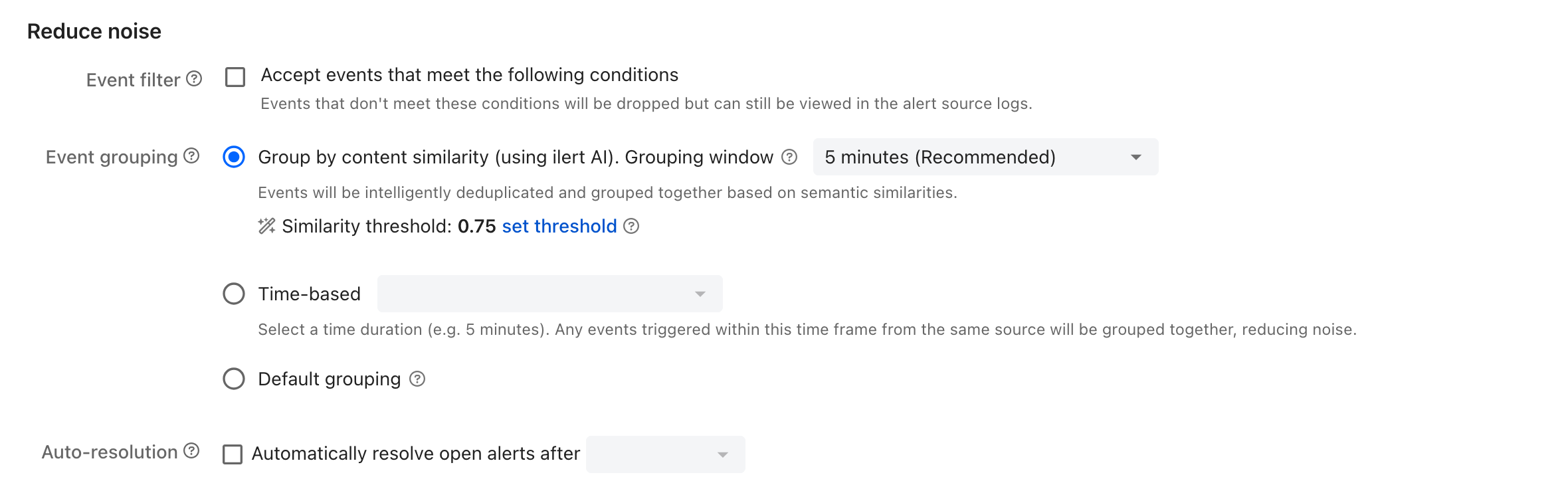
Under **Reduce noise**, next to **Event grouping**, select **Group by content similarity (using ilert AI)**.
{% endstep %}
{% step %}
### Pick the grouping window
Choose a duration from the **Grouping window** list next to the option. **5 minutes (Recommended)** is preselected.
{% endstep %}
{% step %}
### Save
Click **Save** at the bottom of the page. The similarity threshold starts at `0.75`.
{% endstep %}
{% endstepper %}
The threshold is tuned from the set threshold link under the option.
When you create an alert source, the wizard offers the same choice as **Smart grouping (AI-powered)**, with a grouping window but no threshold. The alert source is saved with a threshold of `0.75`, which you can tune afterwards.
## Grouping window
Choose from 2 minutes, **5 minutes (Recommended)**, 15 minutes, 30 minutes, 1 hour, or 2, 4, 8, 12 or 24 hours.
The window restarts with every event the alert takes in, so a steady stream of similar events keeps joining the same alert, but only until 24 hours after the alert was reported. After that, a similar event opens a new alert.
* **A short window** catches a burst: many events from one failure within a few minutes.
* **A long window** gathers a slow-moving problem into one alert. The cost is that a new problem that reads like the old one is added to the old alert instead of paging on its own.
This is the difference from [time-based grouping](/alerting/configure-alerting/alert-sources.md#event-grouping), whose window starts when the alert is created and does not move.
## Similarity threshold
The threshold sets how alike an event and an alert must be for the event to join the alert. It runs from `0.1` to `0.995` in steps of `0.005`. Lower values group more events, higher values fewer. The default is `0.75`.
To tune it, preview how the alert source's recent alerts group at a given value:
{% stepper %}
{% step %}
### Open the threshold dialog
On the alert source's **Edit** page, click **set threshold** next to **Similarity threshold**.
{% endstep %}
{% step %}
### Try a value
In the **Event similarity threshold** dialog, move the slider between **More events are grouped** and **Fewer events are grouped**. When you release it, **Preview (last 30 days)** shows how the alert source's 500 most recent alerts group at that value, each group with its **Count** and when it was **Reported on**.
{% endstep %}
{% step %}
### Save it
Click **Save** in the dialog, then **Save** at the bottom of the page. The dialog's **Save** only changes the form.
{% endstep %}
{% endstepper %}
Start at `0.75`. Lower the threshold until a group appears that mixes alerts with different causes, then raise it again by a step or two.
The preview compares the alerts' text and nothing else. It ignores the grouping window, alert keys and whether an alert was resolved, so alerts reported days apart can share a group that live grouping would have kept apart. It only covers the last 30 days, because that is how long ilert keeps alert text for comparison, and on a new or quiet alert source it is empty.
## Check that it is working
### On an alert
The strip at the top of the [alert view](/alerting/working-with-alerts/alert-view.md) shows how many **Grouped events** the alert holds, and whether it is still taking them in: **Grouping now** or **Grouping finished**. Grouping finishes when the alert is resolved, or when the grouping window after its latest event has passed.
Click **Grouped events** or **Event grouping status** to open **Event grouping details**. It lists the **Grouping type**, **Grouping start** and **Grouping stop**, and every grouped event, with a link to view them in the [alert source logs](/alerting/working-with-alerts/alert-source-logs.md).
When AI grouping has added more than one event to an alert, thumbs-up and thumbs-down icons appear next to the count. Use them to say whether the events belong together, **Alerts grouped correctly** or **Alerts not grouped correctly**. Your vote counts toward **Grouping precision**. Click the same icon again to withdraw it.
### On the alert source
Open the alert source without editing it. At the top of its **Settings** tab, **Alert grouping metrics** summarize the last **Day**, **Week** or **Month**, where a month is the last 28 days.
| Metric | What it tells you | How it is calculated |
| -------------------------- | ----------------------------------------------------------------------------------------- | ------------------------------ |
| **Reduced alert volume** | How many fewer alerts you received than events | (events − alerts) ÷ events |
| **Grouping precision** | How often responders agreed with a grouping | positive votes ÷ all votes |
| **Improved response time** | The time saved, counting 30 seconds for every event that did not open an alert of its own | (events − alerts) × 30 seconds |
Votes are counted once per event in the alert, so a vote on an alert that took in many events weighs more. Time-based grouping shows the same card without **Grouping precision**.
## How your data is handled
ilert AI grouping does not share alert data with third parties. The models and the index it uses to compare events are hosted and maintained on ilert's infrastructure.
## FAQ
### Two similar events opened two alerts. Why?
Usually one of these:
* the first alert had already been resolved;
* it was reported more than 24 hours before the second event;
* the grouping window after its latest event had passed;
* a more recently reported alert also met the threshold, so ilert picked that one, and its grouping window had passed;
* the events were less alike than the similarity threshold;
* the comparison failed or timed out, in which case ilert opens a new alert rather than risk a missed one.
### Does AI grouping replace alert keys?
No. An event whose alert key matches an open alert joins that alert before AI grouping is consulted.
### Why is there an Upgrade button next to Event grouping?
Your plan does not include AI grouping, so the option is disabled. AI grouping requires the [Scale plan](https://www.ilert.com/pricing) or higher.
---
# Agent Instructions
This documentation is published with GitBook. GitBook is the documentation platform designed so that both humans and AI agents can read, navigate, and reason over technical content effectively. Learn more at gitbook.com.
## Querying This Documentation
If you need additional information that is not directly available in this page, you can query the documentation by asking a question.
Perform an HTTP GET request on the following URL with the `ask` and `goal` query parameters:
```
GET https://docs.ilert.com/alerting/configure-alerting/alert-sources/using-ilert-ai-for-alert-grouping.md?ask=&goal=
```
`ask` is the immediate question: it should be specific, self-contained, and written in natural language.
`goal` is what the user is ultimately trying to achieve, the reason they need the answer. Sharing it helps GitBook give you a better, more relevant answer. A goal is most helpful when it describes the outcome the user wants rather than restating the question. For example, with `ask=how do I create an API token`, a goal like `automate deployments from our CI pipeline` lets GitBook tailor the answer to that use case.
The response will contain a direct answer to the question and relevant excerpts and sources from the documentation.
Use this mechanism when the answer is not explicitly present in the current page, you need clarification or additional context, or you want to retrieve related documentation sections.