> For the complete documentation index, see [llms.txt](https://docs.ilert.com/llms.txt). Markdown versions of documentation pages are available by appending `.md` to page URLs; this page is available as [Markdown](https://docs.ilert.com/alerting/configure-alerting/notification-settings.md).
# Notification settings
How ilert reaches you: the contacts it can use, the channels you have activated, and the rules that decide which one fires when.
Everything about alerting so far decides *that* you should be told something. This page decides *how* — and it is per-person, not per-account. Two people on the same escalation policy can be reached completely differently.
Click your avatar in the top right and choose **Notification settings**.
{% hint style="info" %}
An admin can open anyone's notification settings and change them. That is deliberate: a new joiner who has not set up any rules will not be paged, and someone has to be able to notice and fix that.
{% endhint %}
There are two halves, and the first has to come before the second: a rule can only use a channel you have already activated.
## Contacts and channels
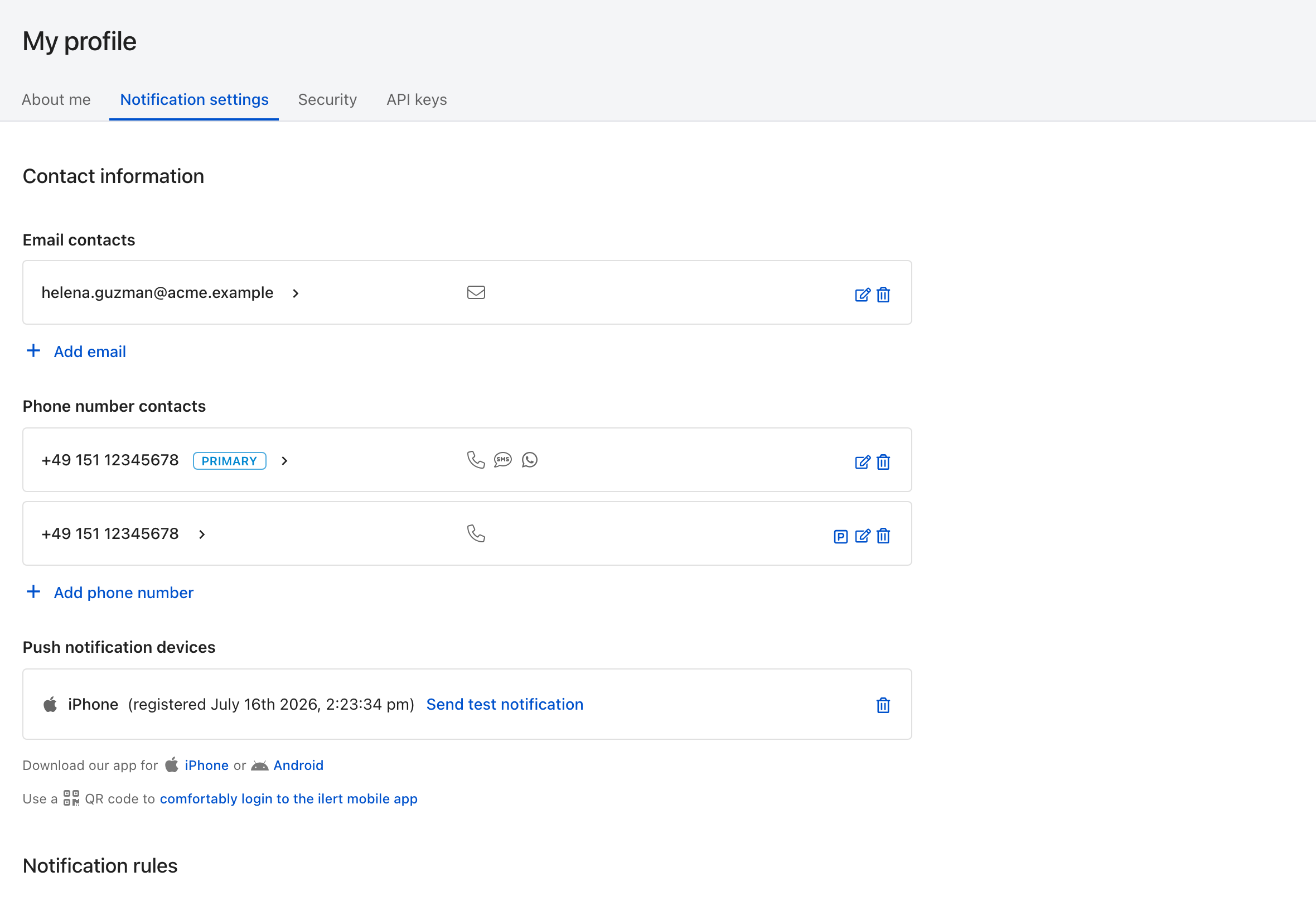
Contacts are addresses. Channels are the ways ilert can use them.
A **contact** is an address — an email address or a phone number. A **channel** is a way of reaching that address:
| Contact | Channels it can carry |
| ------------- | ----------------------------------- |
| Email address | Email |
| Phone number | SMS, Phone call, WhatsApp, Telegram |
| Mobile device | Push |
ilert creates an email contact from your login address automatically, and push devices appear on their own once you sign in to the [iOS or Android app](/mobile-app/getting-started-with-ilert-mobile-app.md) — there is a QR code on this page to make that login quick.
Add the rest with **Add email** or **Add phone number**. Each channel then has to be **activated**, which means entering a code ilert sends to it. Activating a phone number by SMS activates phone calls on it at the same time; WhatsApp and Telegram have their own flows, described as you go.
Use **Send test notification** afterwards. It is the only way to learn that a channel is genuinely working before an incident asks the question for you.
## Notification rules
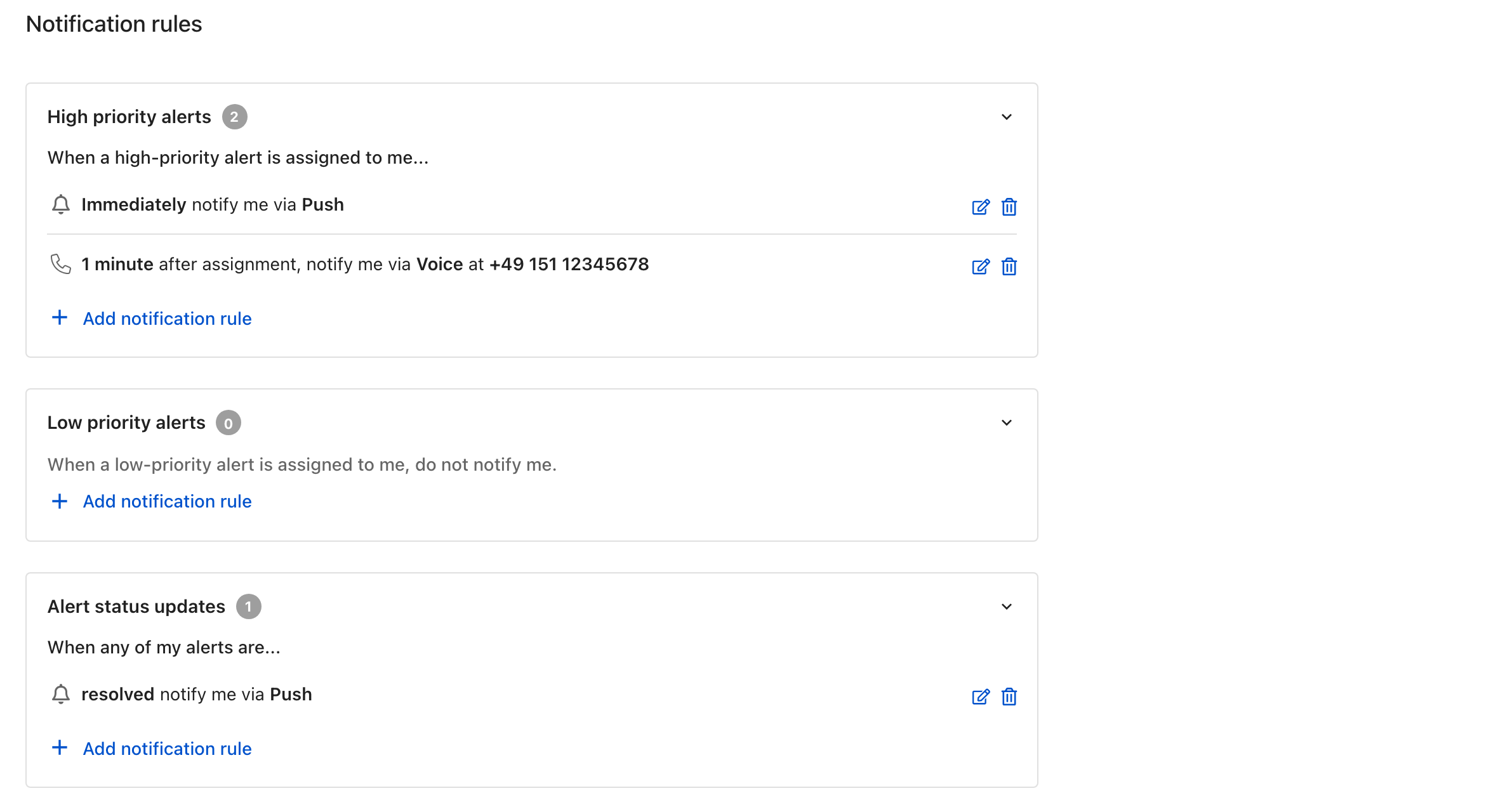
Each category is independent. An empty category means silence, not a default.
Five categories, each with its own rules:
| Category | Fires when |
| --------------------------------- | ------------------------------------------------------------------------------------------------------------------------------ |
| **High priority alerts** | A high-priority alert is assigned to you — on creation, or when you are added as a responder |
| **Low priority alerts** | The same, for [low-priority](/alerting/configure-alerting/alert-sources.md#notification-priority) alerts. These never escalate |
| **Alert status updates** | An alert already assigned to you changes status — someone else accepts it, or it is resolved |
| **Incident notifications** | You are added as a subscriber to an [incident](/incidents-and-status-pages/incidents.md) |
| **On-call reminder notification** | A set time before one of your [on-call shifts](/on-call-management-and-escalations/on-call-schedules.md) begins |
To add one, expand a category and click **Add notification rule**, then choose a contact and channel.
### Chaining rules with delays
Alert rules take a delay, which is what turns a list into an escalation of its own:
> **Immediately** notify me via **Push**\
> **1 minute** after assignment, notify me via **Voice**
The second rule only fires if you have not responded within the minute. Push first, then something that wakes you, is the pattern most on-call engineers land on.
{% hint style="warning" %}
**An empty category is not a safe default.**
**Low priority alerts** with no rules means you are never told about low-priority alerts at all. That is often what people want — but it is worth knowing you chose it, particularly if an alert source uses [support-hours-based priority](/alerting/configure-alerting/alert-sources.md#notification-priority) and quietly downgrades everything overnight.
{% endhint %}
## Responding from the notification
Notifications are two-way. You can act on an alert from the channel it reached you on, without opening ilert:
* **Acknowledge** it — escalation stops
* **Resolve** it
* **Escalate** to the next level in the policy
Reply to the SMS, press a key during the phone call, tap the push notification. Which options appear depends on the channel.
## FAQ
### I am not getting notified at all.
Check, in this order: the channel is activated (not merely added), the category has at least one rule, and the alert source's [notification priority](/alerting/configure-alerting/alert-sources.md#notification-priority) matches the category you put rules in. High-priority rules do nothing for an alert sent as low priority.
### Can I be reached differently outside working hours?
Not from this page — rules do not know the time. The time-based decision lives on the alert source, via [support hours](/alerting/configure-alerting/support-hours.md), which flips alerts between high and low priority. Give your low-priority category quieter channels and the effect is the same.
### How do I stop everything temporarily?
[Mute notifications](/alerting/configure-alerting/notification-settings/mute-notifications.md), for a holiday or a night off.
### Does a phone number have to be verified to receive calls?
Yes. Verifying by SMS covers both SMS and phone calls on that number.
### What is the primary phone number for?
It is the number ilert uses where a single number is required, and the one shown on your profile. Set it from the phone number's own menu.
---
# Agent Instructions
This documentation is published with GitBook. GitBook is the documentation platform designed so that both humans and AI agents can read, navigate, and reason over technical content effectively. Learn more at gitbook.com.
## Querying This Documentation
If you need additional information that is not directly available in this page, you can query the documentation by asking a question.
Perform an HTTP GET request on the following URL with the `ask` and `goal` query parameters:
```
GET https://docs.ilert.com/alerting/configure-alerting/notification-settings.md?ask=&goal=
```
`ask` is the immediate question: it should be specific, self-contained, and written in natural language.
`goal` is what the user is ultimately trying to achieve, the reason they need the answer. Sharing it helps GitBook give you a better, more relevant answer. A goal is most helpful when it describes the outcome the user wants rather than restating the question. For example, with `ask=how do I create an API token`, a goal like `automate deployments from our CI pipeline` lets GitBook tailor the answer to that use case.
The response will contain a direct answer to the question and relevant excerpts and sources from the documentation.
Use this mechanism when the answer is not explicitly present in the current page, you need clarification or additional context, or you want to retrieve related documentation sections.