> For the complete documentation index, see [llms.txt](https://docs.ilert.com/llms.txt). Markdown versions of documentation pages are available by appending `.md` to page URLs; this page is available as [Markdown](https://docs.ilert.com/alerting/working-with-alerts/alert-view.md).
# Alert view
One alert on one page: its status, who is responding, the events behind it, and every action you can take on it.
The alert view is the page for a single alert. It shows what the alert is about and where it stands, who is responding, which events it holds, and everything that has happened to it so far, and it is where you accept, escalate, reroute or resolve it.
To open it, go to **Alerts** in the top bar and click an alert's ID or summary.
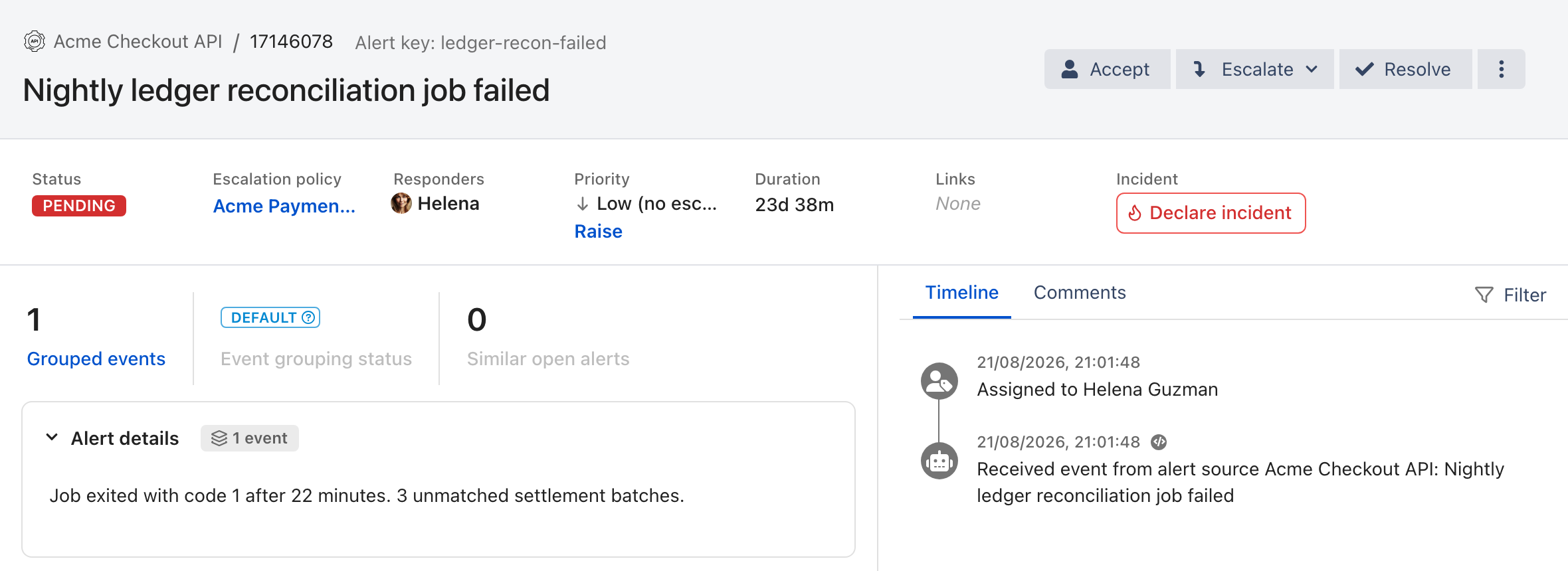
A pending alert with low priority, which is why Priority offers Raise.
## Header and actions
The header names the alert source and the alert ID, and shows the **Alert key**, which you can click to copy. You can edit the summary in place unless the alert is resolved.
| Action | What it does |
| -------------- | ----------------------------------------------------------------------------------------------------------------------------------------------------------------------------------------------------------------------------------------------------------------------------------------------------------------------------------------------- |
| **Accept** | Makes you the owner, straight away, and stops the escalation, so nobody further along the escalation policy is notified. If the alert was assigned to someone else, they hear about it through their **Alert status updates** [notification rules](/alerting/configure-alerting/notification-settings.md#notification-rules), if they have any. |
| **Escalate** | Lists the escalation levels. Choosing one escalates the alert to that level at once. Not available on a low-priority alert. |
| **Resolve** | Opens **Resolve alert**, where you can add an optional comment before you click **Resolve**. |
| **Reroute** | Moves the alert to another escalation policy. It sits in the header once you have accepted the alert, and in the three-dot menu before. |
| Three-dot menu | **Reroute**, **Link incident**, **Merge into another alert**, the alert source's manual [alert actions](/integrations/outbound-integrations.md), which run as soon as you click them, and **Add alert action** |
A **Linked** alert belongs to an incident, and its actions stay unavailable until it is unlinked. A merged alert shows a banner with a link to the alert it was merged into, where escalation and updates now happen. See [Merging alerts](/alerting/working-with-alerts/merging-alerts.md).
## Status, people and priority
| Field | Shows |
| --------------------- | ---------------------------------------------------------------------------------------------------------------------------------------------------------------------------------------------- |
| **Status** | **Pending**, **Accepted**, **Resolved**, or **Linked** once the alert is linked to an [incident](/incidents-and-status-pages/incidents/declare-an-incident.md#linking-alerts-to-an-incident) |
| **Severity** | The alert's severity, from **SEV1** to **SEV5**, when it has one |
| **Escalation policy** | The [escalation policy](/on-call-management-and-escalations/escalation-policies.md) handling the alert. Click it to open the policy. |
| **Responders** | Who is responding. Click the field to see all of them or **Add responders**, and hover a name for that person's contact details. A green ring around an avatar marks someone who has accepted. |
| **Priority** | **High (with escalation)** or **Low (no escalation)**. On a pending low-priority alert, **Raise** lifts it to high after you confirm with **Raise now**. Priority cannot be lowered. |
| **Duration** | How long the alert has been open, or was open before it was resolved. Hover it for **Reported on** and **Resolved on**. |
| **Links** | Links taken from the event, such as a dashboard or runbook. See [Alert links](/alerting/configure-alerting/alert-sources.md#alert-links). |
| **Incident** | **Declare incident**, or the incident the alert is linked to |
Accounts that still use the earlier incident communication see a **Channel** field instead of **Incident**, for creating or opening a Slack channel, Microsoft Teams channel or Google Chat space for the alert.
## Grouping and similar alerts
The strip below the header shows how the alert came together:
* **Grouped events** counts the events the alert holds. Click it for **Event grouping details**: the grouping type, when grouping started and stopped, and each event, with a link to see them in the [alert source logs](/alerting/working-with-alerts/alert-source-logs.md).
* **Event grouping status** shows **Default** for [default grouping](/alerting/configure-alerting/alert-sources.md#event-grouping), or **Grouping now** and **Grouping finished** while time-based or AI grouping adds events to the alert.
* **Similar open alerts** counts open alerts that ilert AI finds similar to this one. Click it to see them, and to merge them into this alert with **Merge all similar alerts into this alert**, which happens as soon as you click.
When [AI grouping](/alerting/configure-alerting/alert-sources/using-ilert-ai-for-alert-grouping.md) added several events, thumbs-up and thumbs-down icons next to the count let you say whether they belong together.
## Details
Cards in the main column, each of which collapses when you click its title:
| Card | Shows | Appears |
| ------------------------ | --------------------------------------------------------------------------------------------------------------------------------------------------------------------------------------------------------------------------------------------------------------------------------------------------- | ------------------------------------------------------------------------------------------- |
| **Root cause** | The conclusion of an AI investigation into the alert, with its confidence and related alerts | Once an investigation has finished |
| **Alert details** | The alert's details and its labels, as `key: value` chips. When the alert has custom details, the `` icon opens them as **Raw event data**: what your tool sent about the alert, or the `customDetails` of an [Events API](/developer-docs/api-samples/creating-alerts-through-events.md) event. | Always |
| **Related services** | The [services](/incidents-and-status-pages/services.md) the alert affects | When it affects any |
| **Relevant logs & data** | Log entries related to the alert | When there are any |
| **Deployment events** | Recent deployments that may have caused the alert | When you have connected [deployment events](/alerting/deployment-events.md) and one matches |
| **Merged alerts** | The alerts merged into this one | On an alert that others were merged into |
Accounts on the earlier incident communication also get an **Incident communication** card, for creating an incident from the alert, linking one, and posting updates.
## Timeline and comments
The panel on the right has two tabs, and ilert remembers which one you last had open.
**Timeline** records everything that happened to the alert: events received from the alert source, assignments, escalations, notifications, status changes and actions. Click **Filter** to show only some kinds of entry: **Alert source events**, **Call routing events**, **Connector events**, **Alert updates**, **Notifications** and **Incident communications**. The `` icon on an event entry opens that event's payload.
A notification that ilert held back or dropped also has an entry, saying why. See [Notification limits](/alerting/overview/understanding-event-flows.md#notification-limits).
**Comments** is where responders discuss the alert. Type a message and press Enter to send it. You can react to a message, reply in a thread, and edit or delete your own messages. Avatars at the top show who else has the alert open. Comments are closed on merged and linked alerts.
## FAQ
### Why can't I accept, escalate or resolve this alert?
The alert is linked to an incident or merged into another alert. Work on it from the incident or from the main alert, or unlink it first. Your role may also not allow changes to the alert.
### Why is Escalate unavailable?
The alert has low priority, and a low-priority alert does not escalate. Click **Raise** in the **Priority** field first.
### Why does my alert view lack a card described here?
Several cards only appear when there is something to show, such as **Deployment events** or **Related services**, or when your account uses a feature, such as an AI investigation for **Root cause**.
---
# Agent Instructions
This documentation is published with GitBook. GitBook is the documentation platform designed so that both humans and AI agents can read, navigate, and reason over technical content effectively. Learn more at gitbook.com.
## Querying This Documentation
If you need additional information that is not directly available in this page, you can query the documentation by asking a question.
Perform an HTTP GET request on the following URL with the `ask` and `goal` query parameters:
```
GET https://docs.ilert.com/alerting/working-with-alerts/alert-view.md?ask=&goal=
```
`ask` is the immediate question: it should be specific, self-contained, and written in natural language.
`goal` is what the user is ultimately trying to achieve, the reason they need the answer. Sharing it helps GitBook give you a better, more relevant answer. A goal is most helpful when it describes the outcome the user wants rather than restating the question. For example, with `ask=how do I create an API token`, a goal like `automate deployments from our CI pipeline` lets GitBook tailor the answer to that use case.
The response will contain a direct answer to the question and relevant excerpts and sources from the documentation.
Use this mechanism when the answer is not explicitly present in the current page, you need clarification or additional context, or you want to retrieve related documentation sections.