> For the complete documentation index, see [llms.txt](https://docs.ilert.com/llms.txt). Markdown versions of documentation pages are available by appending `.md` to page URLs; this page is available as [Markdown](https://docs.ilert.com/call-routing/ai-voice-agent.md).
# AI voice agent
Let an AI agent answer the phone, work out why the caller is calling, collect the details, and route the call on what it learned.
The AI voice agent answers a call in conversation rather than by menu. It greets the caller, works out which of your **intents** they are calling about, collects the details you asked for, and hands the call to the branch you built for that intent.
Where an [IVR menu](/call-routing/call-flows/ivr-menu-node.md) asks the caller to fit themselves into a numbered list, the voice agent lets them say what happened. The trade is predictability: a menu always does the same thing, and an agent decides.
The AI voice agent is part of the call routing add-on — there is nothing extra to buy. Conversations consume **AI credits** from your plan's monthly allowance, so a busy hotline costs credits in a way an [IVR menu](/call-routing/call-flows/ivr-menu-node.md) does not. Each plan includes a monthly allowance; see [pricing](https://www.ilert.com/pricing).
## Add it to a call flow
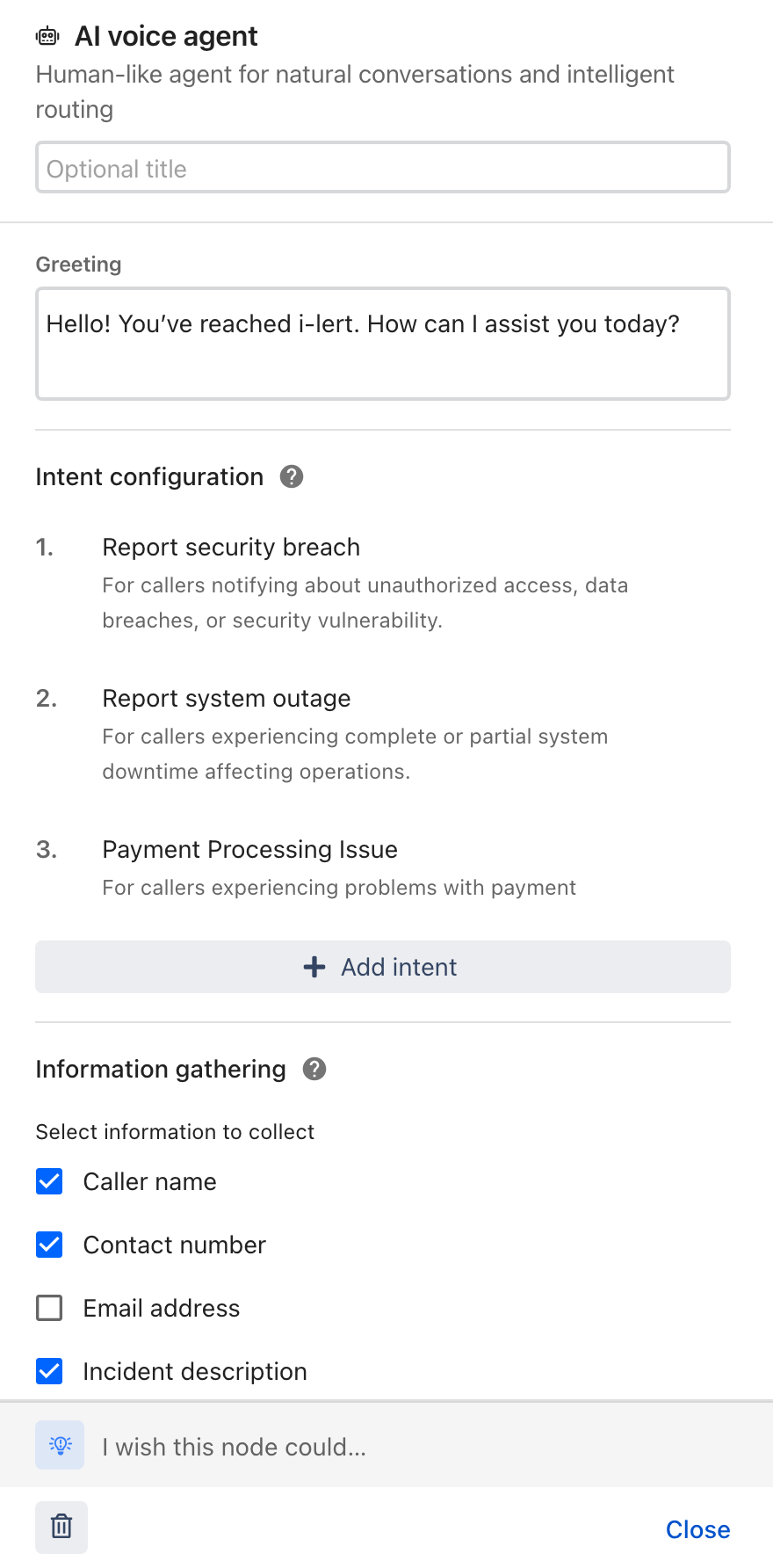
In the sidebar, go to **Call routing** → **Call flows**, open or create a flow, click any **+** on the canvas, and choose **AI voice agent**. Its configuration opens on the right.
Intents drive the branches. Everything the agent collects is decided here.
## Write the greeting
**Greeting** is the first thing the caller hears, spoken in the flow's [voice](/call-routing/call-flows.md#three-fields-above-the-canvas). Name the company and the agent, and invite the caller to say what they need:
> Welcome to Acme. This is Alex, the virtual assistant. How can I help?
**Optional title** labels the node on the canvas and is never spoken.
## Define the intents
An intent is a reason someone calls. Under **Intent configuration**, click **Add intent** and either pick a suggested one or create your own with a description.
The description is not documentation — it is what the agent matches the caller against, so write it for the machine:
| Intent | Description |
| ------------------------ | ----------------------------------------------------------------------------------------- |
| Report security breach | For callers notifying about unauthorized access, data breaches, or security vulnerability |
| Report system outage | For callers experiencing complete or partial system downtime affecting operations |
| Payment Processing Issue | For callers experiencing problems with payment |
**Each intent becomes its own branch on the canvas**, numbered in the order you added them, plus a **Fallback** branch for calls the agent cannot place. Build the fallback — it is the path every misunderstanding takes.
## Choose what the agent collects
Under **Information gathering**, tick what the agent should ask for:
* Caller name
* Contact number
* Email address
* Incident description
* Affected services
**Add custom field** adds your own: a label, a type, whether it is required, and a sample question that tells the agent how to ask for it. A customer ID or a site number belongs here.
Everything collected is carried into whatever the branch does next, so a [Create alert](/call-routing/call-flows/create-alert-node.md) node downstream raises an alert that already contains the caller's account.
## Enable knowledge enrichment
Turn on **Enable knowledge enrichment** and the agent can answer from your live ilert data instead of only taking a message. Two controls decide what it may see:
* **Select data sources** — which of your [services](/incidents-and-status-pages/services.md) and [status pages](/incidents-and-status-pages/status-pages.md) it may draw on.
* **Information types to include** — **Open incidents**, **Maintenance windows (scheduled and ongoing)**, and **Service status (even if there are no incidents)**.
The third one is worth ticking deliberately. Without it the agent can only talk about things that are currently going wrong; with it, it can also tell a caller that everything is healthy — which is often the answer they rang for.
This is what turns "I'll pass that on" into "yes, we know about that, it started at 14:20 and there is a fix going out". It also deflects calls that did not need a human at all.
## Route each intent
Back on the canvas, every intent has its own **+**. What you put there is an ordinary call flow — the agent only decides *which* branch runs:
* **Report security breach** → [Create alert](/call-routing/call-flows/create-alert-node.md) with a high-priority escalation policy override
* **Report system outage** → **Audio message** confirming it was logged → [Create alert](/call-routing/call-flows/create-alert-node.md)
* **General enquiry** → [Route call](/call-routing/call-flows/route-call-node.md) to the support schedule
* **Fallback** → **Voicemail**, so nothing is lost
## Check what it heard
Every call the agent handles is recorded in **Call routing** → **Call flow logs**, with **audio** and **text transcripts** of the conversation. When an agent routes a call somewhere surprising, the transcript shows which intent it matched and why — see [call flow logs](/call-routing/call-flows.md#see-what-a-call-actually-did).
## FAQ
### Which languages does it speak?
English and German.
### Can one agent handle several intents?
Yes, and it should. Each intent gets its own branch and its own follow-up logic; a single-intent agent is usually an [IVR menu](/call-routing/call-flows/ivr-menu-node.md) written the hard way.
### Is knowledge enrichment required?
No. Without it the agent still greets, classifies and collects — it just cannot tell the caller anything about the current state of your services.
### Does it cost extra?
Not as a purchase — it comes with the call routing add-on. It does consume **AI credits** from your plan's monthly allowance, and knowledge enrichment makes a conversation cost more than a plain one, because the agent reads your live service data to answer.
### What happens if the agent cannot work out the intent?
The call takes the **Fallback** branch. A flow with an empty fallback drops those callers, so put a voicemail or a route-to-human there.
---
# Agent Instructions
This documentation is published with GitBook. GitBook is the documentation platform designed so that both humans and AI agents can read, navigate, and reason over technical content effectively. Learn more at gitbook.com.
## Querying This Documentation
If you need additional information that is not directly available in this page, you can query the documentation by asking a question.
Perform an HTTP GET request on the following URL with the `ask` and `goal` query parameters:
```
GET https://docs.ilert.com/call-routing/ai-voice-agent.md?ask=&goal=
```
`ask` is the immediate question: it should be specific, self-contained, and written in natural language.
`goal` is what the user is ultimately trying to achieve, the reason they need the answer. Sharing it helps GitBook give you a better, more relevant answer. A goal is most helpful when it describes the outcome the user wants rather than restating the question. For example, with `ask=how do I create an API token`, a goal like `automate deployments from our CI pipeline` lets GitBook tailor the answer to that use case.
The response will contain a direct answer to the question and relevant excerpts and sources from the documentation.
Use this mechanism when the answer is not explicitly present in the current page, you need clarification or additional context, or you want to retrieve related documentation sections.