> For the complete documentation index, see [llms.txt](https://docs.ilert.com/llms.txt). Markdown versions of documentation pages are available by appending `.md` to page URLs; this page is available as [Markdown](https://docs.ilert.com/call-routing/call-flows/route-call-node.md).
# Route call node
Connect callers to a user or on-call schedule and control how targets are dialed using the Route call node in an ilert call flow.
The **Route call** node connects the caller with a live person — a user selected directly, the person currently on call in a [schedule](/on-call-management-and-escalations/on-call-schedules.md), or a [team](/users-and-access-management/teams.md). It is the core "get a human on the phone" node, and you can fine-tune how multiple targets are dialed.
## Select who to call
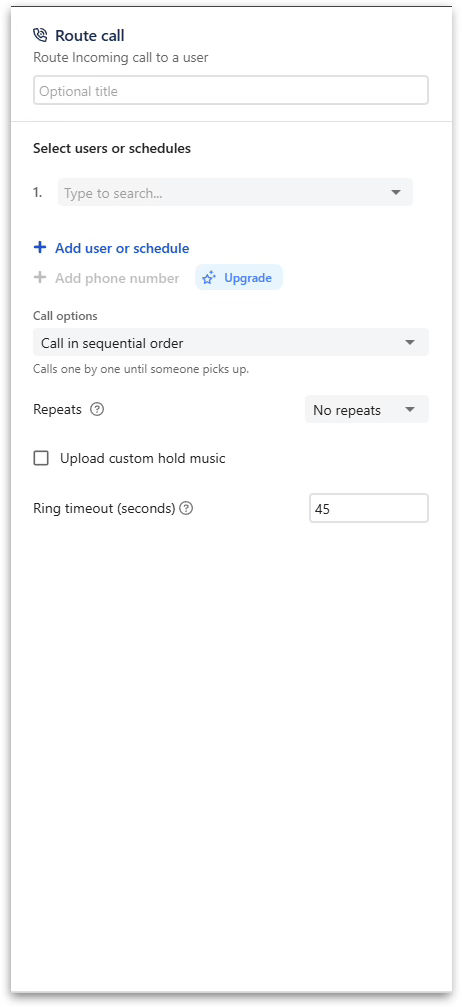
1. *(Optional)* In the **Optional title** field, enter a name to label the node on the canvas.
2. Under **Select users, schedules or teams**, add one or more targets via **Add user, schedule or team**:
* A **user** target rings that specific person.
* A **schedule** target rings whoever is currently on call in that schedule.
* A **team** target rings the team's members.
3. To ring a number that does not belong to an ilert user, use **Add phone number**. This requires the [Enterprise plan](https://www.ilert.com/pricing); on other plans the button carries an **Upgrade** prompt. External numbers cannot be combined with **Call all targets simultaneously**.
Prefer a schedule over a user wherever a rotation exists. A user target keeps ringing the same person after they hand over.
Route call node configuration
## Choose how targets are dialed
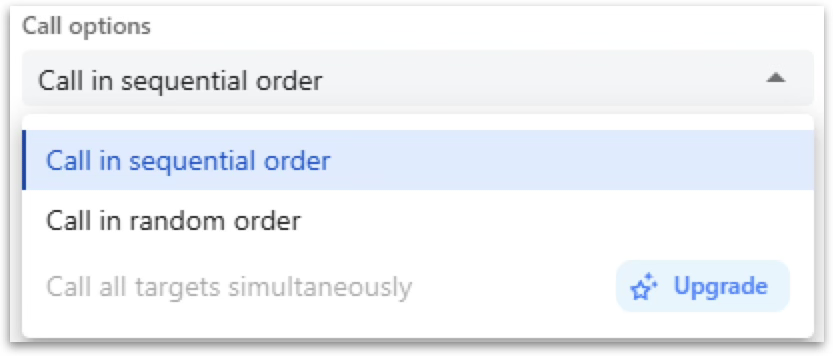
Use **Call options** to control the order in which targets are tried:
* **Call in sequential order** – targets are called one by one until someone picks up (default).
* **Call in random order** – targets are called one by one in a random order.
* **Call all targets simultaneously** – every target rings at once. Requires the [Scale plan](https://www.ilert.com/pricing) or higher; on lower plans the option is disabled and shows an **Upgrade** prompt.
Call options — sequential, random, or all targets simultaneously (Scale plan)
You can further tune the dialing behavior:
* **Repeats** – how many times to cycle through the targets if no one answers (default: `No repeats`).
* **Upload custom hold music** – replace the default hold music with your own audio file.
* **Ring timeout (seconds)** – how long each target rings before moving on to the next (default: `45`).
## Branches
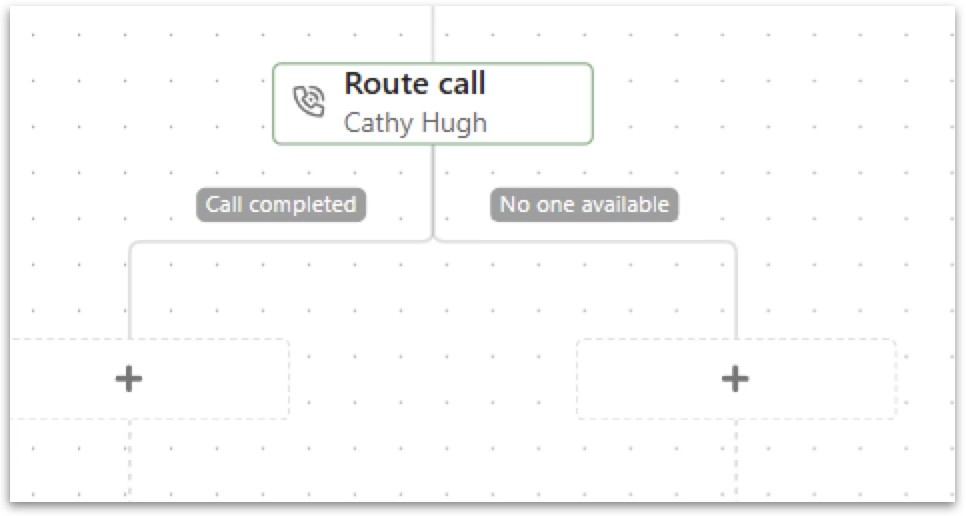
The Route call node adds two branches to the flow. Click the **+** icon under each branch to define what happens next.
| Branch | Taken when |
| ------------------ | -------------------------------------------------- |
| `Call completed` | A target answered and the call connected. |
| `No one available` | No target answered within the configured attempts. |
The node adds a "Call completed" and a "No one available" branch
## Example
A schedule-based flow with a fallback:
* **Call completed** → end the call.
* **No one available** → **Voicemail**, then [Create alert](/call-routing/call-flows/create-alert-node.md) so the on-call team is notified with the recording attached.
## FAQ
**What's the difference between a user target and a schedule target?**\
A user target always rings the same person; a schedule target rings whoever is currently on call in that [schedule](/on-call-management-and-escalations/on-call-schedules.md), so it follows your rotation automatically.
**Can I ring several people at the same time?**\
Yes — choose **Call all targets simultaneously** under Call options. It requires the [Scale plan](https://www.ilert.com/pricing) or higher.
**Can I route to a phone number that is not an ilert user?**\
Yes, via **Add phone number**, on the [Enterprise plan](https://www.ilert.com/pricing). This is how you reach an outsourced night desk or a partner's hotline — someone who answers your calls but has no ilert account. External numbers can't be combined with **Call all targets simultaneously**.
**What happens if nobody answers?**\
Once the configured attempts and repeats are exhausted, the call follows the `No one available` branch — a good place for a Voicemail and Create alert node.
---
# Agent Instructions
This documentation is published with GitBook. GitBook is the documentation platform designed so that both humans and AI agents can read, navigate, and reason over technical content effectively. Learn more at gitbook.com.
## Querying This Documentation
If you need additional information that is not directly available in this page, you can query the documentation dynamically by asking a question.
Perform an HTTP GET request on the current page URL with the `ask` query parameter, and the optional `goal` query parameter:
```
GET https://docs.ilert.com/call-routing/call-flows/route-call-node.md?ask=&goal=
```
`ask` is the immediate question: it should be specific, self-contained, and written in natural language.
`goal` is optional and describes the broader end goal you are ultimately trying to accomplish on behalf of the user. GitBook uses it to tailor the answer towards what is most useful for that goal.
The response will contain a direct answer to the question and relevant excerpts and sources from the documentation.
Use this mechanism when the answer is not explicitly present in the current page, you need clarification or additional context, or you want to retrieve related documentation sections.