> For the complete documentation index, see [llms.txt](https://docs.ilert.com/llms.txt). Markdown versions of documentation pages are available by appending `.md` to page URLs; this page is available as [Markdown](https://docs.ilert.com/chatops/google-chat/google-chat-app.md).
# Google Chat app
Install the ilert app for Google Chat, add it to a space, and connect it to your ilert account.
The ilert app for Google Chat brings alerts into your spaces, lets responders act on them there, and lets anyone in a space raise an alert or check who is on call.
Connecting is a one-time step. It needs a Google Workspace administrator to install the app, and an **Admin** or **Account owner** in ilert to link it to your account.
## Install and connect the app
{% stepper %}
{% step %}
## Install the app for your organization
A Google Workspace administrator installs the ilert app from the Google Workspace Marketplace, following [Google's own instructions](https://support.google.com/a/answer/172482). Until they do, nobody can add the app to a space.
{% endstep %}
{% step %}
## Add the app to a space
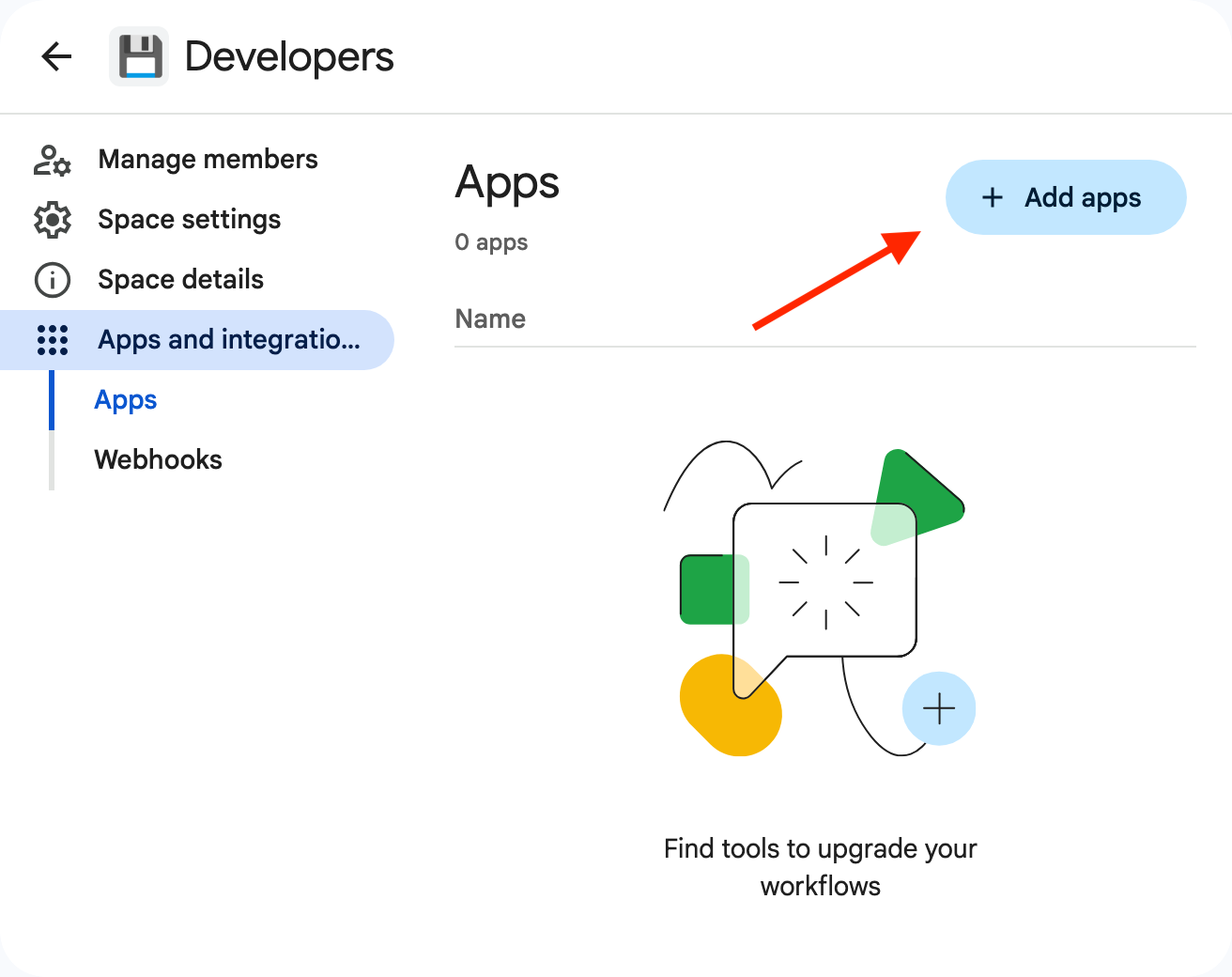
In the space you want alerts in, open the space menu and choose **Apps & integrations**, then add **ilert**.
Open the space menu, not the space settings.
Add apps is on the Apps tab of the panel.
If ilert is missing here, it has not been installed for your organization.
The app greets the space and says whether an ilert account is connected yet.
{% endstep %}
{% step %}
## Connect your ilert account
Type `/il-connect` in the space. The app replies with a card reading "⚠️ This workspace is not connected to an ilert tenant." and a **Connect** button.
{% endstep %}
{% step %}
## Sign in to ilert
Click **Connect** and sign in to ilert. The account you use must be an **Admin** or **Account owner**; anyone else is turned away with "To connect Google Chat to this account you need 'ADMIN' or 'ACCOUNT\_OWNER' privileges."
You end up on the ilert **Connectors** page, where the **Google Chat** card now reads **Connected**, and the app posts "Successfully connected to your ilert tenant." in the space you started from.
{% endstep %}
{% endstepper %}
Connecting links your whole Google Workspace to one ilert account, not just that one space. Add the app to any other space you want alerts in — no further connecting needed.
## Commands
Type these in a space the ilert app has been added to.
| Command | |
| ---------------- | ------------------------------------------------------------------------------------- |
| `/il-help` | Lists the commands |
| `/il-connect` | Connects your ilert account, or shows the connection status |
| `/il-alert` | [Raises an alert](/chatops/google-chat/create-alerts-in-google-chat.md) |
| `/il-oncall` | [Shows who is on call](/chatops/google-chat/look-up-who-is-on-call-in-google-chat.md) |
| `/il-disconnect` | Disconnects the Google Workspace from ilert, after a confirmation |
Mentioning the app with `@ilert help`, `@ilert connect`, or `@ilert status` works as well. The app answers anything else with "Unknown command."
{% hint style="info" %}
`/il-help` lists only `/il-help`, `/il-connect` and `/il-disconnect`, plus a **Status** button. `/il-alert` and `/il-oncall` are missing from it, and work in every space the app has been added to.
{% endhint %}
## Check the connection
Run `/il-connect` at any time. When the workspace is connected, the app answers "✅ This workspace is ready to receive alerts from ilert." with an **Open Connectors** button.
In ilert, go to **Settings** → **Connectors**: the **Google Chat** card under **ChatOps** reads **Connected**.
## Disconnect
{% hint style="danger" %}
**Disconnecting deletes your Google Chat alert actions.**
Both routes remove the connection **and every Google Chat alert action in the account**. Alert actions built on a [Google Chat webhook](/chatops/google-chat/incoming-webhook.md) survive, because they do not use the connection. Alert sources keep working; they simply stop publishing to Google Chat.
{% endhint %}
* **In Google Chat:** type `/il-disconnect` and confirm. Whoever confirms needs an ilert account with the **Admin** or **Account owner** role.
* **In ilert:** **Settings** → **Connectors**, then **⋯** → **Disconnect** on the **Google Chat** card. This one takes effect immediately, without asking.
To reconnect, run `/il-connect` in a space again.
## FAQ
### Can I connect more than one ilert account, or more than one Google Workspace?
No, in both directions. A Google Workspace can be connected to one ilert account, and an ilert account to one Google Workspace. A second attempt fails with "Domain already connected" or "Tenant already connected".
### The app says personal Google Accounts are not supported
The ilert app works with Google Workspace accounts only. Sign in with your work account, in a space that belongs to your organization.
### Can I use the app in a direct message?
No. The app answers "Interactions are not supported in this direct message. Please use a space for configuration." Add it to a named space instead.
### Why is the ilert app not in the search results?
It has not been installed for your organization, or not for your organizational unit. Ask your Google Workspace administrator.
### Where is the Re-authorize option?
The **⋯** menu on the **Google Chat** card offers **Re-authorize**, but it only opens a documentation page — Google Chat has no re-authorization flow. If the connection stops working, disconnect and run `/il-connect` again, remembering that disconnecting deletes the Google Chat alert actions.
### Can people without an ilert account act on alerts?
They can **Accept** and **Resolve**. Every other button — reroute, escalate, add a responder, comment, merge, raise the priority — needs an ilert user whose username or email address matches their Google address.
---
# Agent Instructions
This documentation is published with GitBook. GitBook is the documentation platform designed so that both humans and AI agents can read, navigate, and reason over technical content effectively. Learn more at gitbook.com.
## Querying This Documentation
If you need additional information that is not directly available in this page, you can query the documentation by asking a question.
Perform an HTTP GET request on the following URL with the `ask` and `goal` query parameters:
```
GET https://docs.ilert.com/chatops/google-chat/google-chat-app.md?ask=&goal=
```
`ask` is the immediate question: it should be specific, self-contained, and written in natural language.
`goal` is what the user is ultimately trying to achieve, the reason they need the answer. Sharing it helps GitBook give you a better, more relevant answer. A goal is most helpful when it describes the outcome the user wants rather than restating the question. For example, with `ask=how do I create an API token`, a goal like `automate deployments from our CI pipeline` lets GitBook tailor the answer to that use case.
The response will contain a direct answer to the question and relevant excerpts and sources from the documentation.
Use this mechanism when the answer is not explicitly present in the current page, you need clarification or additional context, or you want to retrieve related documentation sections.