> For the complete documentation index, see [llms.txt](https://docs.ilert.com/llms.txt). Markdown versions of documentation pages are available by appending `.md` to page URLs; this page is available as [Markdown](https://docs.ilert.com/chatops/google-chat/post-alerts-to-a-google-chat-space.md).
# Post alerts to a Google Chat space
Publish ilert alerts into a Google Chat space and accept, reroute, and resolve them there, without opening ilert.
{% hint style="info" %}
**Install and connect the ilert app first**
An **Admin** or **Account owner** connects the app once, as described in the [Google Chat app guide](/chatops/google-chat/google-chat-app.md). Creating the alert action below needs no admin role.
{% endhint %}
Alerts reach Google Chat through an **alert action**: a rule that publishes the alerts of one or more alert sources to one space. Create one alert action per space.
## Create a Google Chat alert action
{% stepper %}
{% step %}
## Add the ilert app to the space
A space only appears in ilert once the ilert app is a member of it, so add the app first. Only named spaces can be used — not group chats or direct messages.
{% endstep %}
{% step %}
## Start a new alert action
In the sidebar, go to **Alerting** → **Alert actions** and click **Create new alert action**.
You can also start from the alert source: open it, go to its **Alert actions** tab, and click **Create new alert action** there. The source is filled in for you.
{% endstep %}
{% step %}
## Choose Google Chat
Select the **Google Chat** tile and leave **Use webhook** unticked — [the webhook variant](/chatops/google-chat/incoming-webhook.md) posts cards without the buttons. Click **Next**.
{% endstep %}
{% step %}
## Choose the alert sources and the events to publish
Select the alert sources whose alerts should reach the space. **Trigger mode** stays on **Automatic**; Google Chat alert actions cannot be triggered by hand.
Under **Trigger events**, only **Alert created** is ticked. Add at least **Alert accepted** and **Alert resolved** — see [which events to pick](#choose-which-events-reach-google-chat). Click **Next**.
{% endstep %}
{% step %}
## Skip the conditions
**Conditional execution** narrows an alert action to alerts that meet conditions you set. Click **Next** to publish every alert of the chosen sources.
{% endstep %}
{% step %}
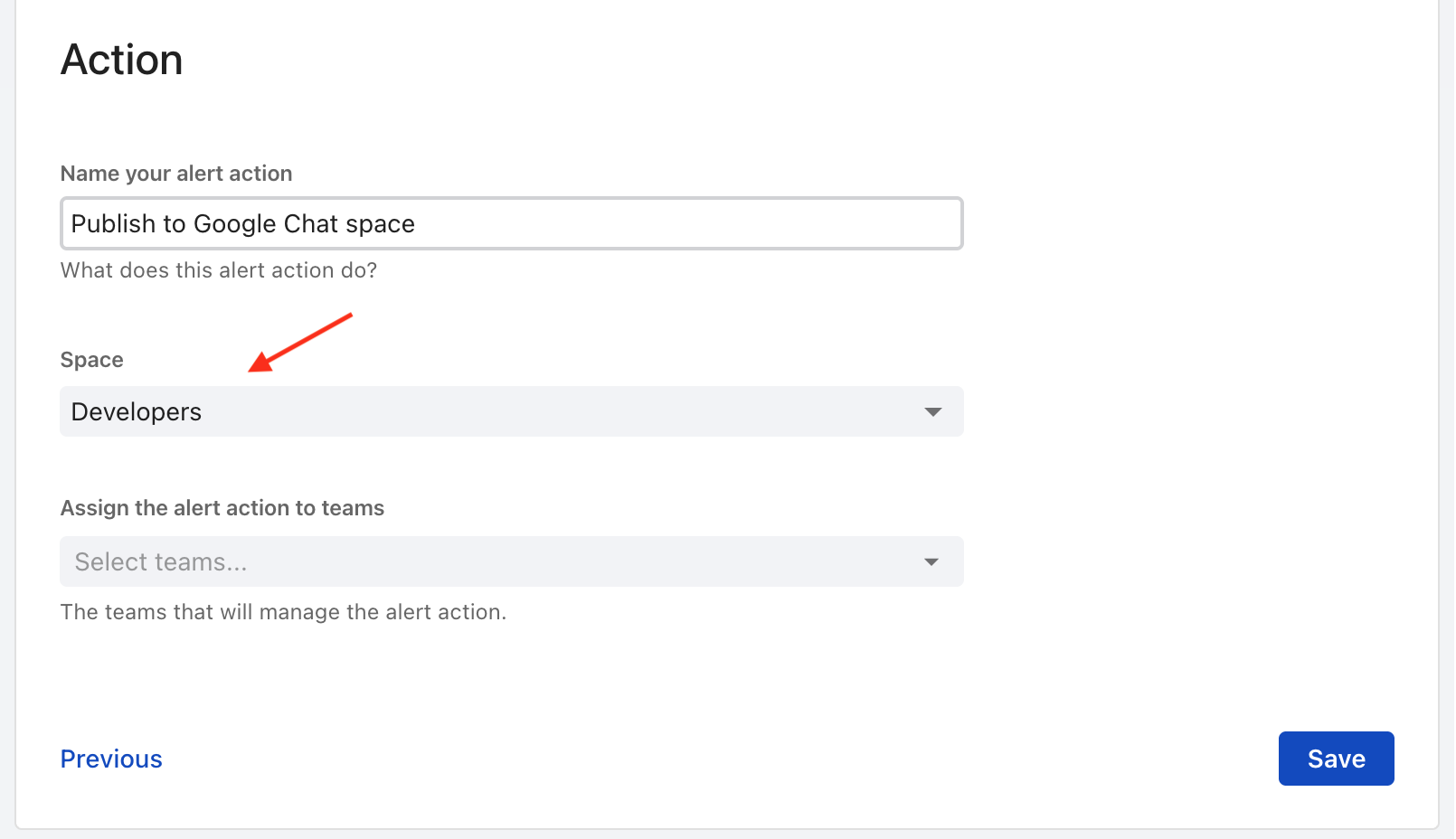
## Name it and choose the space
Give the alert action a name and pick the **Space**. Click **Save**.
Only spaces the ilert app has been added to appear in the list.
{% endstep %}
{% step %}
## Save again, then test
**Save** opens the alert action's edit page; click **Save** there to reach its detail page. Click **Test** in the top right, and a test alert appears in the space.
{% endstep %}
{% endstepper %}
## What the message looks like
The card carries the alert's status and summary as a link into ilert, the alert details, and the fields you need while triaging: **Escalation policy**, **Priority**, **Labels**, **Responders**, **Links**, **Affected services**, and the images attached to the alert.
The card is written in your ilert account's language.
### The buttons
| Button | What it does |
| ----------------------------------------------- | ------------------------------------------------------------------------------------------------ |
| **Accept** | Takes ownership of the alert, which stops the escalation |
| **Reroute** | Assigns the alert to a different escalation policy, chosen in a dialog |
| **Resolve** | Closes the alert |
| **More actions** → **Escalate** | Moves the alert to a chosen level of its escalation policy. Offered on high-priority alerts only |
| **More actions** → **Add responder** | Adds a user, or the person currently on call in a schedule |
| **More actions** → **Merge into another alert** | Merges this alert into another open alert |
| **More actions** → **Add comment** | Writes a comment on the alert |
| **More actions** → **Raise priority** | Raises a low-priority alert to high. Offered on low-priority alerts only |
Resolved alerts keep no buttons, and an alert that was merged into another shows a link to the main alert instead.
**Accept** and **Resolve** work for everyone in the space, including people without an ilert account. Every other button needs an ilert user whose username or email address matches the Google account.
## Choose which events reach Google Chat
The **Trigger events** you tick decide when the card is **updated in place**, and which short notes are posted as replies in its thread — "*Name* accepted the alert", "Alert assigned to *Name*", "Alert priority raised", and so on. An event you leave unticked leaves the card alone — including when the change was made from Google Chat itself.
{% hint style="warning" %}
With only **Alert created** ticked, the card is not updated as the alert moves on. Somebody presses **Accept** in the space, the alert is accepted in ilert, and the card still reads `[PENDING]`. Tick at least **Alert accepted** and **Alert resolved**.
{% endhint %}
**Alert comment added** behaves differently from the rest: a comment is posted as a new reply in the thread rather than folded into the card.
Some things reach the space whatever you tick. Three event types skip the filter entirely: the alert is merged into another alert, another alert is merged into it, and a log is attached to it. Pressing **Accept** or **Resolve** in the space also posts a short reply in the thread naming who pressed it, whether or not the matching event is ticked — but the card itself is only updated if that event is ticked.
To change the events later, open the alert action and click **Edit**.
## FAQ
### The space is not in the list
Three things have to be true: the ilert app is a member of the space, the space is a named space rather than a group chat or a direct message, and it belongs to the Google Workspace that is connected to this ilert account.
The list holds 150 spaces and searches by the **beginning** of the name, so type the first word. ilert keeps the list for up to ten minutes, so a space the app was removed from can linger, and one added before the app was installed can be missing until the ten minutes are up.
### Can I publish alerts from several alert sources to one space?
Yes. One alert action can carry up to 49 alert sources. ilert keeps one card per alert **per space**, so two alert actions posting to two different spaces means two cards — but two alert actions posting to the *same* space share one card, and the second one updates the first rather than posting again.
### Are comments written in the space synced to the alert?
Only through **More actions** → **Add comment**. A plain reply in the thread stays in Google Chat: ilert never turns a message in a space into an alert comment, unlike Slack and Microsoft Teams.
### Nothing arrives in the space. Where do I look?
Open the alert action and read **Alert action logs** at the bottom of its detail page: recent deliveries are listed with their status, and failures carry Google's error message. The usual cause is that the ilert app was removed from the space.
---
# Agent Instructions
This documentation is published with GitBook. GitBook is the documentation platform designed so that both humans and AI agents can read, navigate, and reason over technical content effectively. Learn more at gitbook.com.
## Querying This Documentation
If you need additional information that is not directly available in this page, you can query the documentation dynamically by asking a question.
Perform an HTTP GET request on the current page URL with the `ask` query parameter, and the optional `goal` query parameter:
```
GET https://docs.ilert.com/chatops/google-chat/post-alerts-to-a-google-chat-space.md?ask=&goal=
```
`ask` is the immediate question: it should be specific, self-contained, and written in natural language.
`goal` is optional and describes the broader end goal you are ultimately trying to accomplish on behalf of the user. GitBook uses it to tailor the answer towards what is most useful for that goal.
The response will contain a direct answer to the question and relevant excerpts and sources from the documentation.
Use this mechanism when the answer is not explicitly present in the current page, you need clarification or additional context, or you want to retrieve related documentation sections.