> For the complete documentation index, see [llms.txt](https://docs.ilert.com/llms.txt). Markdown versions of documentation pages are available by appending `.md` to page URLs; this page is available as [Markdown](https://docs.ilert.com/incidents-and-status-pages/incidents/conference-bridges.md).
# Conference bridges
Attach a live call to an incident in ilert so responders can jump straight into a conference bridge from the incident, the timeline, and their page.
A conference bridge is a live call attached to an [incident](/incidents-and-status-pages/incidents.md). It sits beside the [incident channel](/incidents-and-status-pages/incidents/incident-channels.md) in the incident view: the channel is where your team writes, the bridge is where your team talks.
The bridge belongs to the incident, so anyone who opens the incident finds the call without asking where it is—and the join link follows responders into the page they receive.
The two comms fields sit together: one channel, one call
## Start a bridge
Open the incident and select **+ Start bridge** in the **Conference bridge** field. You have two ways to create one:
{% tabs %}
{% tab title="Auto-provision" %}
ilert creates a fresh meeting for you through a connected video integration. Pick the provider and the meeting is minted and attached in one step—no switching tools, no pasting.
**Microsoft Teams** is the provider available today, and it needs an active [Microsoft Teams connector](/chatops/microsoft-teams.md). If no video integration is connected, this pane shows a notice pointing to **Settings → Connectors** instead.
The meeting is created on the calendar of whoever starts the bridge, with that person as the organizer and the incident title as the subject.
{% endtab %}
{% tab title="Paste a link" %}
Paste any meeting URL—Zoom, Google Meet, Microsoft Teams, Jitsi, or anything else—and ilert attaches it as-is. This path needs no integration at all, so it works on any account.
ilert recognizes the provider from the link's address and labels the bridge accordingly: `zoom.us` becomes Zoom, `meet.google.com` becomes Google Meet, `teams.microsoft.com` becomes Microsoft Teams. Any other address is attached as a generic bridge.
{% endtab %}
{% endtabs %}
{% hint style="info" %}
The dialog opens on **Auto-provision** when a video integration is connected, and on **Paste a link** when none is. You never need an integration to give an incident a call.
{% endhint %}
## Join the call
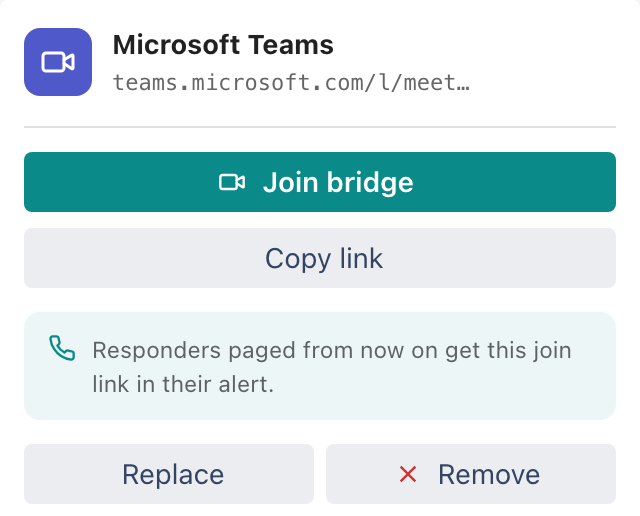
Once a bridge exists, the **Conference bridge** field becomes a chip showing the provider. Select it to open the join panel:
The join panel on a live bridge
* **Join bridge** — opens the meeting.
* **Copy link** — copies the join URL to share anywhere.
* **Dial-in numbers** — phone numbers, PINs, and the meeting ID, listed by region and marked toll or toll-free. They appear only when the bridge carries them: ilert fills them in from the provider when it provisions the meeting, and Zoom supplies them where Microsoft Teams does not. A link you paste in has no dial-in details attached.
## The join link travels with the page
Responders paged after the bridge is started get a **Join call** link in their page, so the answer to "where's the call?" is in the notification itself rather than buried in a chat channel.
{% hint style="warning" %}
The join link is included in **email** notifications. SMS, voice, and mobile push pages carry the incident title and a link back to ilert, but not the bridge link—so a responder reached only by SMS or push opens the incident to find the call.
{% endhint %}
Because it is part of the incident's coordination detail, the join link also appears in incident update emails sent to incident subscribers and to subscribers of [private status pages and private services](/incidents-and-status-pages/status-pages/public-vs-private-status-pages.md). It is never shown on a public status page or in a public status page email.
## Replace or remove a bridge
An incident has at most one conference bridge. To move the call elsewhere, use **Replace** in the join panel—this detaches the current bridge and starts the flow again.
{% hint style="info" %}
**Remove only detaches the link.** ilert never ends the remote meeting—people already on the call stay on it, and the call ends when they leave. There is deliberately no "end the meeting" action.
{% endhint %}
Starting and removing a bridge are both recorded on the [incident timeline](/incidents-and-status-pages/incidents/incident-timeline-and-comments.md), so the post-mortem shows when the call began.
## FAQ
**Who can start a bridge?**
Anyone with edit rights on the incident.
**Can I attach more than one bridge?**
No—one per incident. Use **Replace** to swap it.
**Is Zoom or Google Meet auto-provisioning available?**
Not yet. Both work as pasted links today, and are recognized and labeled correctly. Auto-provisioning for them is in progress.
**Does removing the bridge end the meeting?**
No. It only detaches the link from the incident.
---
# Agent Instructions
This documentation is published with GitBook. GitBook is the documentation platform designed so that both humans and AI agents can read, navigate, and reason over technical content effectively. Learn more at gitbook.com.
## Querying This Documentation
If you need additional information that is not directly available in this page, you can query the documentation by asking a question.
Perform an HTTP GET request on the following URL with the `ask` and `goal` query parameters:
```
GET https://docs.ilert.com/incidents-and-status-pages/incidents/conference-bridges.md?ask=&goal=
```
`ask` is the immediate question: it should be specific, self-contained, and written in natural language.
`goal` is what the user is ultimately trying to achieve, the reason they need the answer. Sharing it helps GitBook give you a better, more relevant answer. A goal is most helpful when it describes the outcome the user wants rather than restating the question. For example, with `ask=how do I create an API token`, a goal like `automate deployments from our CI pipeline` lets GitBook tailor the answer to that use case.
The response will contain a direct answer to the question and relevant excerpts and sources from the documentation.
Use this mechanism when the answer is not explicitly present in the current page, you need clarification or additional context, or you want to retrieve related documentation sections.