> For the complete documentation index, see [llms.txt](https://docs.ilert.com/llms.txt). Markdown versions of documentation pages are available by appending `.md` to page URLs; this page is available as [Markdown](https://docs.ilert.com/incidents-and-status-pages/metrics/import-metrics-from-datadog.md).
# Import metrics from Datadog
Point a metric at a Datadog query and ilert fetches the data, so a number you already watch internally can appear on your status page.
If the number already lives in Datadog, there is no reason to push it to ilert as well. A **metric data source** holds the Datadog credentials once; each [metric](/incidents-and-status-pages/metrics.md) built on it carries a query, and ilert runs that query for you.
Two steps: create the data source, then create the metric.
## Create a Datadog metric data source
### In Datadog
You need two credentials, both under **Organization Settings**:
* an **API key** — Organization Settings → **API Keys** → **New Key**
* an **Application key** — Organization Settings → **Application Keys** → **New Key**
Copy both; Datadog will not show them again. See Datadog's own [API and Application Keys](https://docs.datadoghq.com/account_management/api-app-keys/) documentation if the menus have moved.
### In ilert
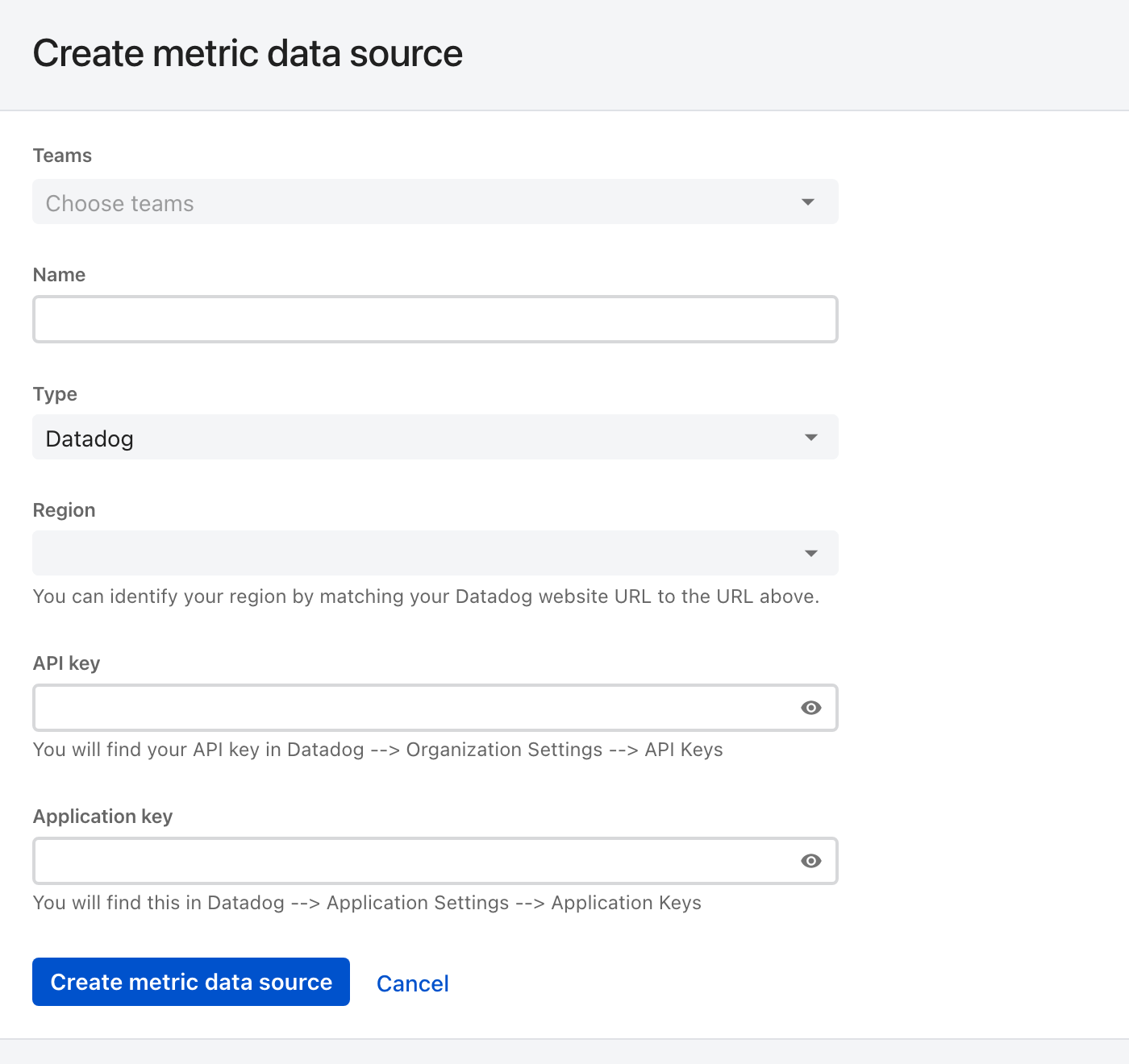
1. Go to **Status pages** in the sidebar, open the **Metric data sources** tab, and click **Create metric data source**.
2. Name it — `Datadog` is fine unless you have several.
3. Set **Type** to **Datadog**.
4. Pick your **Datadog region**, matching your Datadog website URL against the URLs listed.
5. Paste the **API key** and the **Application key**, and click **Create metric data source**.
The credentials are stored once and reused by every metric built on this data source.
## Create a metric
### In Datadog
Find the graph you want and copy its query:
1. Open the dashboard holding it and choose **Edit this widget**.
2. In the edit view, click the `` icon to switch the graph to its query source.
3. Copy the query.
{% hint style="warning" %}
**ilert metrics are not dimensional, so a grouped query cannot be imported.** A query that splits into several series has nothing to plot as one line.
Not supported:
`max:system.disk.in_use{host:app_prod} by {device}`
Supported:
`max:system.disk.in_use{host:app_prod}`
See Datadog's [anatomy of a metric query](https://docs.datadoghq.com/metrics/#anatomy-of-a-metric-query).
{% endhint %}
### In ilert
1. Go to **Status pages** → **Metrics** and click **Create metric**.
2. Choose the Datadog data source you created, and continue.
3. Give the metric a **display name** and a **display unit**, and paste the Datadog query.
4. Save to load a preview, and adjust the query until the graph looks right.
{% hint style="info" %}
**The query is fixed once the metric exists.** Get it right in the preview — afterwards, changing it means creating a new metric.
{% endhint %}
The metric now behaves like any other: [add it to a status page](/incidents-and-status-pages/metrics.md#add-a-metric-to-a-status-page), pick an [aggregation](/incidents-and-status-pages/metrics.md#aggregations), and set its [display options](/incidents-and-status-pages/metrics.md#create-a-metric).
## See also
* [Datadog inbound integration](/integrations/inbound-integrations/datadog.md) — sending Datadog alerts to ilert, which is a separate thing from importing its metrics.
---
# Agent Instructions
This documentation is published with GitBook. GitBook is the documentation platform designed so that both humans and AI agents can read, navigate, and reason over technical content effectively. Learn more at gitbook.com.
## Querying This Documentation
If you need additional information that is not directly available in this page, you can query the documentation dynamically by asking a question.
Perform an HTTP GET request on the current page URL with the `ask` query parameter, and the optional `goal` query parameter:
```
GET https://docs.ilert.com/incidents-and-status-pages/metrics/import-metrics-from-datadog.md?ask=&goal=
```
`ask` is the immediate question: it should be specific, self-contained, and written in natural language.
`goal` is optional and describes the broader end goal you are ultimately trying to accomplish on behalf of the user. GitBook uses it to tailor the answer towards what is most useful for that goal.
The response will contain a direct answer to the question and relevant excerpts and sources from the documentation.
Use this mechanism when the answer is not explicitly present in the current page, you need clarification or additional context, or you want to retrieve related documentation sections.