# Services

Users can subscribe to services that provide notifications for incidents related to specific business capabilities.

A service has any of the following **states**:

| Status            | Description                                                                                       |
| ----------------- | ------------------------------------------------------------------------------------------------- |
| Operational       | All aspects of the service are working as expected.                                               |
| Under maintenance | The service is under maintenance.                                                                 |
| Degraded          | The service is working but is impacted in a minor way, e.g. its performance is slower than usual. |
| Partial outage    | The service is not working for a subset of customers, e.g. a certain region.                      |
| Major outage      | The service is not available.                                                                     |

The status of a service can be updated during the creation of an incident or independently without an incident.

{% hint style="info" %}
**Service status changes and notifications**

Service status changes on the service itself (i.e. without an incident) will not notify subscribers about the change. Subscribers will be notified only if an incident is created with affected services to which the subscriber is notified.
{% endhint %}

## Create a service

To create a new service, navigate to the Services page, click on the **Create new service** button.

![](https://3394882078-files.gitbook.io/~/files/v0/b/gitbook-x-prod.appspot.com/o/spaces%2F-M76ygPnS4HUcFSX8ulm%2Fuploads%2FLisj2xfpfjADdCZqywd5%2FScreenshot%202022-01-08%20at%2000.00.00.png?alt=media\&token=caafb637-8d84-45e0-99c2-cdce694dab96)

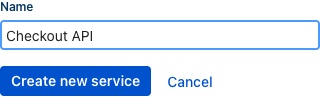
Give the service a name that is descriptive to the users of the service and click on **Create service**.

![](https://3394882078-files.gitbook.io/~/files/v0/b/gitbook-x-prod.appspot.com/o/spaces%2F-M76ygPnS4HUcFSX8ulm%2Fuploads%2FbjuUi4xdom7n8jmSJSfR%2FScreenshot%202022-01-08%20at%2000.07.12.png?alt=media\&token=9a97755b-7674-45d0-ae1c-e9a82bf55696)

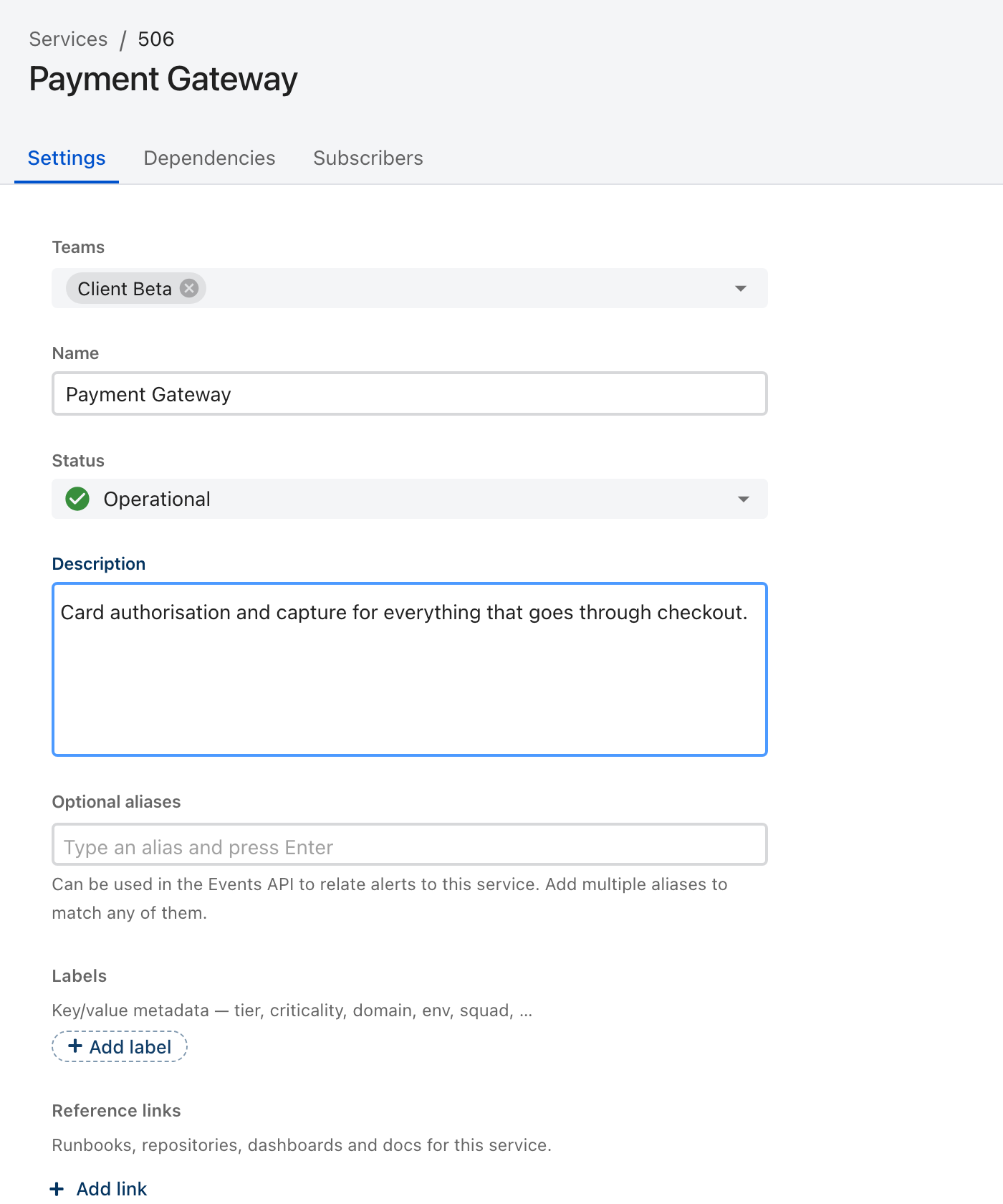
The service is now ready to be used in incidents or included in status pages.

## Automation with alert sources

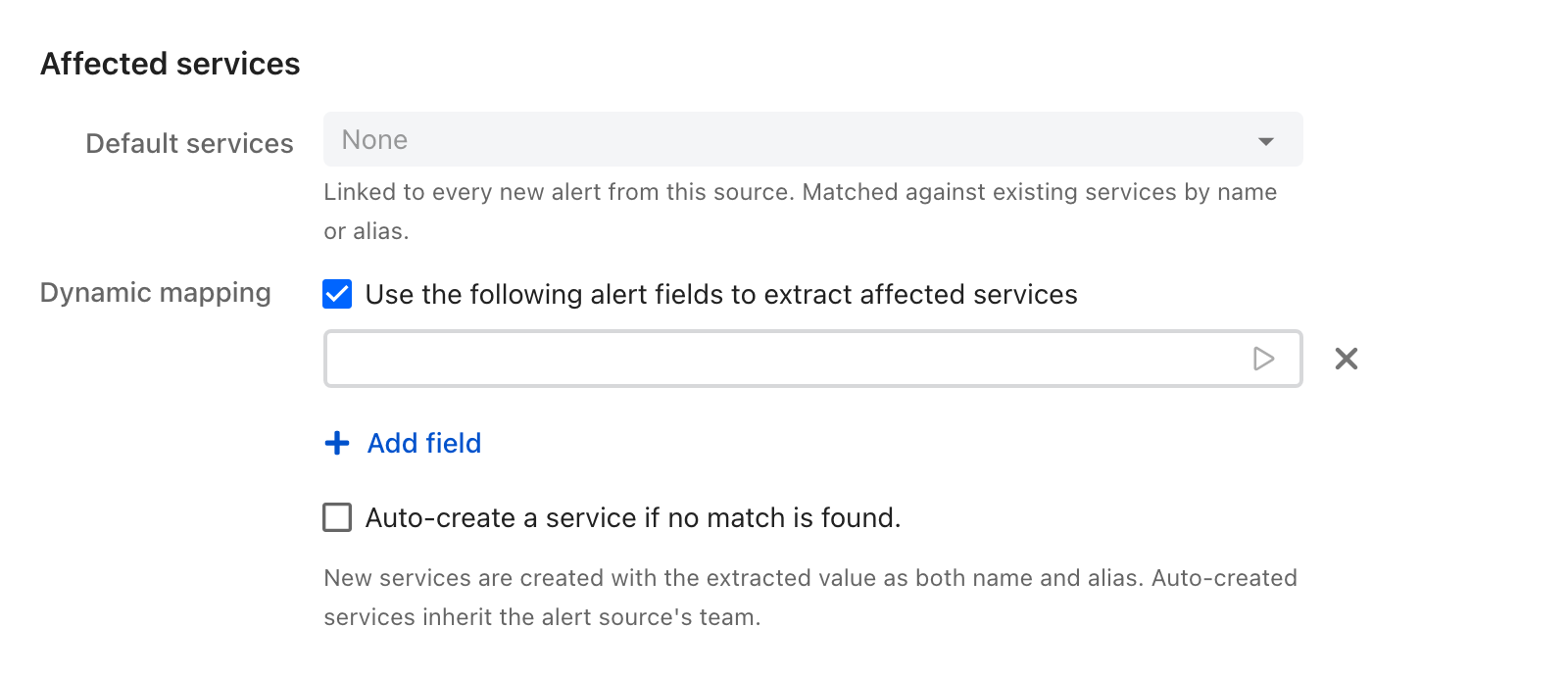
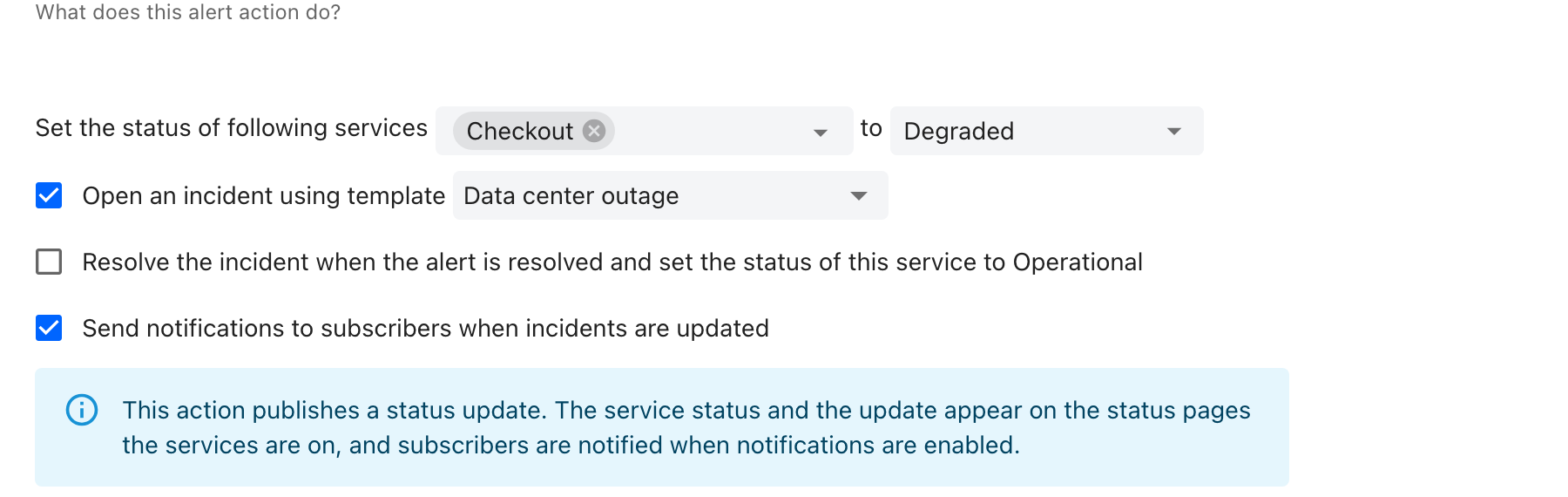
You can automatically set the status of a service and create incidents using alert actions that are triggered by your alert sources.

To configure an automation

* click on **Alert sources** -> **Alert sources** in the navigation bar

![](https://3394882078-files.gitbook.io/~/files/v0/b/gitbook-x-prod.appspot.com/o/spaces%2F-M76ygPnS4HUcFSX8ulm%2Fuploads%2F50vDbBPoBhkSpPZoYDXj%2FAlert%20sources%20\(1\).png?alt=media\&token=d2e9f581-f159-45bb-b392-b7e63e177f02)

* choose an alert source and navigate to the tab **Alert actions**
* click on **Create new alert action**
* select type ilert -> **Create incident or update status page or service**

<figure><img src="https://3394882078-files.gitbook.io/~/files/v0/b/gitbook-x-prod.appspot.com/o/spaces%2F-M76ygPnS4HUcFSX8ulm%2Fuploads%2FwLNyN0D4N4d4R0bOD6VE%2Fpika-1714725348184-2x.png?alt=media&#x26;token=c4032dee-f213-47f3-8b29-1d190f90789a" alt=""><figcaption></figcaption></figure>

Once you have configured an automation's settings, any alert that will be created on the chosen alert source will automatically set the status of your service. Make sure that the trigger mode is set to **Automatic** for the alert action to trigger automatically for every alert:

<figure><img src="https://3394882078-files.gitbook.io/~/files/v0/b/gitbook-x-prod.appspot.com/o/spaces%2F-M76ygPnS4HUcFSX8ulm%2Fuploads%2FRBkpe4m3wav6h2oLm06z%2Fpika-1714725588451-2x.png?alt=media&#x26;token=fadddf5f-6044-4cc0-89ea-968d09637e4e" alt=""><figcaption></figcaption></figure>

## Service uptime

### How to hide historical service uptime

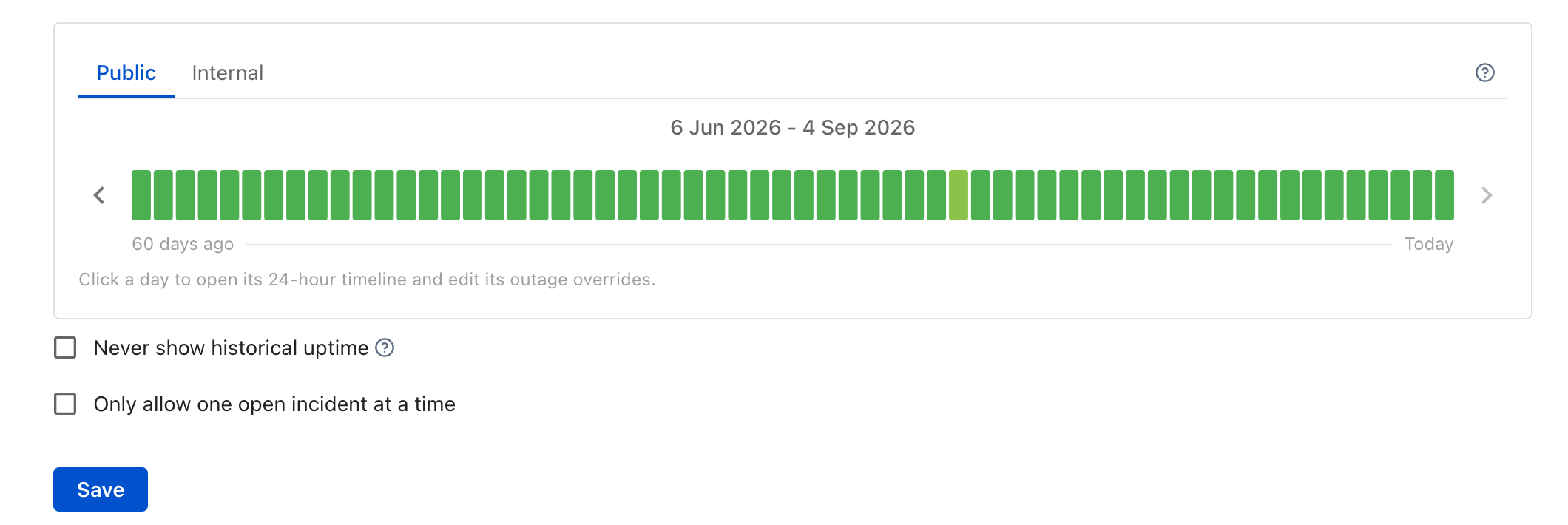
By default, a service's historical uptime is shown and you can choose to hide service uptime on the status page. If you'd like to globally disable historical uptime, thus preventing any status page from displaying the historical uptime, you can do so in the service settings:

1. Go the services page and click on the service for which you want to hide the uptime
2. In the **Settings** tab, check the option **Never show historical uptime** ![](https://3394882078-files.gitbook.io/~/files/v0/b/gitbook-x-prod.appspot.com/o/spaces%2F-M76ygPnS4HUcFSX8ulm%2Fuploads%2Frkn43hbrEMQLqhjlNKjl%2FScreenshot%202023-12-01%20at%2012.56.38.png?alt=media\&token=7dcd0d44-2834-4154-a063-7ab4e4c3e796)
3. Click on **Save**

### How is the uptime of a service calculated?

The uptime percentage of a service is calculated based on the status of the service over a given period. ilert displays the uptime over a period of up to 90 days. We consider the states **Operational**, **Degraded** and **Under maintenance** as uptime. The states **Major outage** and **Partial outage** are counted as downtime, where partial outage minutes only count 30% as much as major outages.

Over a period *t*, the uptime percentage is calculated according the following formula:

$$
u=1-{m+(p\*0.3) \above{1pt} t}
$$

where

* *u* is the uptime percentage
* *m* is the major outage in minutes
* *p* is the partial outage in minutes
* *t* is the period in minutes

**Example**: During a period of 24 hours, a service was 5 minutes in the status **Major outage** and 30 minutes in the status **Partial outage**. The uptime of the service for that 24 hours period is calculated as follows:

$$
u=1-{5+(30\*0.3) \above{1pt} 1440}=99.03 %
$$

{% hint style="info" %}
Outages that last less than a minute will be ignored and won't show up as downtime in the uptime graph.
{% endhint %}

### How is the color of each day in the uptime graph determined?

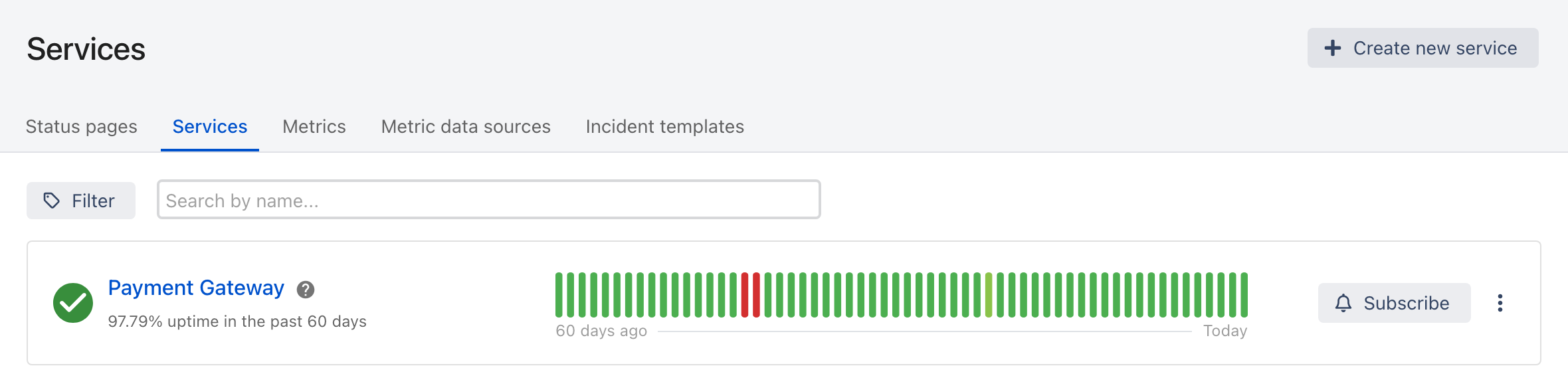
Each day in the uptime graph is color-coded based on the total outage minutes of that day. The outage minutes are calculated using the same weighted formula as above, where partial outage minutes count 30% as much as major outages.

The color ranges from **green** (no or minimal downtime) to **red** (significant downtime):

| Total outage minutes | Color        |
| -------------------- | ------------ |
| 0 minutes            | Green        |
| > 0 – 6 minutes      | Light green  |
| > 6 – 9 minutes      | Lime         |
| 9 – 12 minutes       | Light yellow |
| 12 – 25 minutes      | Yellow       |
| 25 – 30 minutes      | Light orange |
| 30 – 40 minutes      | Orange       |
| 40 – 45 minutes      | Dark orange  |
| 45 – 50 minutes      | Light red    |
| 50 – 60 minutes      | Red          |
| 60+ minutes          | Dark red     |

Days in the future as well as days before the service was created (where no uptime data exists) are displayed in **grey**.

{% hint style="info" %}
The transition from green to red is gradual — even a few minutes of outage will shift the color slightly, giving you a quick visual indication of service health at a glance.
{% endhint %}

## Add / remove subscribers to a service

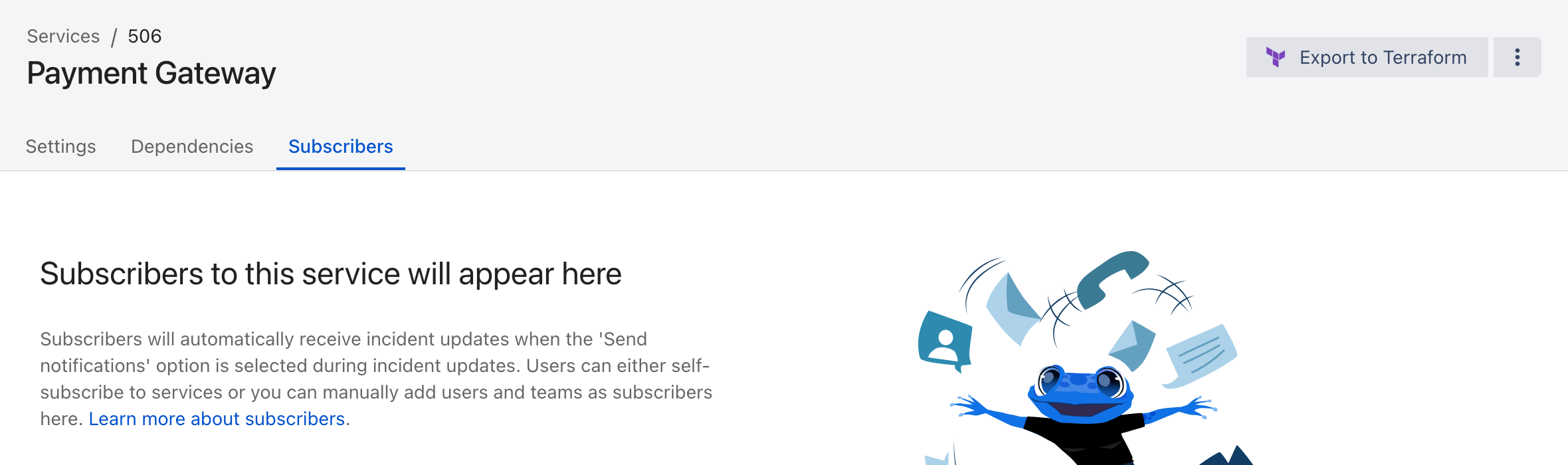
Subscribers will automatically receive incident updates when the **Send notifications** option is selected during incident updates. There are two ways to subscribe users to a service

1. Users can add / remove themselves as subscribers
2. A user with Responder privileges can manually subscribe users or entire teams to a service

To self-subscribe to a service, go the Services page and click on **Subscribe.** To unsubscribe, click on the **Unsubscribe** button.

![](https://3394882078-files.gitbook.io/~/files/v0/b/gitbook-x-prod.appspot.com/o/spaces%2F-M76ygPnS4HUcFSX8ulm%2Fuploads%2F1LZBm7GBsQojJaPM9l8a%2FScreenshot%202022-01-08%20at%2000.14.58.png?alt=media\&token=adbe1405-53a0-4e66-b032-01e5d3601b6b)

{% hint style="info" %}
**Team subscriptions**

Note that an unsubscription takes precedence over a team subscription. That is, if you are subscribed to a service, because you are a member of a team that is subscribed to the service, and if you unsubscribe yourself from that service, you won't receive any further updates from that service.
{% endhint %}

To add or remove users and teams as subscribers from a service, go to the **Subscribers** tab from the service.

![](https://3394882078-files.gitbook.io/~/files/v0/b/gitbook-x-prod.appspot.com/o/spaces%2F-M76ygPnS4HUcFSX8ulm%2Fuploads%2Fs5DX6TZ3w5K8MvNIGpfL%2FScreenshot%202022-01-08%20at%2000.18.44.png?alt=media\&token=342e4c4a-dbfb-4ee6-82a5-47610d78b28f)


---

# Agent Instructions: Querying This Documentation

If you need additional information that is not directly available in this page, you can query the documentation dynamically by asking a question.

Perform an HTTP GET request on the current page URL with the `ask` query parameter:

```
GET https://docs.ilert.com/incidents-and-status-pages/services.md?ask=<question>
```

The question should be specific, self-contained, and written in natural language.
The response will contain a direct answer to the question and relevant excerpts and sources from the documentation.

Use this mechanism when the answer is not explicitly present in the current page, you need clarification or additional context, or you want to retrieve related documentation sections.