> For the complete documentation index, see [llms.txt](https://docs.ilert.com/llms.txt). Markdown versions of documentation pages are available by appending `.md` to page URLs; this page is available as [Markdown](https://docs.ilert.com/incidents-and-status-pages/status-pages/status-page-layout.md).

# Status page layout

Customize your status page's appearance, organize services into groups, select embed options for your website, and use the announcement bar to share important updates.

This article will guide you in further customizing your status page. Now that you've completed the key configurations, you can explore various design options to make your page reflect your brand.

## Status page appearance

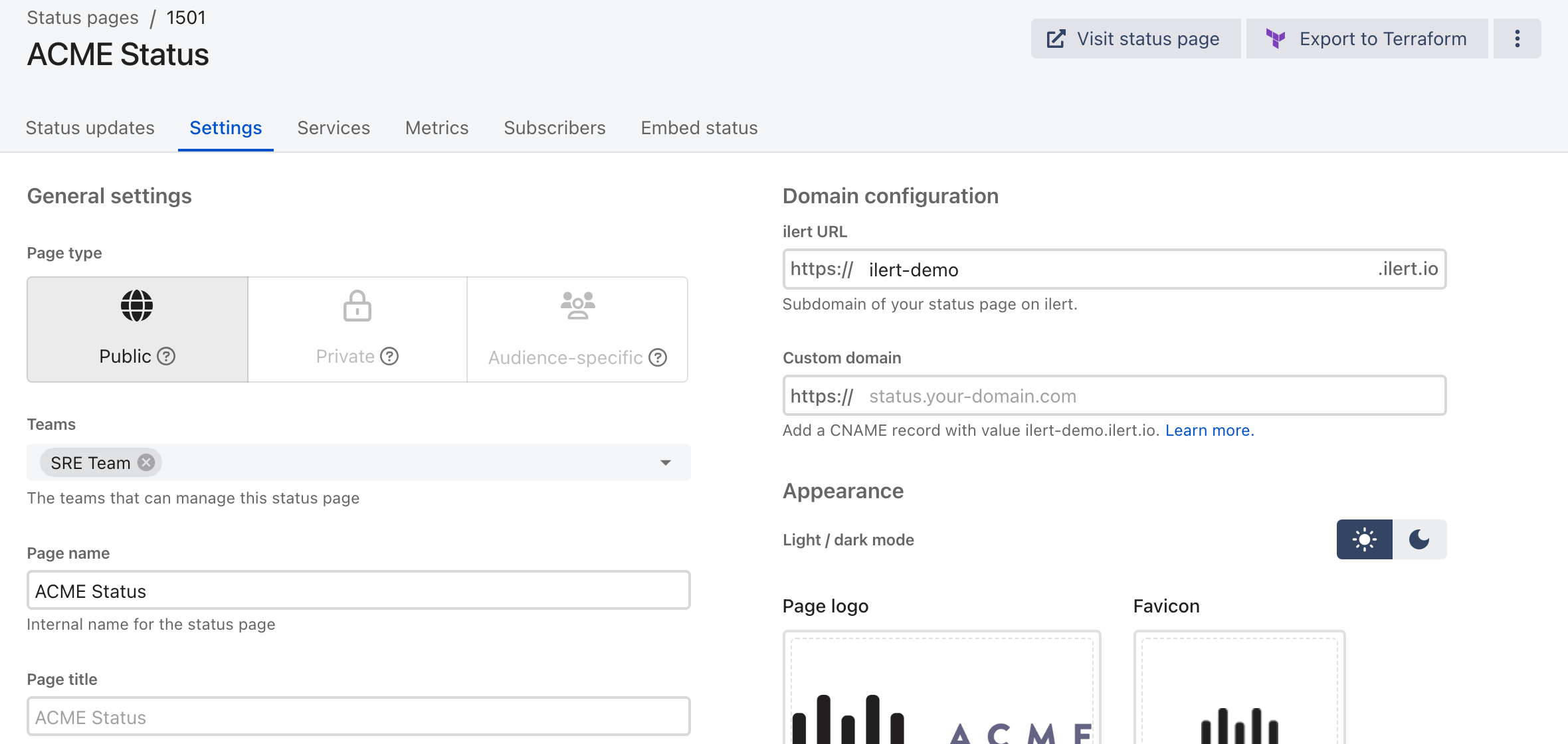
Everything about how the page looks lives on its **Settings** tab, alongside the page type and the domain.

<figure><img src="https://3394882078-files.gitbook.io/~/files/v0/b/gitbook-x-prod.appspot.com/o/spaces%2F-M76ygPnS4HUcFSX8ulm%2Fuploads%2Fgit-blob-b819bd68a52f4cfaeebbc0e85306fcfc2b119f41%2Fstatus-page-appearance.png?alt=media" alt="The Settings tab of an ilert status page, with page type, teams, page name and page title on the left and domain configuration and appearance — light/dark mode, page logo and favicon — on the right."><figcaption><p><strong>Page title</strong> is what readers see; <strong>Page name</strong> is only how you find the page in ilert.</p></figcaption></figure>

Choose light or dark mode, and upload a logo and a favicon.

{% hint style="info" %}
**Note:** If you are using a private (including audience-specific) status page, your logotype, name of the page, and favicon will also be visible on the login page of your status page.
{% endhint %}

## Status page layout options

### Service groups: How to group related services together

Service groups let you group related services together on a status page. This allows users to quickly see the overall health of a system and identify any issues that may be impacting multiple services.

Below is an example service group from our status page. When the service group is collapsed, it shows a combined status and uptime graph. When the service group is expanded, it shows the status and uptime graph for each service individually. The overall status of multiple services in a service group is calculated by taking the status of the service with the highest impact. Similarly, the uptime percentage and outage graph is calculated by combining the outages of all services.

![](https://3394882078-files.gitbook.io/~/files/v0/b/gitbook-x-prod.appspot.com/o/spaces%2F-M76ygPnS4HUcFSX8ulm%2Fuploads%2F2XLkamQElC7ZUvHctxsd%2Fimage-14.png?alt=media\&token=6a0b3604-9c76-4431-81c9-45dcdffbf07e) ![](https://3394882078-files.gitbook.io/~/files/v0/b/gitbook-x-prod.appspot.com/o/spaces%2F-M76ygPnS4HUcFSX8ulm%2Fuploads%2FoCkICqGtTTSG9HQkKlmC%2Fimage-15.png?alt=media\&token=7e932b8f-e1a4-472f-832c-ba70e9864ab9)

To create a service group

1. Navigate to the status page for which you want to create a service group
2. Go to the **Services** tab.
3. Click on the **Create service group** button and give it a name.
4. Add services to the group as you create it, or later by dragging them in.

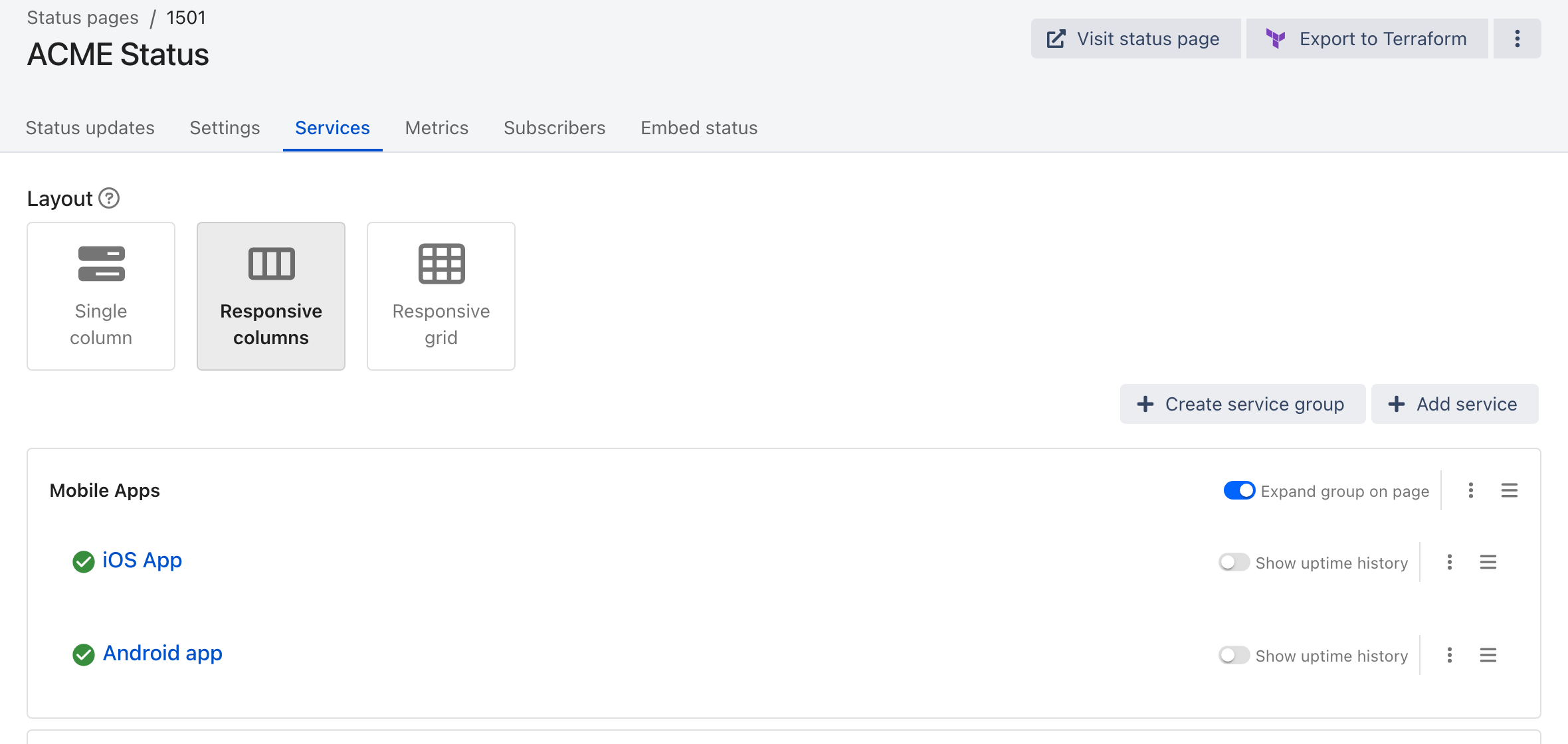
Two toggles decide how a group and its services appear:

* **Expand group on page** — the group starts expanded rather than collapsed.
* **Show uptime history** — the service shows its historical uptime and SLA.

<figure><img src="https://3394882078-files.gitbook.io/~/files/v0/b/gitbook-x-prod.appspot.com/o/spaces%2F-M76ygPnS4HUcFSX8ulm%2Fuploads%2Fgit-blob-7df8dffba87596d515d99814be2df0e5663f1623%2Fstatus-page-services-tab.png?alt=media" alt="The Services tab of an ilert status page, showing the three layout choices, the Create service group and Add service buttons, and a Mobile Apps group with an Expand group on page toggle and per-service Show uptime history toggles."><figcaption><p>Layout, groups and their toggles are all on one tab.</p></figcaption></figure>

### Services layout: single and responsive columns + responsive grid

You can choose between two layout options for displaying services on your status page.

* **A single column** presents items in a vertical list.
* **Responsive columns** arrange items in a grid with up to 3 columns that adapt to your screen size.
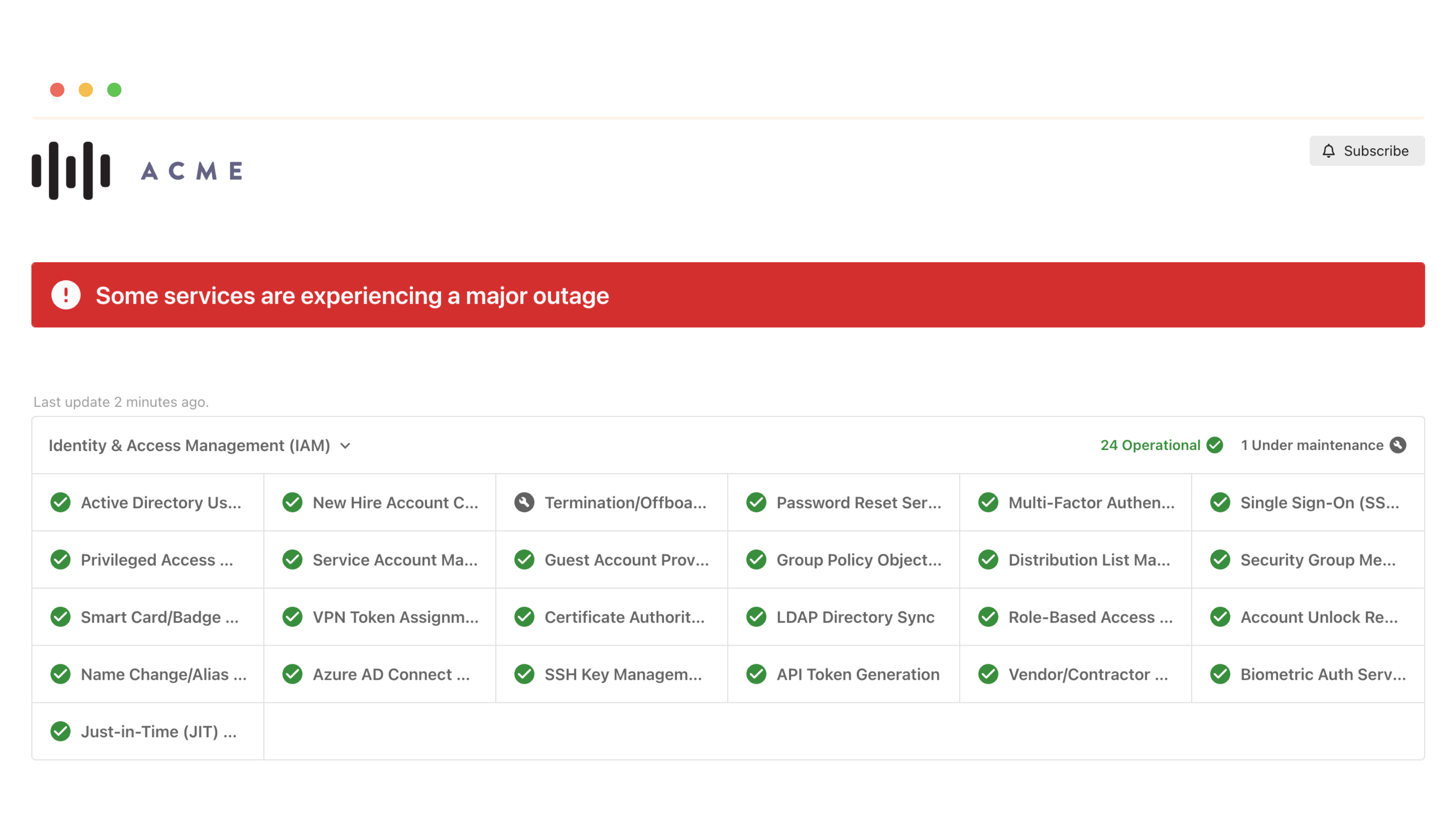
* **Responsive grid** introduces a high-density grid optimized for large service catalogs.

|                                                                                                                                        Single column                                                                                                                                        |                                                                                                                                      Responsive columns                                                                                                                                     | Responsive grid                                                                                                                                                                                                                                                           |
| :-----------------------------------------------------------------------------------------------------------------------------------------------------------------------------------------------------------------------------------------------------------------------------------------: | :-----------------------------------------------------------------------------------------------------------------------------------------------------------------------------------------------------------------------------------------------------------------------------------------: | ------------------------------------------------------------------------------------------------------------------------------------------------------------------------------------------------------------------------------------------------------------------------- |
| <img src="https://3394882078-files.gitbook.io/~/files/v0/b/gitbook-x-prod.appspot.com/o/spaces%2F-M76ygPnS4HUcFSX8ulm%2Fuploads%2FHANZHexTHmdVIlUrGS8p%2FScreenshot%202023-12-01%20at%2012.10.25.png?alt=media&amp;token=17865ee9-56cd-4121-8e07-ad61e64790a6" alt="" data-size="original"> | <img src="https://3394882078-files.gitbook.io/~/files/v0/b/gitbook-x-prod.appspot.com/o/spaces%2F-M76ygPnS4HUcFSX8ulm%2Fuploads%2FKFX6fQZpaGX5Xcvl0VtG%2FScreenshot%202023-12-01%20at%2012.08.31.png?alt=media&amp;token=11ec43d5-2977-43cf-8b7e-61a722cd6391" alt="" data-size="original"> | <img src="https://3394882078-files.gitbook.io/~/files/v0/b/gitbook-x-prod.appspot.com/o/spaces%2F-M76ygPnS4HUcFSX8ulm%2Fuploads%2FkO0XDsXcVHPDqfJHameN%2Fpika-1766075749147-2x.png?alt=media&amp;token=7dde256f-40bc-485a-b80e-965b98e38111" alt="" data-size="original"> |

To change it, open the status page, go to its **Services** tab, pick a layout, and save.

## Embed the status of your status page on your website <a href="#faq" id="faq"></a>

Communicate incidents to your users right where they are using your service: on your website or web app.

To embed the status of your status page in your web app or website, you can use ilert's floating status widget or status badge. The status page widget will only be visible if there is an ongoing incident or scheduled maintenance and will be hidden if all services are operating normally. The status widget will always be visible and show the overall status of your status page.

{% hint style="info" %}
Your users don't have to update a page to see the changes in the widget. The **widget refresh is automatic**, so your clients will notice the updates as soon as they occur.
{% endhint %}

To configure your status page floating widget:

1. Go to **Status Pages**
2. Click on the Status Page where you would like to configure the widget
3. Click on the **Embed status** tab
4. Select **Floating widget**
5. Configure your widget by choosing your colors and widget position, copy the generated snippet code.
6. Paste the generated code snippet from step 4 into the `<head>` section of your target page.
7. Test the widget by creating a test maintenance window or incident.

<figure><img src="https://3394882078-files.gitbook.io/~/files/v0/b/gitbook-x-prod.appspot.com/o/spaces%2F-M76ygPnS4HUcFSX8ulm%2Fuploads%2FxY07RNOuwGD2ggEWXsLS%2Fimage.png?alt=media&amp;token=ce88fe34-f701-4958-b3a0-9d75cbe073fa" alt=""><figcaption></figcaption></figure>

{% hint style="info" %}
**Making changes to your widget**

Changes to your status page will not propagate automatically to your pages. You need to update the code snippet in your target for any changes to take effect.
{% endhint %}

The localization of the widget will be automatically detected using the viewer's browser language. If you want to set the **language** to a fixed setting, you can optionally provide the query parameter `&lng=en` or `&lng=de` to the scripts already existing parameters.

## Announcement Bar <a href="#faq" id="faq"></a>

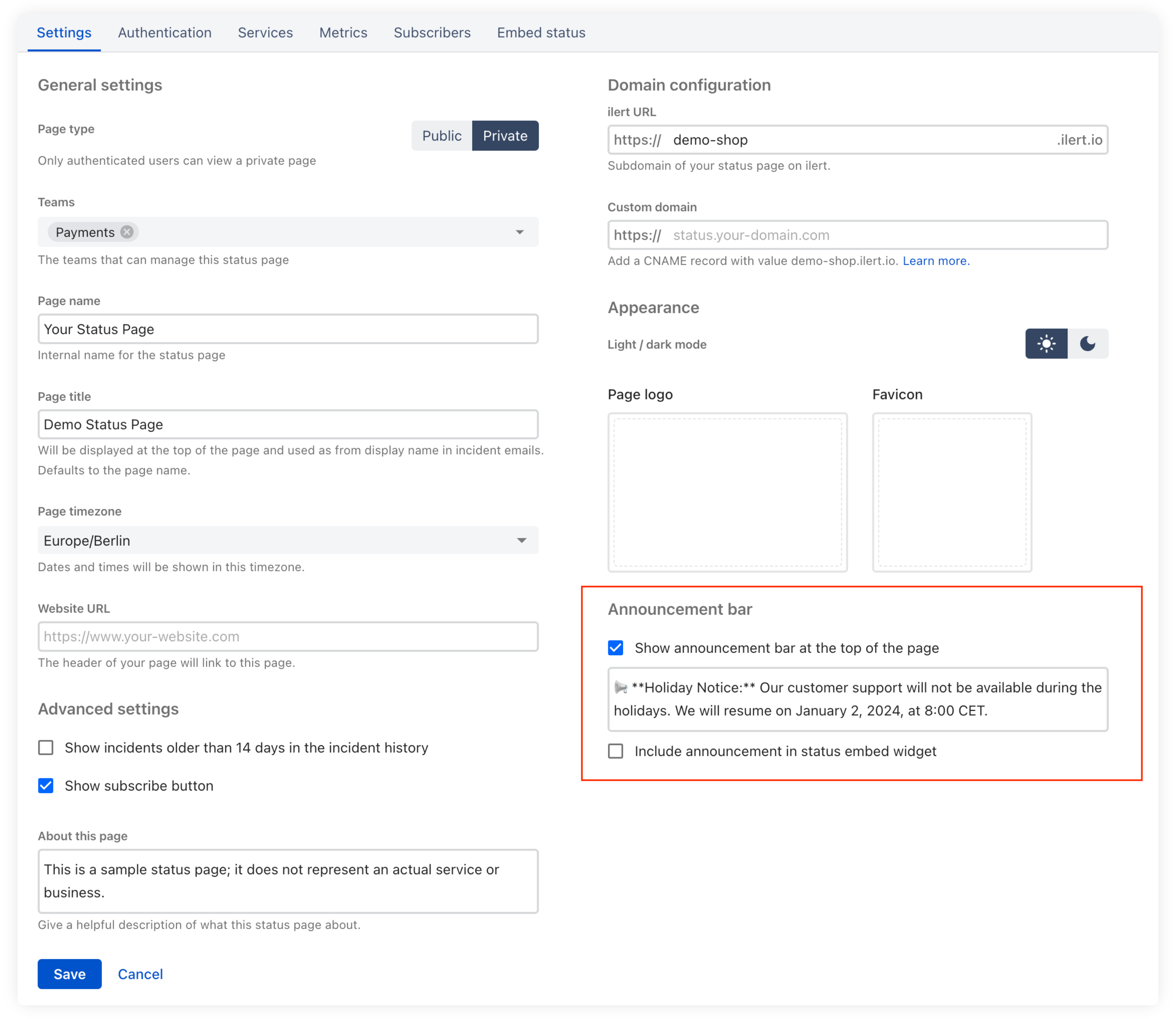
Share essential announcements via your status page. Enable an announcement bar in the status page settings. To make your message more engaging, use simple Markdown and emojis. The announcement bar will be shown at the top of your status page.

<figure><img src="https://3394882078-files.gitbook.io/~/files/v0/b/gitbook-x-prod.appspot.com/o/spaces%2F-M76ygPnS4HUcFSX8ulm%2Fuploads%2FUjSbKmyJ9DIhHnjxcT61%2Fannouncement%20bar%20for%20the%20docs.png?alt=media&amp;token=2c921281-50d9-49ec-a479-eeb3005c6552" alt=""><figcaption><p>Announcement bar settings</p></figcaption></figure>

<figure><img src="https://3394882078-files.gitbook.io/~/files/v0/b/gitbook-x-prod.appspot.com/o/spaces%2F-M76ygPnS4HUcFSX8ulm%2Fuploads%2FkZfW4u7O4OGOy9VSCE45%2Fpika-1722854018521-2x.png?alt=media&amp;token=a317b775-078d-4cdb-95fc-4d51637d70ce" alt=""><figcaption><p>Example of the announcement bar</p></figcaption></figure>


---

# Agent Instructions
This documentation is published with GitBook. GitBook is the documentation platform designed so that both humans and AI agents can read, navigate, and reason over technical content effectively. Learn more at gitbook.com.

## Querying This Documentation
If you need additional information that is not directly available in this page, you can query the documentation dynamically by asking a question.

Perform an HTTP GET request on the current page URL with the `ask` query parameter, and the optional `goal` query parameter:

```
GET https://docs.ilert.com/incidents-and-status-pages/status-pages/status-page-layout.md?ask=<question>&goal=<endgoal>
```

`ask` is the immediate question: it should be specific, self-contained, and written in natural language.
`goal` is optional and describes the broader end goal you are ultimately trying to accomplish on behalf of the user. GitBook uses it to tailor the answer towards what is most useful for that goal.

The response will contain a direct answer to the question and relevant excerpts and sources from the documentation.

Use this mechanism when the answer is not explicitly present in the current page, you need clarification or additional context, or you want to retrieve related documentation sections.