> For the complete documentation index, see [llms.txt](https://docs.ilert.com/llms.txt). Markdown versions of documentation pages are available by appending `.md` to page URLs; this page is available as [Markdown](https://docs.ilert.com/incidents-and-status-pages/status-updates/incident-templates.md).
# Incident templates
Saved wording you can apply when posting a status update, declaring an incident, or scheduling a maintenance window.
A template holds a title, a body, and some defaults, so nobody has to write "we are investigating elevated error rates" from scratch at three in the morning. Applying one fills the fields in; you can still change anything before you publish.
Despite the name, a template is not only for [status updates](/incidents-and-status-pages/status-updates.md). One template can serve three places at once.
## Create a template
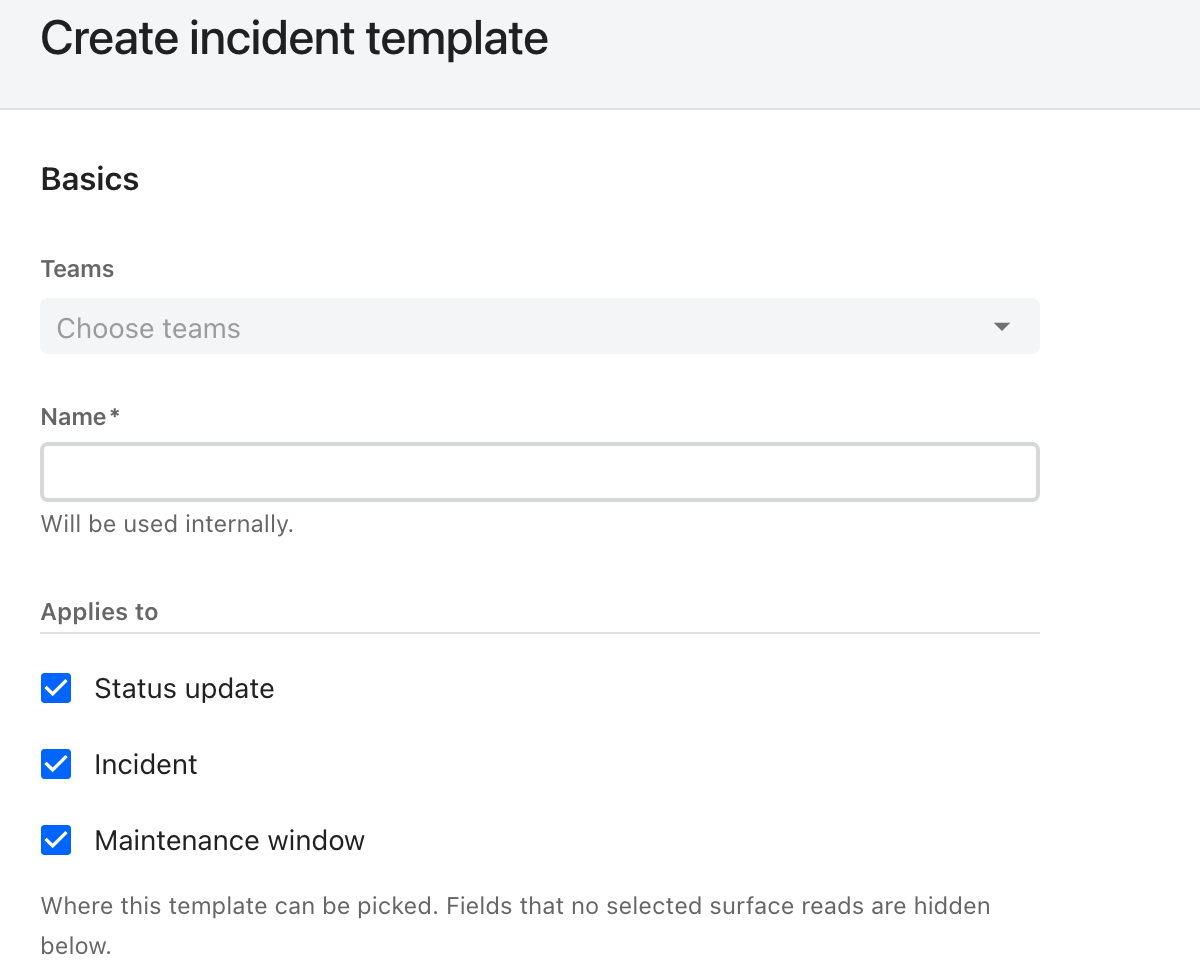
Go to **Incident templates** in the sidebar and click **Create new template**.
Applies to decides the rest of the form: fields that none of the ticked surfaces reads are hidden.
| Field | What it does |
| ---------------------- | ----------------------------------------------------------------------------------------------------------------------------------------------------- |
| **Teams** | Who manages the template |
| **Name** | Required, and internal — never shown to anyone reading a status page |
| **Applies to** | Where the template can be picked: **Status update**, **Incident**, **Maintenance window**. All three by default |
| **Title** | The headline. Used on every surface. Accepts [alert placeholders](#alert-placeholders) |
| **Summary** | The body. Used on every surface. Accepts Markdown and alert placeholders |
| **Severity** | A default [severity](/incidents-and-status-pages/incidents.md#severity), applied when declaring an incident. Optional |
| **Status** | A default public status, applied when posting a status update. An incident always opens at **Declared** regardless |
| **Send notifications** | Whether **Notify subscribers** starts on, when the template is used to post a status update. Maintenance windows keep their own notification schedule |
The form hides what the ticked surfaces do not use, so a template marked for maintenance windows only will not ask you for a severity.
## Use one
* **Posting a status update** — open the **Templates** control in the [Post status update](/incidents-and-status-pages/status-updates.md#post-an-update) dialog.
* **Declaring an incident** — open **Templates** in the [Declare incident](/incidents-and-status-pages/incidents/declare-an-incident.md) dialog. Note that a template never ticks **Create incident channel**, even at SEV1.
* **Scheduling a maintenance window** — pick it on the [maintenance window](/alerting/configure-alerting/maintenance-windows.md) form.
* **Automatically, from an alert source** — the **Update status page** alert action posts a status update from a template with no human involved. See [Services: automation with alert sources](/incidents-and-status-pages/services.md#automation-with-alert-sources).
## Alert placeholders
A template used by an alert source has no author to fill in the specifics, so it substitutes them from the alert. Write a placeholder in double braces — `{{serviceName}} is degraded` — and it is replaced when the update is created.
Placeholders only resolve for updates created **from an alert**. Applied by hand, they stay as literal text, which is worth remembering before you publish one to customers.
| Placeholder | Resolves to |
| ---------------------- | ------------------------------------------------------------------------------------------------------------------------ |
| `serviceId` | The id of the affected service |
| `serviceName` | The name of the affected service |
| `serviceDescription` | The description of the affected service |
| `serviceStatus` | The **new** status of the service |
| `serviceStatusOld` | The status the service is moving from |
| `teamNames` | A comma-separated list of team names, resolved by walking the ownerships of the affected service and of the alert source |
| `alertId` | The id of the alert that triggered the update |
| `alertSummary` | Its summary |
| `alertDetails` | Its details |
| `alertStatus` | Its status |
| `alertPriority` | Its priority |
| `alertSourceId` | The id of its alert source |
| `alertSourceName` | The name of its alert source |
| `escalationPolicyId` | The id of its escalation policy |
| `escalationPolicyName` | The name of its escalation policy |
---
# Agent Instructions
This documentation is published with GitBook. GitBook is the documentation platform designed so that both humans and AI agents can read, navigate, and reason over technical content effectively. Learn more at gitbook.com.
## Querying This Documentation
If you need additional information that is not directly available in this page, you can query the documentation by asking a question.
Perform an HTTP GET request on the following URL with the `ask` and `goal` query parameters:
```
GET https://docs.ilert.com/incidents-and-status-pages/status-updates/incident-templates.md?ask=&goal=
```
`ask` is the immediate question: it should be specific, self-contained, and written in natural language.
`goal` is what the user is ultimately trying to achieve, the reason they need the answer. Sharing it helps GitBook give you a better, more relevant answer. A goal is most helpful when it describes the outcome the user wants rather than restating the question. For example, with `ask=how do I create an API token`, a goal like `automate deployments from our CI pipeline` lets GitBook tailor the answer to that use case.
The response will contain a direct answer to the question and relevant excerpts and sources from the documentation.
Use this mechanism when the answer is not explicitly present in the current page, you need clarification or additional context, or you want to retrieve related documentation sections.