> For the complete documentation index, see [llms.txt](https://docs.ilert.com/llms.txt). Markdown versions of documentation pages are available by appending `.md` to page URLs; this page is available as [Markdown](https://docs.ilert.com/integrations/inbound-integrations/bleemeo.md).
# Bleemeo Integration
Create alerts in ilert from Bleemeo notifications — with ilert's Bleemeo inbound integration.
[Bleemeo](https://bleemeo.com/) is a cloud monitoring platform for servers, containers, Kubernetes clusters, and websites. Its agent collects system metrics and its uptime monitors track availability; when a check crosses a warning or critical threshold, Bleemeo raises an incident and triggers the notification rules that match it. With this integration, a notification rule sends the incident to ilert as an event, ilert creates an alert, and your escalation policy decides who gets notified.
## In ilert: Create a Bleemeo alert source
1. Go to **Alerting** → **Alert sources** and click **Create new alert source**.
2. Search for **Bleemeo**, click its tile, and click **Next**.
3. Give your alert source a name, optionally assign teams, and click **Next**.
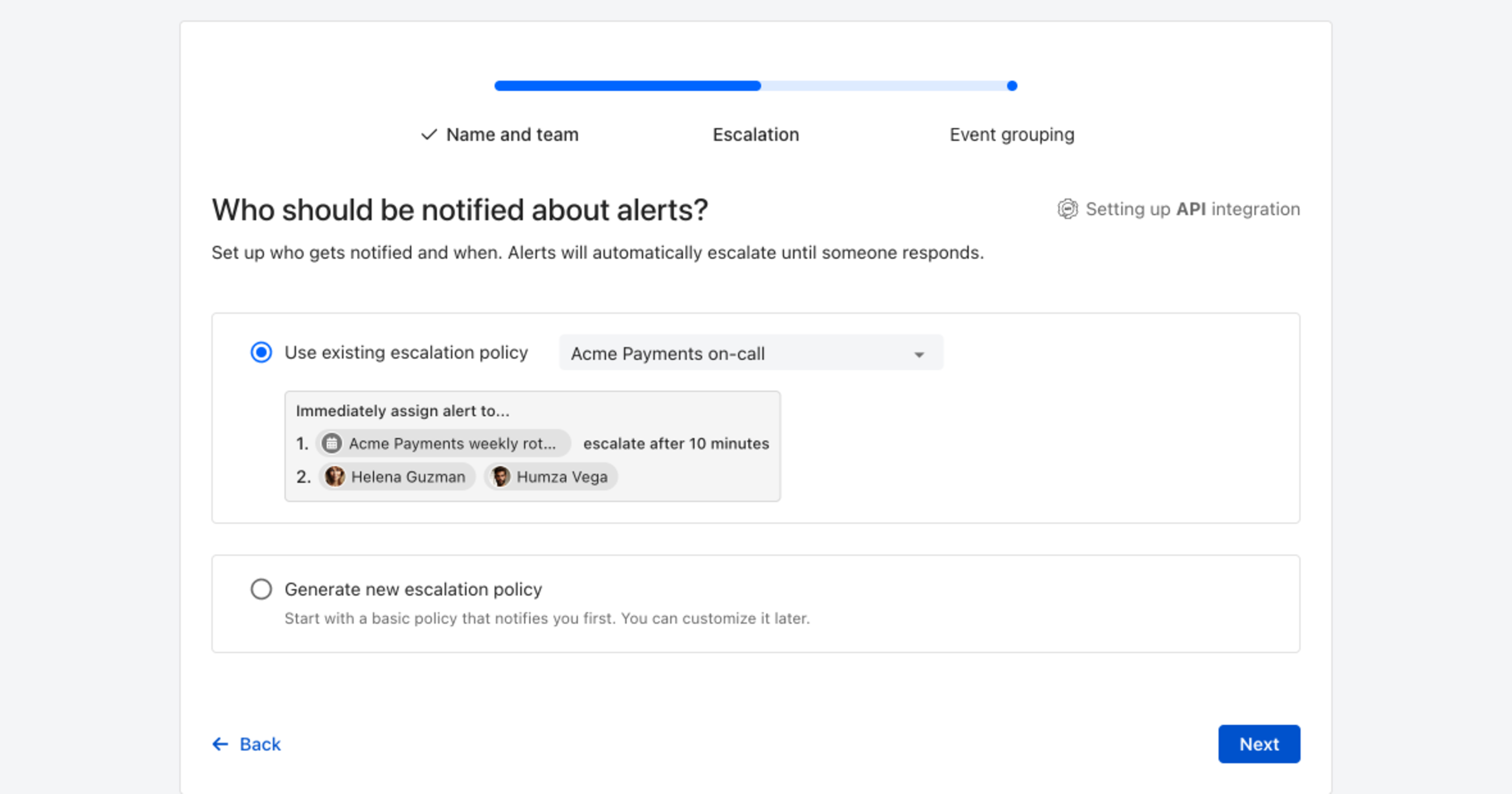
4. Choose who gets notified: select **Use existing escalation policy** and pick a policy, or **Generate new escalation policy** to start with a basic one that notifies you first. Click **Next**.
Pick an existing escalation policy, or generate a basic one without leaving the wizard.
5. Select your [event grouping](/alerting/configure-alerting/alert-sources.md#event-grouping) preference and click **Continue setup**. **Default grouping** is a good starting point, because Bleemeo sends an alert key that ilert uses to fold repeat events into the open alert.
6. The next page shows additional settings such as notification priority or affected services. Click **Finish setup** for now.
7. On the final page, ilert generates an **Integration key** and a **Bleemeo URL** for the alert source. Copy the integration key — Bleemeo needs it in the next section.
## In Bleemeo: Add the ilert integration
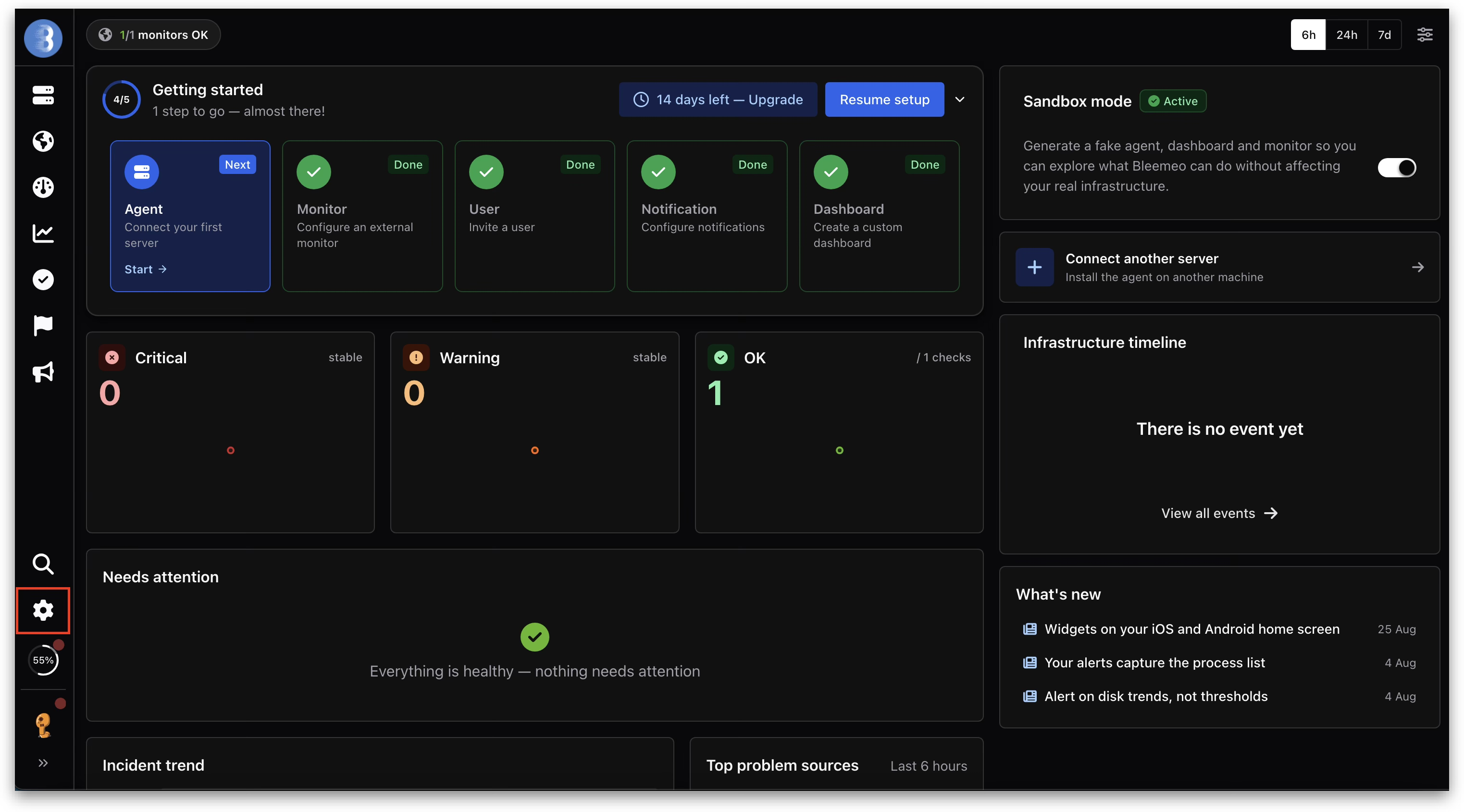
1. Click the **settings** icon at the bottom of the left sidebar.
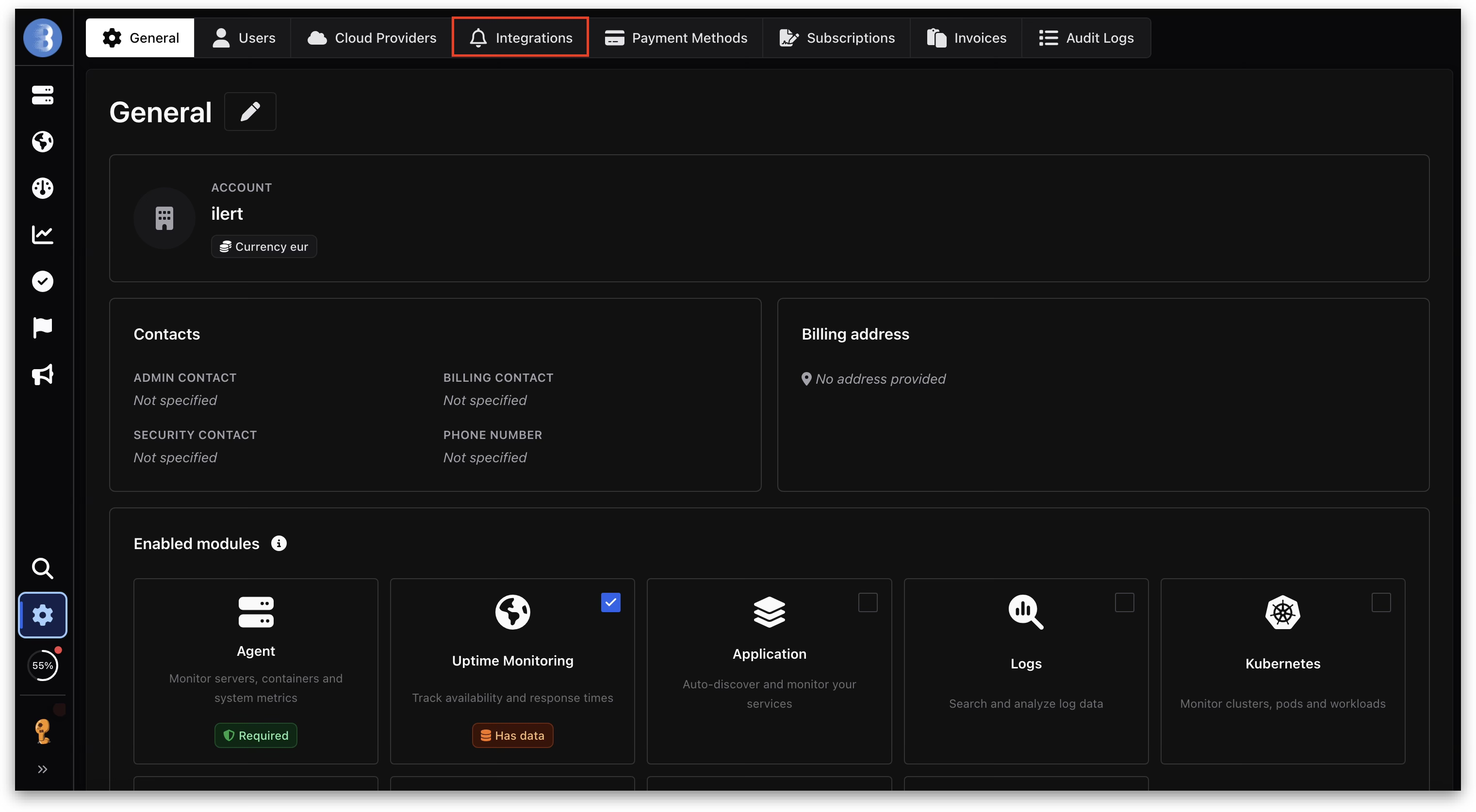
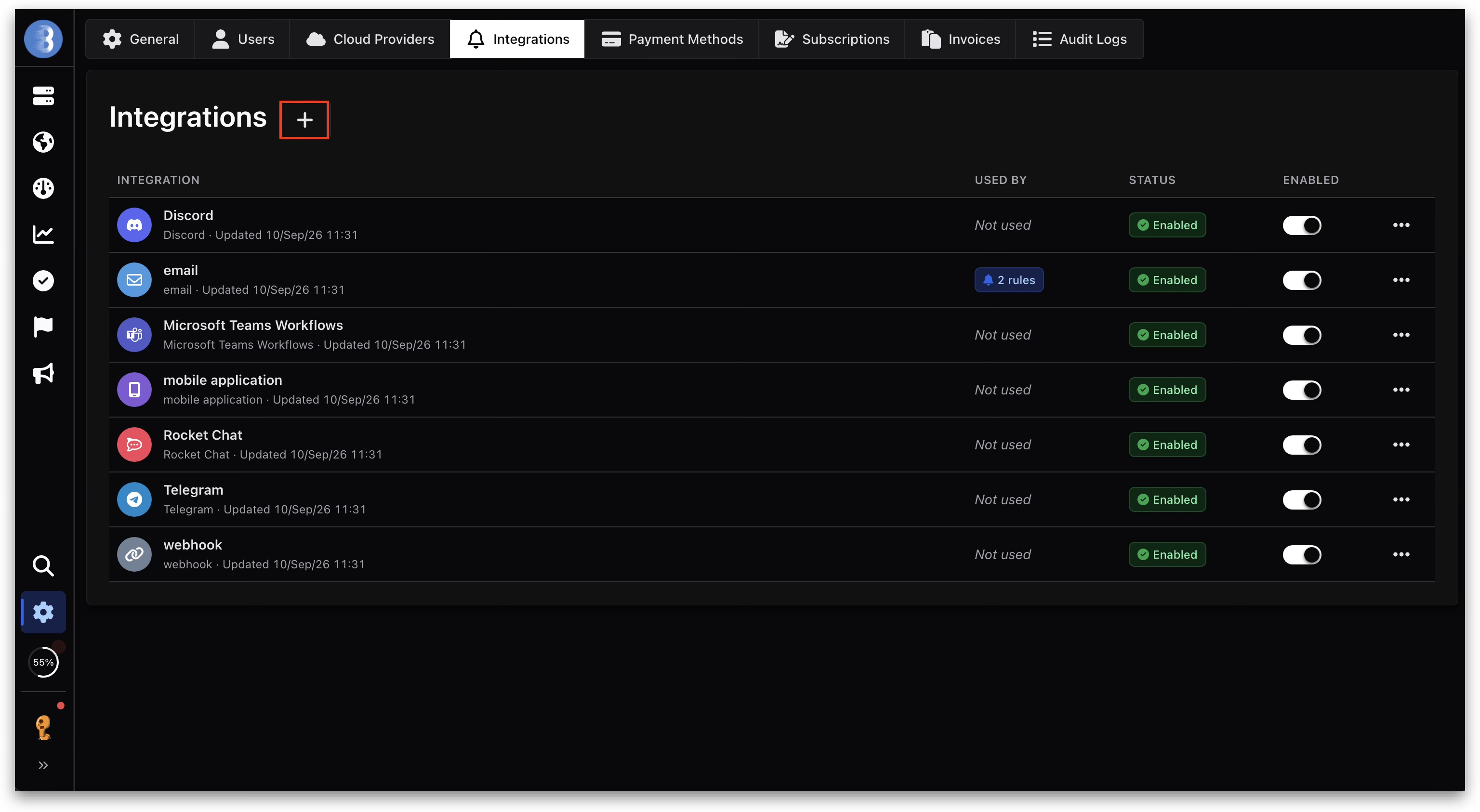
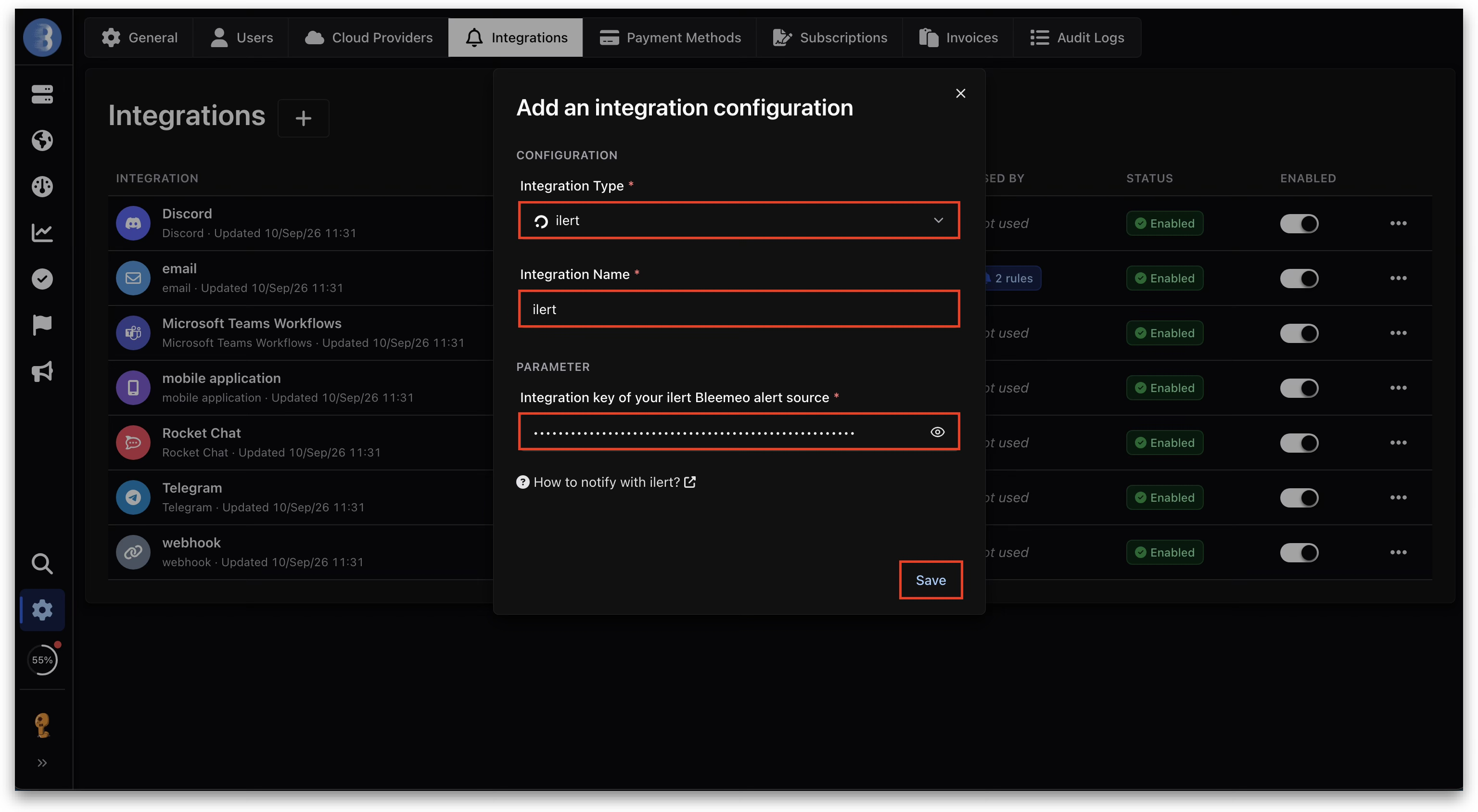
2. Open the **Integrations** tab. It lists every integration configuration in the account, with a **Used by** column that shows how many notification rules reference each one.
3. Click the **+** button next to the **Integrations** heading.
4. In **Add an integration configuration**, set **Integration Type** to **ilert** and give it an **Integration Name**. Use a name that says which alert source it points at — a Bleemeo account can hold several ilert configurations, one per alert source.
5. Paste the integration key you copied from ilert into **Integration key of your ilert Bleemeo alert source** and click **Save**.
## FAQ
#### **Will alerts in ilert be resolved automatically?**
Yes. When the underlying problem clears in Bleemeo, Bleemeo sends a resolve event and ilert resolves the corresponding alert.
#### **Will alerts in ilert be acknowledged automatically?**
Yes. The alert source accepts acknowledge events, so an incident acknowledged in Bleemeo moves the matching alert in ilert to `ACCEPTED`. Accepting an alert stops escalation, because it means a human has taken ownership.
---
# Agent Instructions
This documentation is published with GitBook. GitBook is the documentation platform designed so that both humans and AI agents can read, navigate, and reason over technical content effectively. Learn more at gitbook.com.
## Querying This Documentation
If you need additional information that is not directly available in this page, you can query the documentation by asking a question.
Perform an HTTP GET request on the following URL with the `ask` and `goal` query parameters:
```
GET https://docs.ilert.com/integrations/inbound-integrations/bleemeo.md?ask=&goal=
```
`ask` is the immediate question: it should be specific, self-contained, and written in natural language.
`goal` is what the user is ultimately trying to achieve, the reason they need the answer. Sharing it helps GitBook give you a better, more relevant answer. A goal is most helpful when it describes the outcome the user wants rather than restating the question. For example, with `ask=how do I create an API token`, a goal like `automate deployments from our CI pipeline` lets GitBook tailor the answer to that use case.
The response will contain a direct answer to the question and relevant excerpts and sources from the documentation.
Use this mechanism when the answer is not explicitly present in the current page, you need clarification or additional context, or you want to retrieve related documentation sections.