# HaloITSM Integration

This integration enables you to connect ilert and HaloITSM easily and receive critical HaloITSM alerts via push, SMS, and voice notifications.

## In ilert: Create a HaloITSM alert source

1. Go to **Alert sources** --> **Alert sources** and click **Create new alert source**.

   <figure><img src="https://3394882078-files.gitbook.io/~/files/v0/b/gitbook-x-prod.appspot.com/o/spaces%2F-M76ygPnS4HUcFSX8ulm%2Fuploads%2FjX0cS4q7woTXKajZmc1W%2FScreenshot%202023-08-28%20at%2010.21.10.png?alt=media&#x26;token=8ef3666b-84eb-4b51-abee-f07303313941" alt=""><figcaption></figcaption></figure>
2. Search for **HaloITSM** in the search field, click the HaloITSM tile, and then **Next**.

   <figure><img src="https://3394882078-files.gitbook.io/~/files/v0/b/gitbook-x-prod.appspot.com/o/spaces%2F-M76ygPnS4HUcFSX8ulm%2Fuploads%2FlXzQlJpaTFSR49AZk0xA%2FScreenshot%202023-08-28%20at%2010.24.23.png?alt=media&#x26;token=cffeacb4-57b9-47d4-827d-b0f6b1afd914" alt=""><figcaption></figcaption></figure>
3. Give your alert source a name, optionally assign teams, and click **Next**.
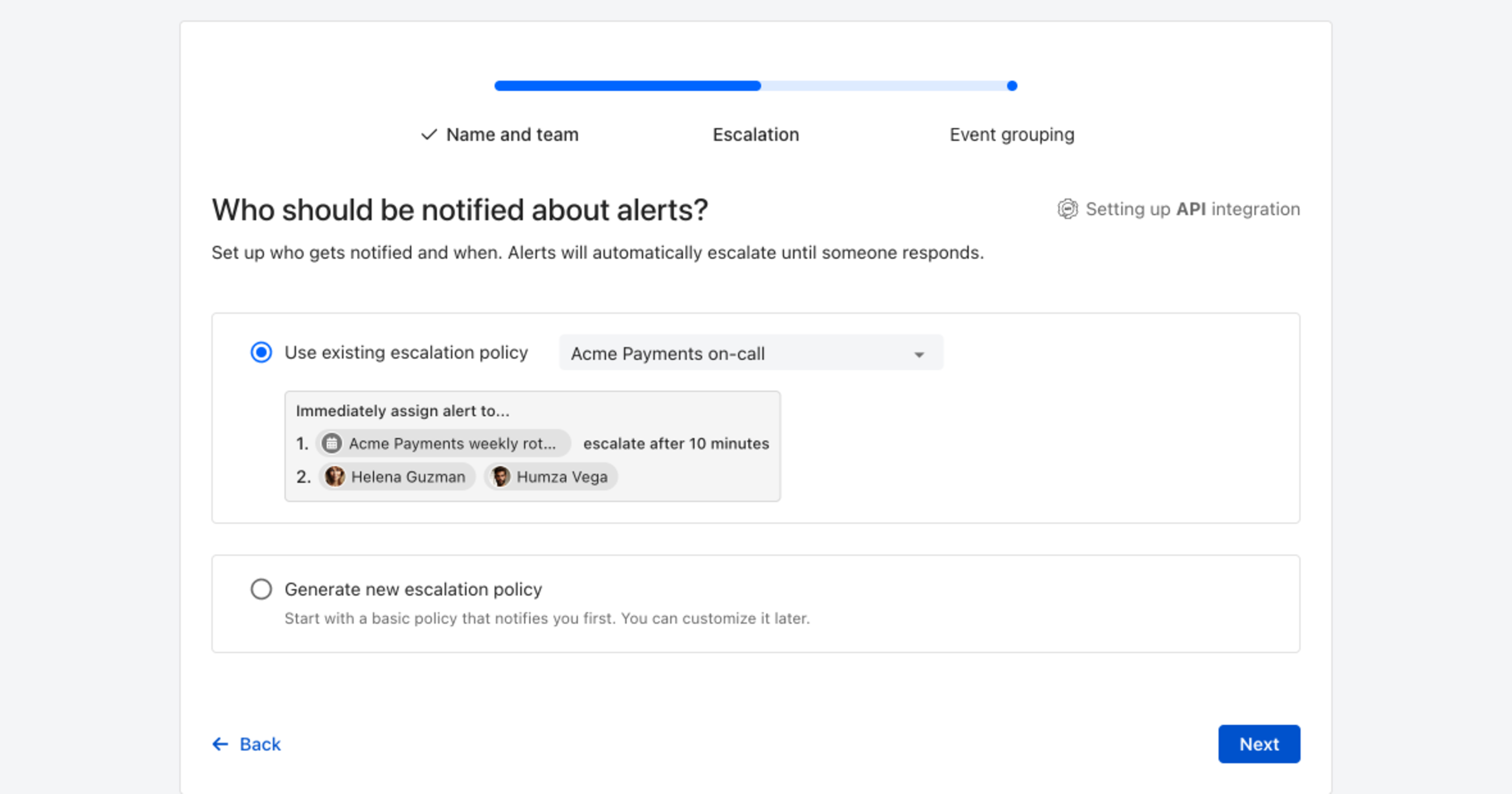
4. Select an **escalation policy** by creating a new one or assigning an existing one.

   <figure><img src="https://3394882078-files.gitbook.io/~/files/v0/b/gitbook-x-prod.appspot.com/o/spaces%2F-M76ygPnS4HUcFSX8ulm%2Fuploads%2FNnuZqONaIhbOf6fn4OkZ%2FScreenshot%202023-08-28%20at%2011.37.47.png?alt=media&#x26;token=8a74f7b5-5bd2-4eea-97fa-1c1dbb041333" alt=""><figcaption></figcaption></figure>
5. Select your [Alert grouping](https://docs.ilert.com/alerting/configure-alerting/alert-sources#alert-grouping) preference and click **Continue setup**. You may click **Do not group alerts** for now and change it later.

   <figure><img src="https://3394882078-files.gitbook.io/~/files/v0/b/gitbook-x-prod.appspot.com/o/spaces%2F-M76ygPnS4HUcFSX8ulm%2Fuploads%2FueugN4JgHn1c90ggFA6u%2FScreenshot%202023-08-28%20at%2011.38.24.png?alt=media&#x26;token=b8009daf-3ca8-4264-a6fa-e42ef7333205" alt=""><figcaption></figcaption></figure>
6. The next page shows additional settings, such as customer alert templates or notification priority. Click **Finish setup** for now.
7. On the final page, an API key and/or webhook URL will be generated. You will need it later.

   <figure><img src="https://3394882078-files.gitbook.io/~/files/v0/b/gitbook-x-prod.appspot.com/o/spaces%2F-M76ygPnS4HUcFSX8ulm%2Fuploads%2FJ1QwcjLiVLOyieOrgmpC%2FScreenshot%202023-08-28%20at%2011.47.34.png?alt=media&#x26;token=72dc29a2-ded0-44cd-89bc-229bb0569626" alt=""><figcaption></figcaption></figure>

## In HaloITSM: Create a Custom Webhook integration

1. On the sidebar, click **Configuration**.

<figure><img src="https://3394882078-files.gitbook.io/~/files/v0/b/gitbook-x-prod.appspot.com/o/spaces%2F-M76ygPnS4HUcFSX8ulm%2Fuploads%2FZUarVQT5yFUbZUZzIEda%2F1.png?alt=media&#x26;token=f805f8ca-3962-4aa7-8f9f-b3b721247b23" alt="" width="342"><figcaption></figcaption></figure>

2. In the **search bar** enter "Custom integrations" and select **Custom integrations** from the results.

<figure><img src="https://3394882078-files.gitbook.io/~/files/v0/b/gitbook-x-prod.appspot.com/o/spaces%2F-M76ygPnS4HUcFSX8ulm%2Fuploads%2FaouV5S8krOEoL7JFoN1T%2F2.png?alt=media&#x26;token=4c55010a-c7cf-4ac7-9648-1d27aa67ea56" alt="" width="563"><figcaption></figcaption></figure>

<figure><img src="https://3394882078-files.gitbook.io/~/files/v0/b/gitbook-x-prod.appspot.com/o/spaces%2F-M76ygPnS4HUcFSX8ulm%2Fuploads%2FrzQMU0ABLODb8kFLA8kg%2F3.png?alt=media&#x26;token=4d6aa8bb-1716-4bc5-b8e5-27fb828da19a" alt="" width="563"><figcaption></figcaption></figure>

3. Click **New**.

<figure><img src="https://3394882078-files.gitbook.io/~/files/v0/b/gitbook-x-prod.appspot.com/o/spaces%2F-M76ygPnS4HUcFSX8ulm%2Fuploads%2FNVOeqCNDIS3U3WOtVayH%2F4.png?alt=media&#x26;token=abb1478c-4aad-4ed9-900f-12a2b3f355e9" alt="" width="563"><figcaption></figcaption></figure>

4. Enter a Name and the following Base URL `https://api.ilert.com/`.

<figure><img src="https://3394882078-files.gitbook.io/~/files/v0/b/gitbook-x-prod.appspot.com/o/spaces%2F-M76ygPnS4HUcFSX8ulm%2Fuploads%2FYeGnySEfbOx0ipHa1w8e%2F5.png?alt=media&#x26;token=e5d730d0-3957-4ac8-b932-1b9f225debe1" alt="" width="563"><figcaption></figcaption></figure>

5. Save the custom integration.
6. Now, click **Methods**.

<figure><img src="https://3394882078-files.gitbook.io/~/files/v0/b/gitbook-x-prod.appspot.com/o/spaces%2F-M76ygPnS4HUcFSX8ulm%2Fuploads%2F2pnvbf49iGvmCcdUK9jh%2F6.png?alt=media&#x26;token=dd7ac8ec-960d-4d1d-9cb4-a7772f4bab6d" alt="" width="563"><figcaption></figcaption></figure>

7. Then, click **New**.

<figure><img src="https://3394882078-files.gitbook.io/~/files/v0/b/gitbook-x-prod.appspot.com/o/spaces%2F-M76ygPnS4HUcFSX8ulm%2Fuploads%2Fgg2OMovDDuloA1sxnKdR%2F7.png?alt=media&#x26;token=684e6def-ac37-4aff-831d-6dd3a5e3f698" alt="" width="563"><figcaption></figcaption></figure>

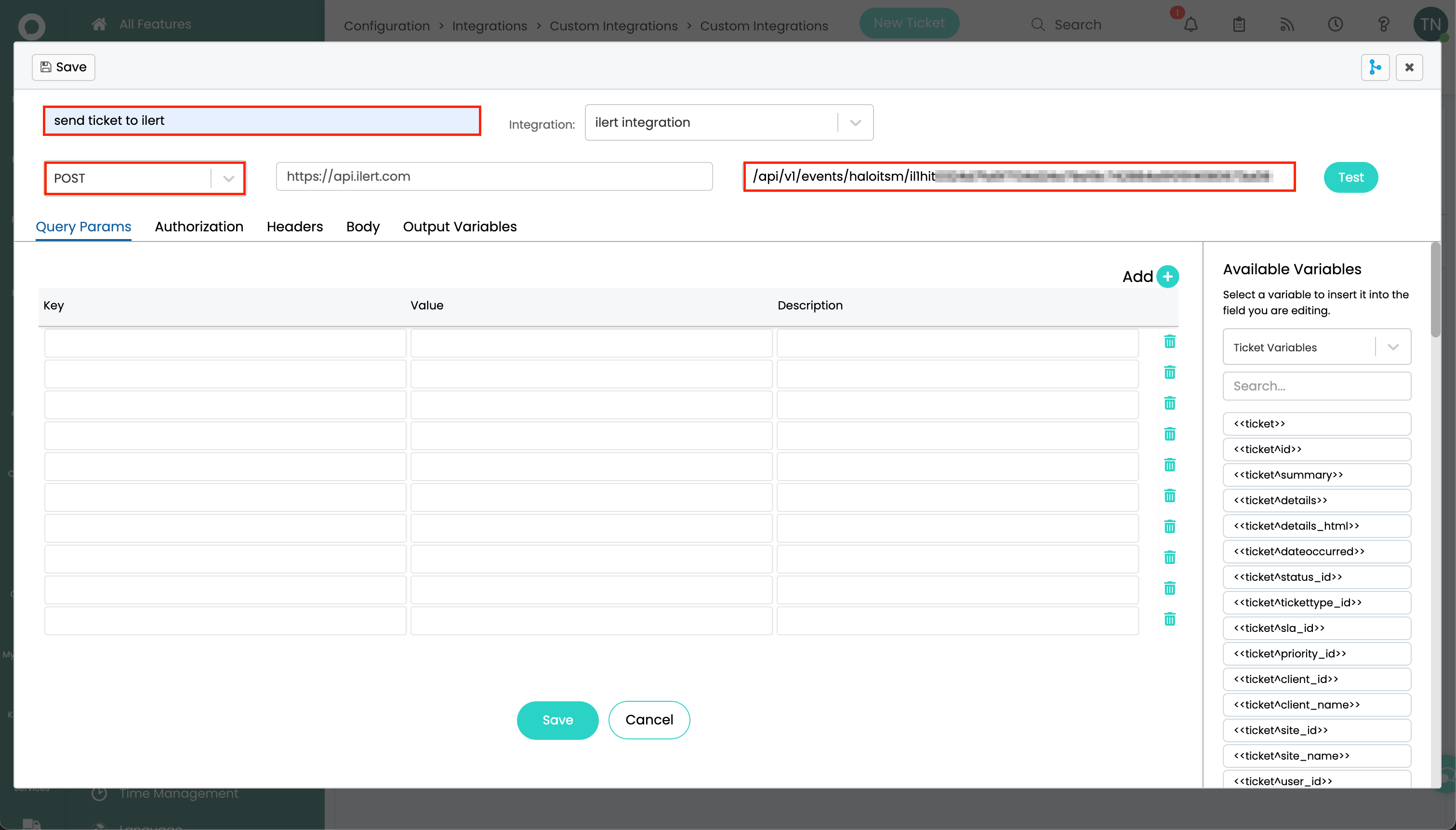
8. Enter a **Name**.
9. Change the **Method** to POST and enter the previously created URL path into the field.

<figure><img src="https://3394882078-files.gitbook.io/~/files/v0/b/gitbook-x-prod.appspot.com/o/spaces%2F-M76ygPnS4HUcFSX8ulm%2Fuploads%2FehbvD2cMWNe0NxBSHQIJ%2F8.png?alt=media&#x26;token=c58ad6cf-2048-4726-9014-594d5bb50a12" alt="" width="563"><figcaption></figcaption></figure>

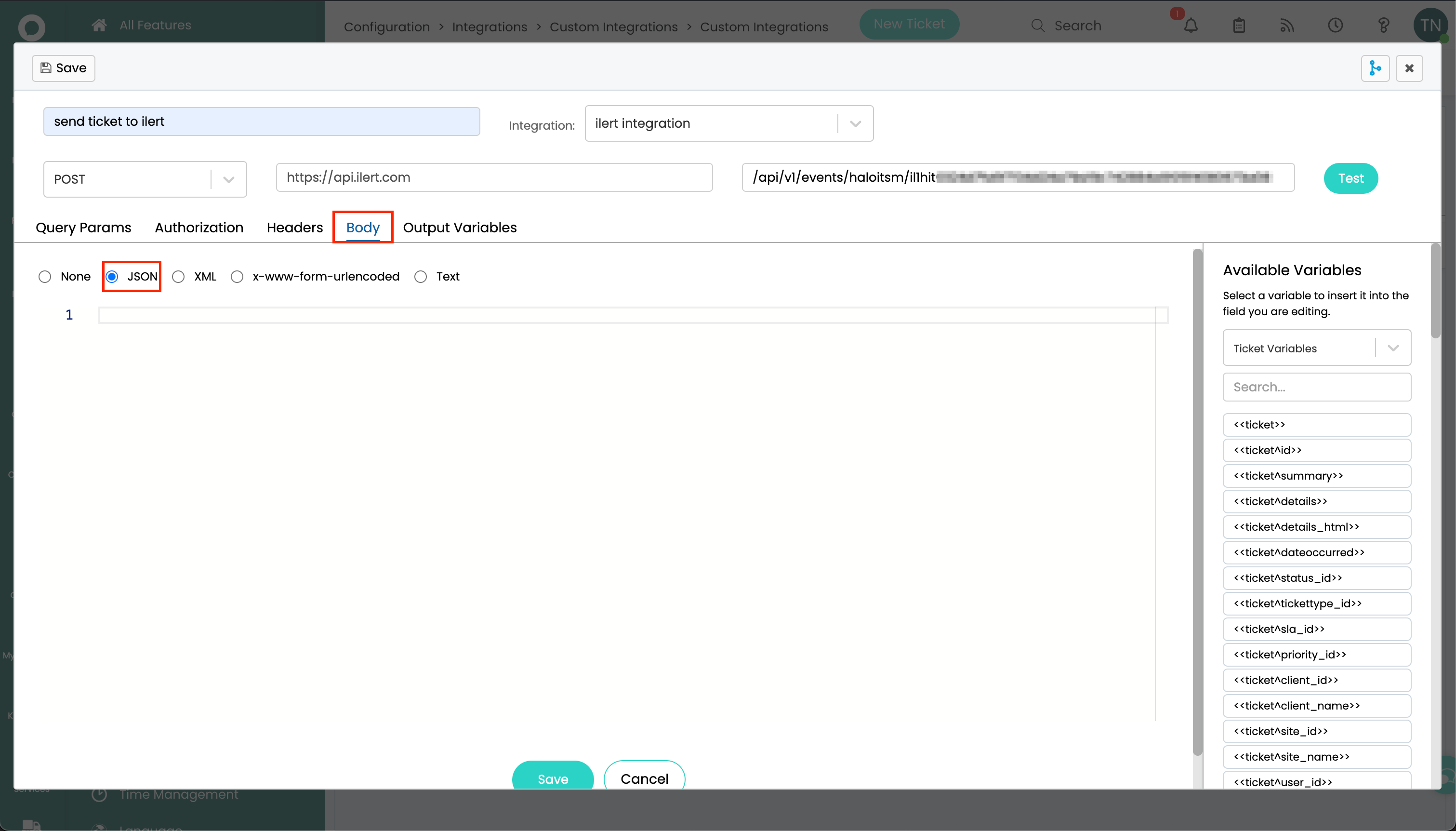
10. Click **Body** and choose **JSON**.

<figure><img src="https://3394882078-files.gitbook.io/~/files/v0/b/gitbook-x-prod.appspot.com/o/spaces%2F-M76ygPnS4HUcFSX8ulm%2Fuploads%2F5vIAWmujuK0oXBkSbOwC%2F9.png?alt=media&#x26;token=6ea440aa-5d8d-437b-919e-7bbaffa41e2a" alt="" width="563"><figcaption></figcaption></figure>

11. Add the following payload to the body.

{% tabs %}
{% tab title="Recommended payload" %}

```
{
    "ticket" : {
        "status" : {
            "id" : <<ticket^status^id>>,
            "name" : <<ticket^status^name>>,
            "shortname" : <<ticket^status^shortname>>
        },
        "id" : <<ticket^id>>,
        "summary" : <<ticket^summary>>,
        "details" : <<ticket^details>>,
        "dateoccurred" : <<ticket^dateoccurred>>,
        "dateclosed" : <<ticket^dateclosed>>,
        "tickettype" : {
            "id" : <<ticket^tickettype^id>>,
            "name" :  <<ticket^tickettype^name>>
        },
        "priority" : {
            "id" : <<ticket^priority_id>>,
            "name" : <<ticket^priority^name>>
        },
        "client_id" : <<ticket^client_id>>,
        "client_name" : <<ticket^client_name>>,
        "site_id" : <<ticket^site_id>>,
        "site_name" : <<ticket^site_name>>,
        "team" : <<ticket^team>>,
        "agent" : {
            "id" : <<ticket^agent^id>>,
            "name" : <<ticket^agent^name>>
        },
        "organisation_id" : <<ticket^organisation_id>>,
        "department_id" : <<ticket^department_id>>,
        "workflow_name" : <<ticket^workflow_name>>,
        "oppcompanyname" : <<ticket^oppcompanyname>>
    }
}
```

{% endtab %}

{% tab title="Full payload" %}

```
{
    "ticket" : <<ticket>>
}
```

{% endtab %}
{% endtabs %}

12. In the next step add a new Runbook.

<figure><img src="https://3394882078-files.gitbook.io/~/files/v0/b/gitbook-x-prod.appspot.com/o/spaces%2F-M76ygPnS4HUcFSX8ulm%2Fuploads%2F6b3IRd9XyzTKRYSwZR5B%2F10.png?alt=media&#x26;token=4ae8e3dc-4736-4fed-a777-16112697e36a" alt="" width="563"><figcaption></figcaption></figure>

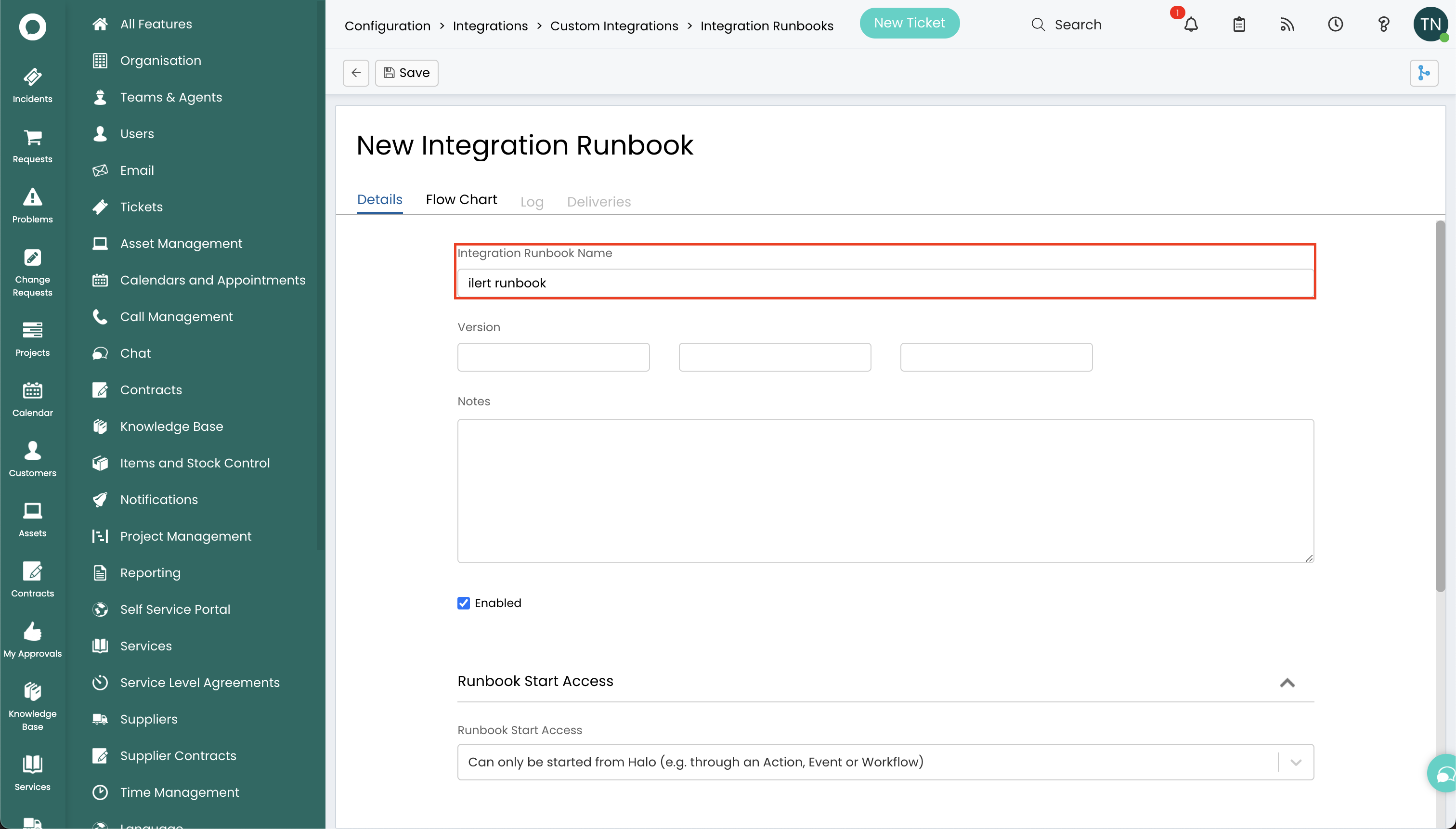
13. Enter a name for your newly created Runbook.

<figure><img src="https://3394882078-files.gitbook.io/~/files/v0/b/gitbook-x-prod.appspot.com/o/spaces%2F-M76ygPnS4HUcFSX8ulm%2Fuploads%2FClNj3qEK06LCxhEaz4tF%2F11.png?alt=media&#x26;token=b63dc9e8-92b0-4701-857b-c0993748f1cd" alt="" width="563"><figcaption></figcaption></figure>

14. Add the following Events for the Runbook: "New Ticket Logged" and "Ticket Status Changed".

<div><figure><img src="https://3394882078-files.gitbook.io/~/files/v0/b/gitbook-x-prod.appspot.com/o/spaces%2F-M76ygPnS4HUcFSX8ulm%2Fuploads%2FIF2Uy8bJNbrDQpQJTKyF%2F13.png?alt=media&#x26;token=fa4e8da4-6770-40fd-8a9f-d9236e7a49ea" alt="" width="375"><figcaption></figcaption></figure> <figure><img src="https://3394882078-files.gitbook.io/~/files/v0/b/gitbook-x-prod.appspot.com/o/spaces%2F-M76ygPnS4HUcFSX8ulm%2Fuploads%2FHCYAM3mQqJRFCYDaSvjR%2F14.png?alt=media&#x26;token=283c438d-92c8-4b40-a1c3-fe44d0d4d5d1" alt="" width="375"><figcaption></figcaption></figure></div>

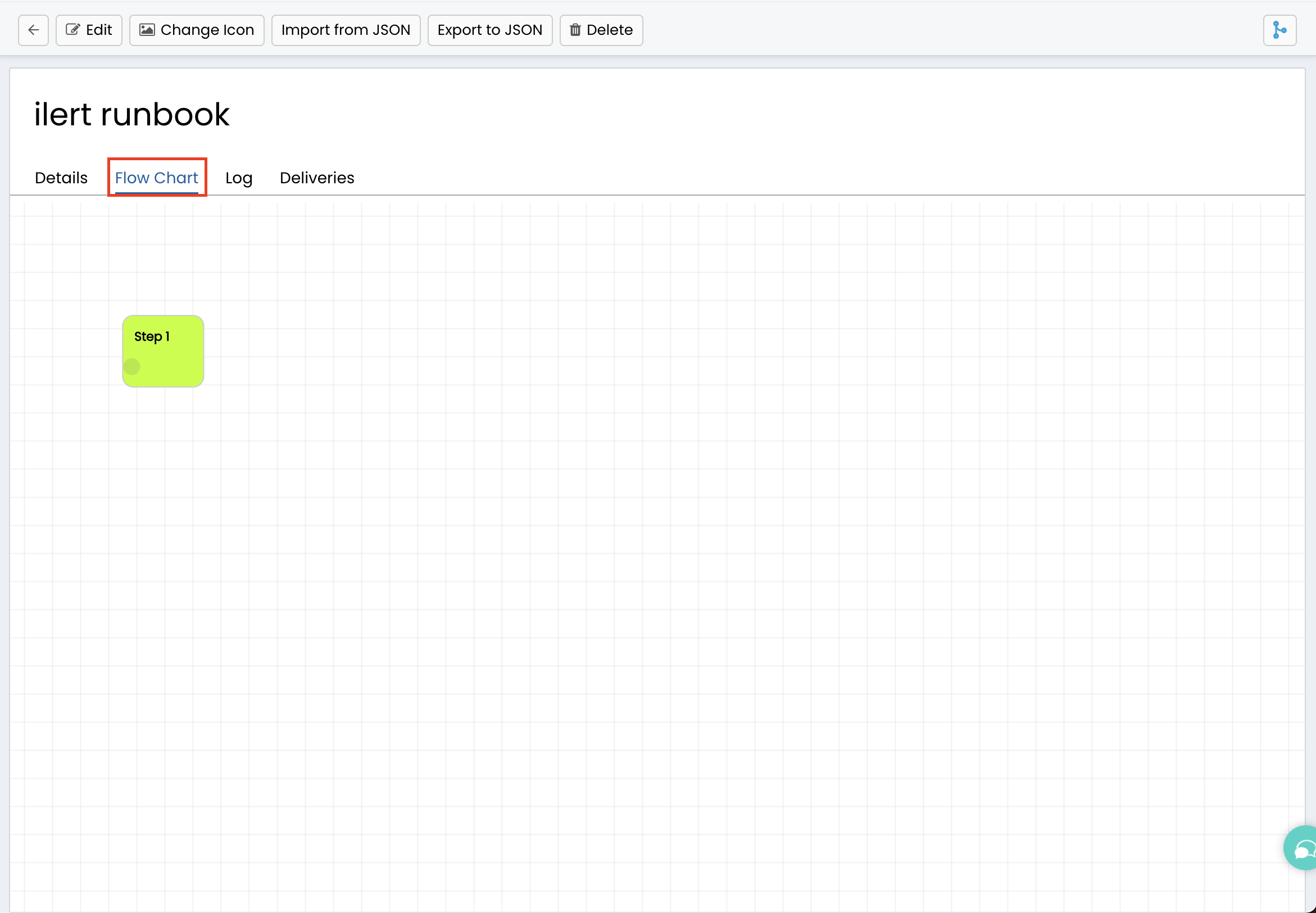
15. Now click **Flow Chart** and **Edit**.

<figure><img src="https://3394882078-files.gitbook.io/~/files/v0/b/gitbook-x-prod.appspot.com/o/spaces%2F-M76ygPnS4HUcFSX8ulm%2Fuploads%2FyG5UBEiU8f5GO64rBoYi%2F15.png?alt=media&#x26;token=5b090588-0cba-46c8-99f9-7a2d4cce5633" alt="" width="563"><figcaption></figcaption></figure>

16. Enter a **Step Name**.
17. Change the Type to Action. Choose the **Action type** "Execute an Integration Method" and **Method** "ilert integration: send ticket to ilert" (previously created method).
18. Save the Step.

<figure><img src="https://3394882078-files.gitbook.io/~/files/v0/b/gitbook-x-prod.appspot.com/o/spaces%2F-M76ygPnS4HUcFSX8ulm%2Fuploads%2F07iYJujFbWZJ96lc9uuD%2F16.png?alt=media&#x26;token=8612a65a-9859-4df4-bcd2-6e7a96f2b597" alt="" width="563"><figcaption></figcaption></figure>

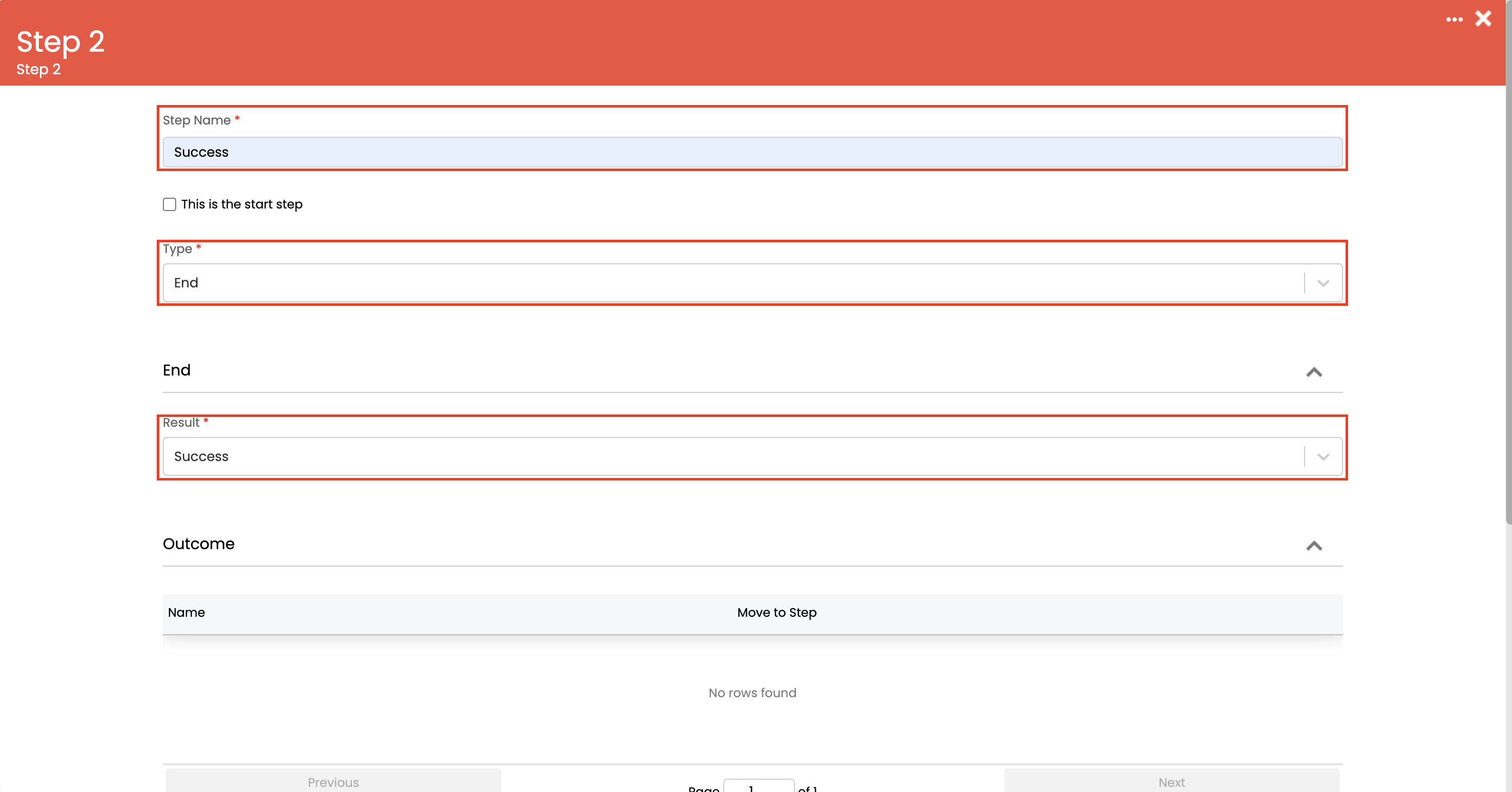
19. Edit the other two steps.

<div><figure><img src="https://3394882078-files.gitbook.io/~/files/v0/b/gitbook-x-prod.appspot.com/o/spaces%2F-M76ygPnS4HUcFSX8ulm%2Fuploads%2FV7x7H1bUqV0lM3O2ym6M%2F17.png?alt=media&#x26;token=01d57753-cb1f-48dd-bf49-24949ae5c663" alt="" width="375"><figcaption></figcaption></figure> <figure><img src="https://3394882078-files.gitbook.io/~/files/v0/b/gitbook-x-prod.appspot.com/o/spaces%2F-M76ygPnS4HUcFSX8ulm%2Fuploads%2FEyw5DzIObyZQ2Gq3i86R%2F18.png?alt=media&#x26;token=868060bf-934a-420f-a6bb-1a585bf893e9" alt="" width="375"><figcaption></figcaption></figure></div>

20. Save the Runbook.

## FAQ <a href="#faq" id="faq"></a>

**Will alerts in ilert be resolved automatically?**

Yes, HaloITSM will resolve the ilert alert once the ticket is closed or resolved.


---

# Agent Instructions: Querying This Documentation

If you need additional information that is not directly available in this page, you can query the documentation dynamically by asking a question.

Perform an HTTP GET request on the current page URL with the `ask` query parameter:

```
GET https://docs.ilert.com/integrations/inbound-integrations/haloitsm.md?ask=<question>
```

The question should be specific, self-contained, and written in natural language.
The response will contain a direct answer to the question and relevant excerpts and sources from the documentation.

Use this mechanism when the answer is not explicitly present in the current page, you need clarification or additional context, or you want to retrieve related documentation sections.