> For the complete documentation index, see [llms.txt](https://docs.ilert.com/llms.txt). Markdown versions of documentation pages are available by appending `.md` to page URLs; this page is available as [Markdown](https://docs.ilert.com/integrations/inbound-integrations/logzio.md).

# Logz.io Integration

Route Logz.io log alerts to the on-call responder in ilert through a custom notification endpoint

[Logz.io](https://logz.io/) is an observability platform for logs, metrics, and traces. A Logz.io log alert runs a search query on a schedule and notifies its recipients when the results meet a trigger condition. With this integration, Logz.io sends those notifications to an ilert alert source, which creates an alert and notifies the on-call responder through its escalation policy.

## In ilert: Create a Logz.io alert source

1. Go to **Alerting** → **Alert sources** and click **Create new alert source**.
2. Search for **Logz.io**, click its tile, and click **Next**.
3. Give your alert source a name, optionally assign teams, and click **Next**.
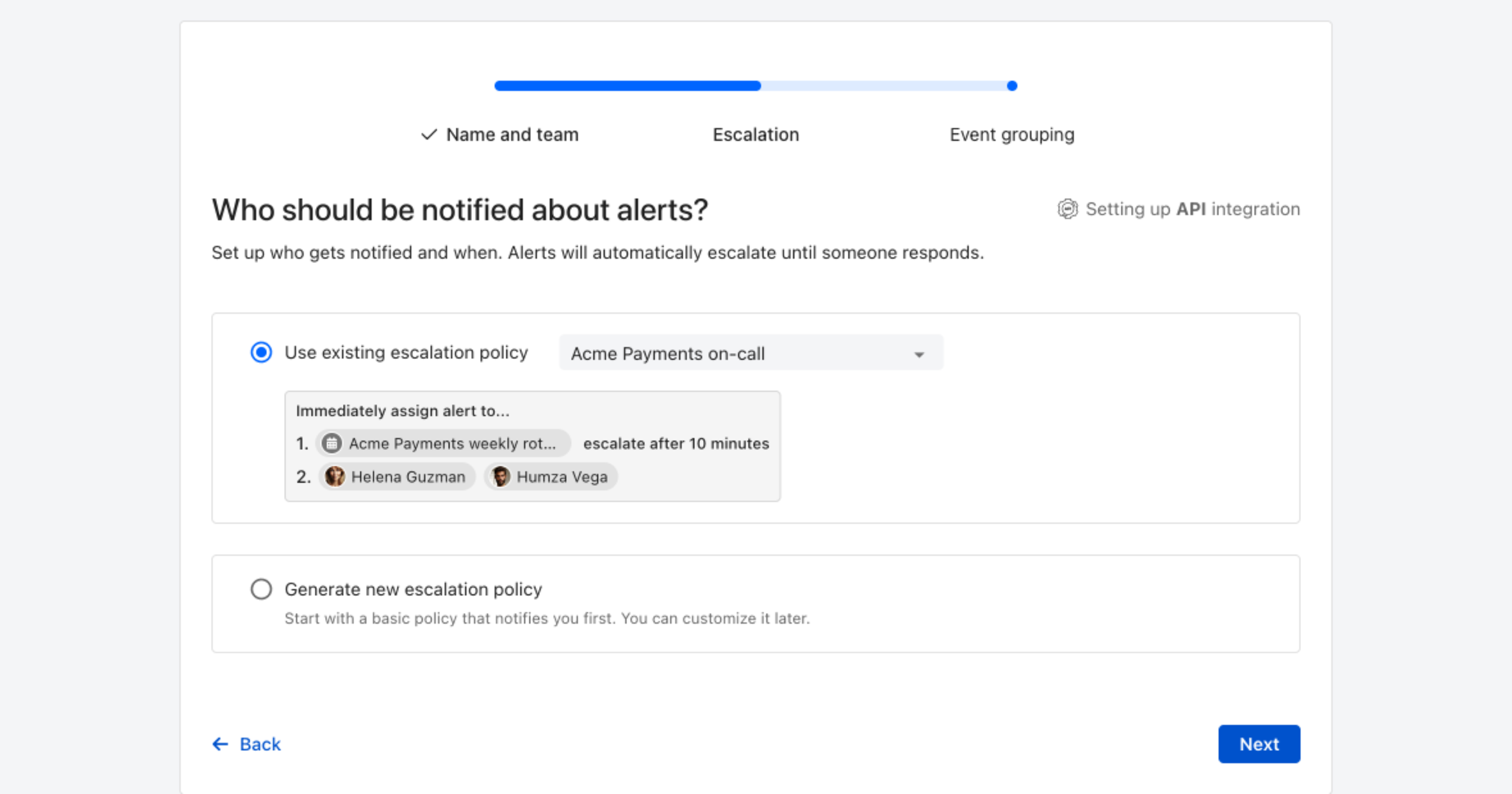
4. Choose who gets notified: select **Use existing escalation policy** and pick a policy, or **Generate new escalation policy** to start with a basic one that notifies you first. Click **Next**.

   <figure><img src="https://3394882078-files.gitbook.io/~/files/v0/b/gitbook-x-prod.appspot.com/o/spaces%2F-M76ygPnS4HUcFSX8ulm%2Fuploads%2Fgit-blob-8a281bf3931f5a1a531951ce97984d50989dd875%2Falert-source-escalation-step.png?alt=media" alt="The escalation step of the ilert alert source wizard, headed Who should be notified about alerts, with an escalation policy selected and a preview of its escalation rules below."><figcaption><p>Pick an existing escalation policy, or generate a basic one without leaving the wizard.</p></figcaption></figure>
5. Select **Default grouping** and click **Continue setup**. It groups events by the alert key the integration sets; the other [grouping options](https://docs.ilert.com/alerting/configure-alerting/alert-sources.md#event-grouping) are easier to judge once events are arriving.
6. The next page shows more settings, such as notification priority and alert templates. Click **Finish setup** for now; you can change them later.
7. On the final page, ilert shows the integration key and URL for this alert source. Copy the URL; you will paste it into Logz.io in the next section.

## In Logz.io: Add ilert as a notification endpoint

A notification endpoint tells Logz.io where to send alert notifications. Create it once and reuse it in every alert that should page the on-call responder.

1. In Logz.io, go to **Settings** → **Notification endpoints**.

<figure><img src="https://3394882078-files.gitbook.io/~/files/v0/b/gitbook-x-prod.appspot.com/o/spaces%2F-M76ygPnS4HUcFSX8ulm%2Fuploads%2Fgit-blob-072f3860e4e2e58a8c89ddeebf5fd80b5dbb80b9%2Flogzio-settings-notification-endpoints.png?alt=media" alt="The Logz.io navigation with the Settings menu open. Settings in the sidebar and Notification endpoints under General are highlighted."><figcaption><p>Notification endpoints is under General in the Settings menu.</p></figcaption></figure>

2. Click **Add endpoint** and fill in the form:

| Field   | Value                                          |
| ------- | ---------------------------------------------- |
| Type    | `Custom`                                       |
| Name    | A name you will recognize, for example `ilert` |
| URL     | The URL from your ilert alert source           |
| Method  | `POST`                                         |
| Headers | Leave empty                                    |
| Body    | The payload below                              |

<figure><img src="https://3394882078-files.gitbook.io/~/files/v0/b/gitbook-x-prod.appspot.com/o/spaces%2F-M76ygPnS4HUcFSX8ulm%2Fuploads%2Fgit-blob-04b3a264f529096730b94797c9919576162d14c8%2Flogzio-add-notification-endpoint.png?alt=media" alt="The Add a new notification endpoint dialog in Logz.io. Type is set to Custom, Name is ilert, Method is POST, and the body contains a JSON payload with fields such as alert_title, alert_description, and alert_severity."><figcaption><p>A Custom endpoint lets you set the URL, method, and body of the request.</p></figcaption></figure>

Replace the content of the body field with this payload. Logz.io fills in each `{{placeholder}}` when it sends the notification.

```json
{
  "alert_title": "{{alert_title}}",
  "alert_description": "{{alert_description}}",
  "alert_severity": "{{alert_severity}}",
  "alert_severity_img": "{{alert_severity_img}}",
  "alert_definition_id": "{{alert_definition_id}}",
  "alert_event_id": "{{alert_event_id}}",
  "account_id": "{{account_id}}",
  "account_name": "{{account_name}}",
  "alert_timeframe_start": "{{alert_timeframe_start}}",
  "alert_timeframe_end": "{{alert_timeframe_end}}",
  "alert_timeframe_start_epoch_millis": "{{alert_timeframe_start_epoch_millis}}",
  "alert_timeframe_end_epoch_millis": "{{alert_timeframe_end_epoch_millis}}",
  "alert_app_url": "{{alert_app_url}}",
  "alert_view_link": "{{&alert_app_url}}#/view-in-explore?&triggeredId={{&alert_event_id}}&switchToAccountId={{&account_id}}",
  "alert_tags": "{{alert_tags}}",
  "alert_tags_json": [
    "{{alert_tags_json}}"
  ],
  "alert_samples": "{{alert_samples}}",
  "alert_samples_json": [
    "{{alert_samples_json}}"
  ],
  "alert_event_html": "{{alert_event_html}}",
  "alert_event_image": "{{alert_event_image}}"
}
```

3. Click **Add a new endpoint**.

## In Logz.io: Send a log alert to ilert

Add the endpoint as a recipient to a new log alert or to one you already have. Repeat these steps for every alert that should notify the on-call responder.

1. Go to **Alerts**. Click **New Alert** to create an alert, or open an existing alert from the **Configurations** tab to edit it.

<figure><img src="https://3394882078-files.gitbook.io/~/files/v0/b/gitbook-x-prod.appspot.com/o/spaces%2F-M76ygPnS4HUcFSX8ulm%2Fuploads%2Fgit-blob-e3ce75c6b050939a64cf2dd51fd1d4e3f35725ea%2Flogzio-alerts-page.png?alt=media" alt="The Alerts page in Logz.io on the Status tab. Alerts in the sidebar is highlighted, and the New Alert button is at the top right."><figcaption><p>New Alert is at the top right of the Alerts page.</p></figcaption></figure>

2. Configure the alert as your use case needs: its name, search query, trigger conditions, schedule, and metadata. The example below alerts on error logs from one application with the query `type:myapp AND level:ERROR`.

<figure><img src="https://3394882078-files.gitbook.io/~/files/v0/b/gitbook-x-prod.appspot.com/o/spaces%2F-M76ygPnS4HUcFSX8ulm%2Fuploads%2Fgit-blob-ce0c1eb92b9ffedefad433173aecb4ecd4e97ea9%2Flogzio-create-alert-query.png?alt=media" alt="The Create alert page in Logz.io. Name is ilert, Type is Log alert, Query 1 is type:myapp AND level:ERROR, and Just these accounts is selected with the Community account."><figcaption><p>The steps on the left show the sections of the alert form.</p></figcaption></figure>

3. At the bottom of the form, under **Select notification recipients**, select the endpoint you created in **Recipients**.
4. In **Wait**, set how long Logz.io waits between notifications while the alert keeps triggering. The default is 1 hour and the minimum is 5 minutes.

<figure><img src="https://3394882078-files.gitbook.io/~/files/v0/b/gitbook-x-prod.appspot.com/o/spaces%2F-M76ygPnS4HUcFSX8ulm%2Fuploads%2Fgit-blob-51206da7b251367c724f9610ebcc2a47e548ff33%2Flogzio-alert-recipients.png?alt=media" alt="The Select notification recipients section of a Logz.io alert. The ilert endpoint is selected under Recipients, Wait is set to 5 minutes between notifications, and Output format is JSON with Include all log fields selected."><figcaption><p>A shorter wait sends repeated notifications to ilert sooner while the condition persists.</p></figcaption></figure>

5. Click **Save**.

## Verify the integration

Write a log line that matches the query of your alert, or temporarily lower the trigger threshold. When the alert triggers on its next scheduled run, Logz.io notifies the ilert endpoint and ilert creates an alert. Open **Alert sources** → your Logz.io alert source → **Alert source logs** to see each received event.

## FAQ

#### Will alerts in ilert be resolved automatically?

No. Logz.io notifies the endpoint only when an alert triggers, not when the condition clears. Resolve the alert in ilert once the issue is fixed.

#### Can I connect Logz.io with multiple alert sources in ilert?

Yes. Create one notification endpoint per alert source, each with its own URL, and select the matching endpoint in each Logz.io alert.


---

# Agent Instructions
This documentation is published with GitBook. GitBook is the documentation platform designed so that both humans and AI agents can read, navigate, and reason over technical content effectively. Learn more at gitbook.com.

## Querying This Documentation
If you need additional information that is not directly available in this page, you can query the documentation by asking a question.

Perform an HTTP GET request on the following URL with the `ask` and `goal` query parameters:

```
GET https://docs.ilert.com/integrations/inbound-integrations/logzio.md?ask=<question>&goal=<user_goal>
```

`ask` is the immediate question: it should be specific, self-contained, and written in natural language.
`goal` is what the user is ultimately trying to achieve, the reason they need the answer. Sharing it helps GitBook give you a better, more relevant answer. A goal is most helpful when it describes the outcome the user wants rather than restating the question. For example, with `ask=how do I create an API token`, a goal like `automate deployments from our CI pipeline` lets GitBook tailor the answer to that use case.

The response will contain a direct answer to the question and relevant excerpts and sources from the documentation.

Use this mechanism when the answer is not explicitly present in the current page, you need clarification or additional context, or you want to retrieve related documentation sections.
