> For the complete documentation index, see [llms.txt](https://docs.ilert.com/llms.txt). Markdown versions of documentation pages are available by appending `.md` to page URLs; this page is available as [Markdown](https://docs.ilert.com/integrations/inbound-integrations/openobserve.md).
# OpenObserve Integration
Create alerts in ilert from OpenObserve alerts — with ilert's OpenObserve inbound integration.
[OpenObserve](https://openobserve.ai/) is an open-source observability platform for logs, metrics, traces, and RUM. Its alerting engine lets you define scheduled and real-time alerts on your streams and deliver them to notification destinations. With this integration, alerts raised in OpenObserve automatically create alerts in ilert, so the right responders are notified and escalations happen reliably.
## In ilert: Create an OpenObserve alert source
1. Go to **Alerting** → **Alert sources** and click **Create new alert source**.
2. Search for **OpenObserve**, click its tile, and click **Next**.
3. Give your alert source a name, optionally assign teams, and click **Next**.
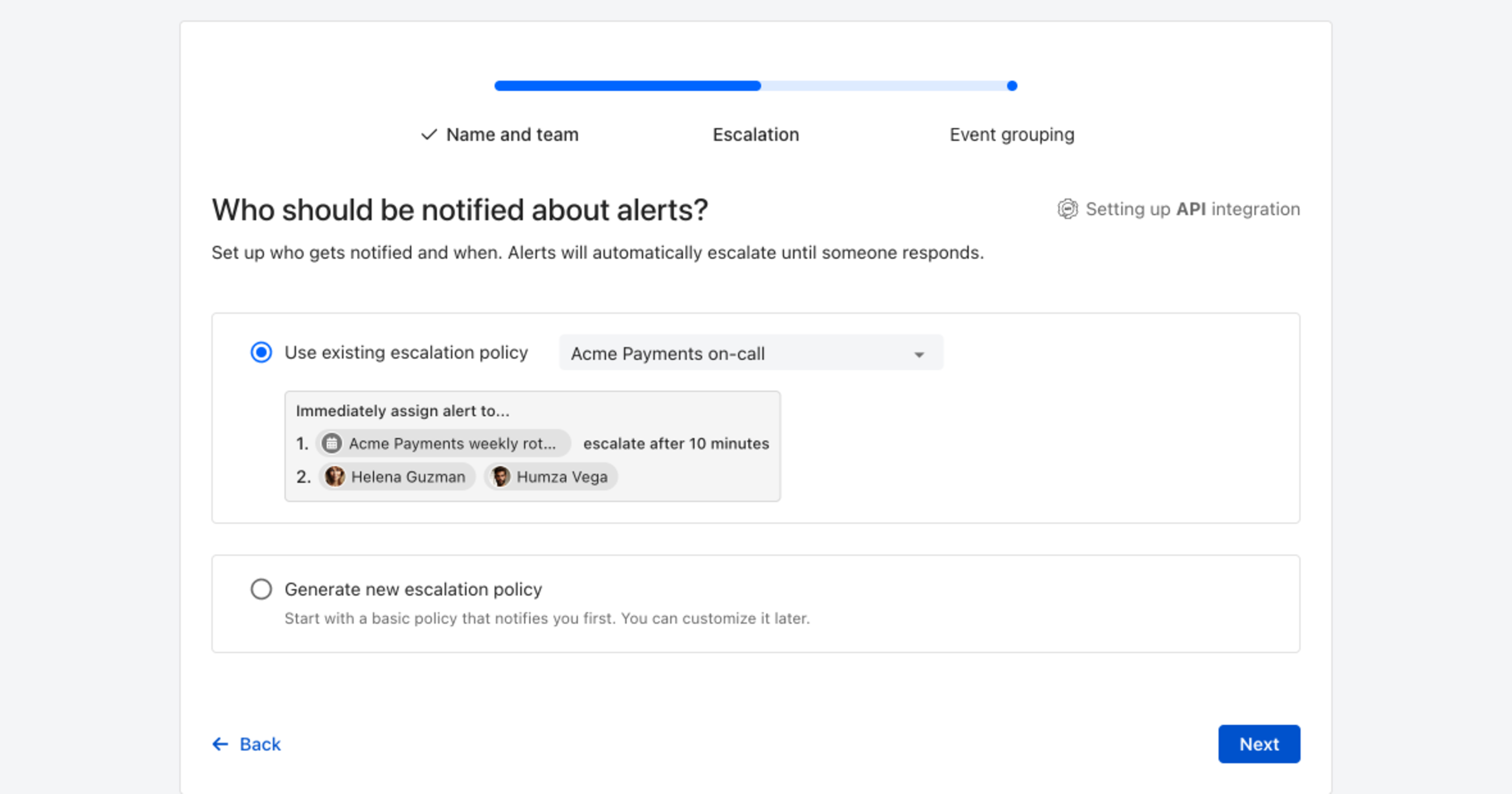
4. Choose who gets notified: select **Use existing escalation policy** and pick a policy, or **Generate new escalation policy** to start with a basic one that notifies you first. Click **Next**.
Pick an existing escalation policy, or generate a basic one without leaving the wizard.
5. Select **Default grouping** and click **Continue setup**. It groups events by the alert key the integration sets; the other [grouping options](/alerting/configure-alerting/alert-sources.md#event-grouping) are easier to judge once events are arriving.
6. The next page shows more settings, such as notification priority and alert templates. Click **Finish setup** for now; you can change them later.
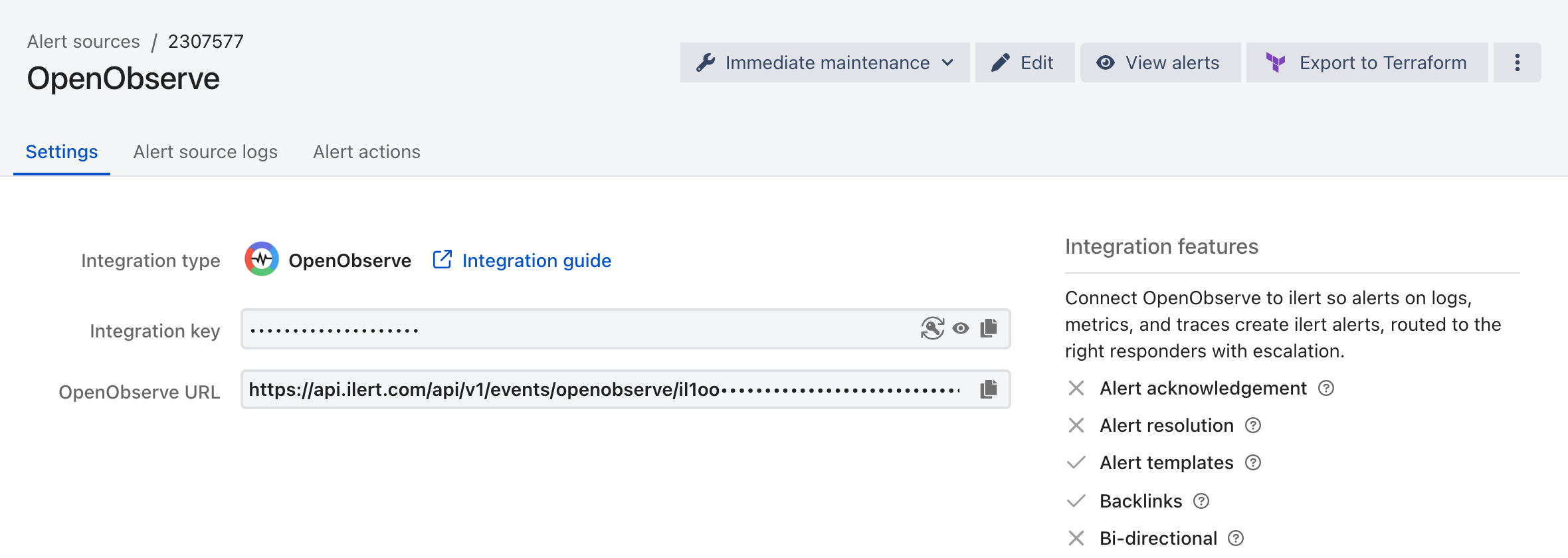
7. On the final page, ilert generates a webhook URL for your alert source. Copy it — you will need it in the next section.
## In OpenObserve: Create a template
A template defines the payload that OpenObserve posts to ilert.
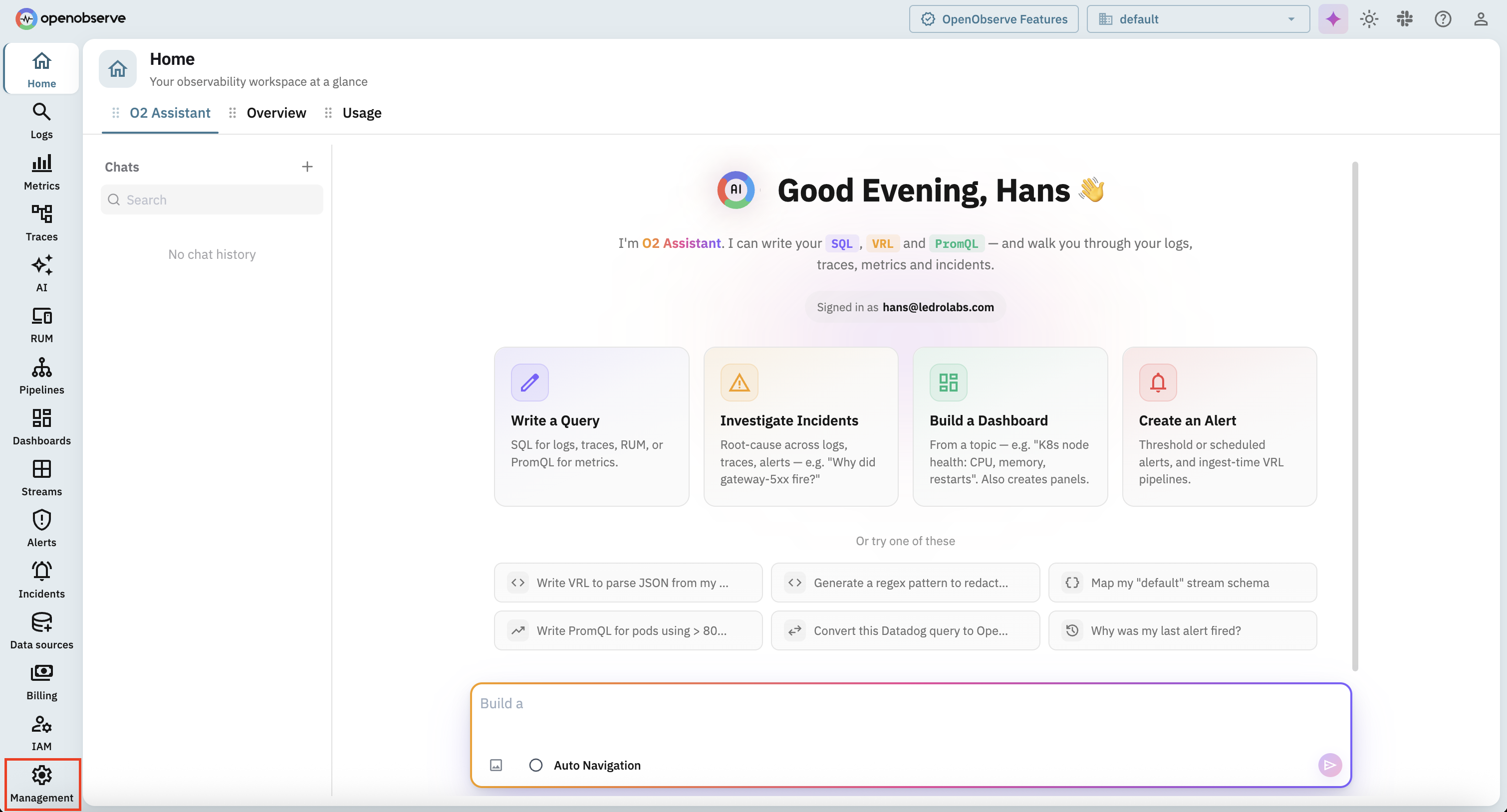
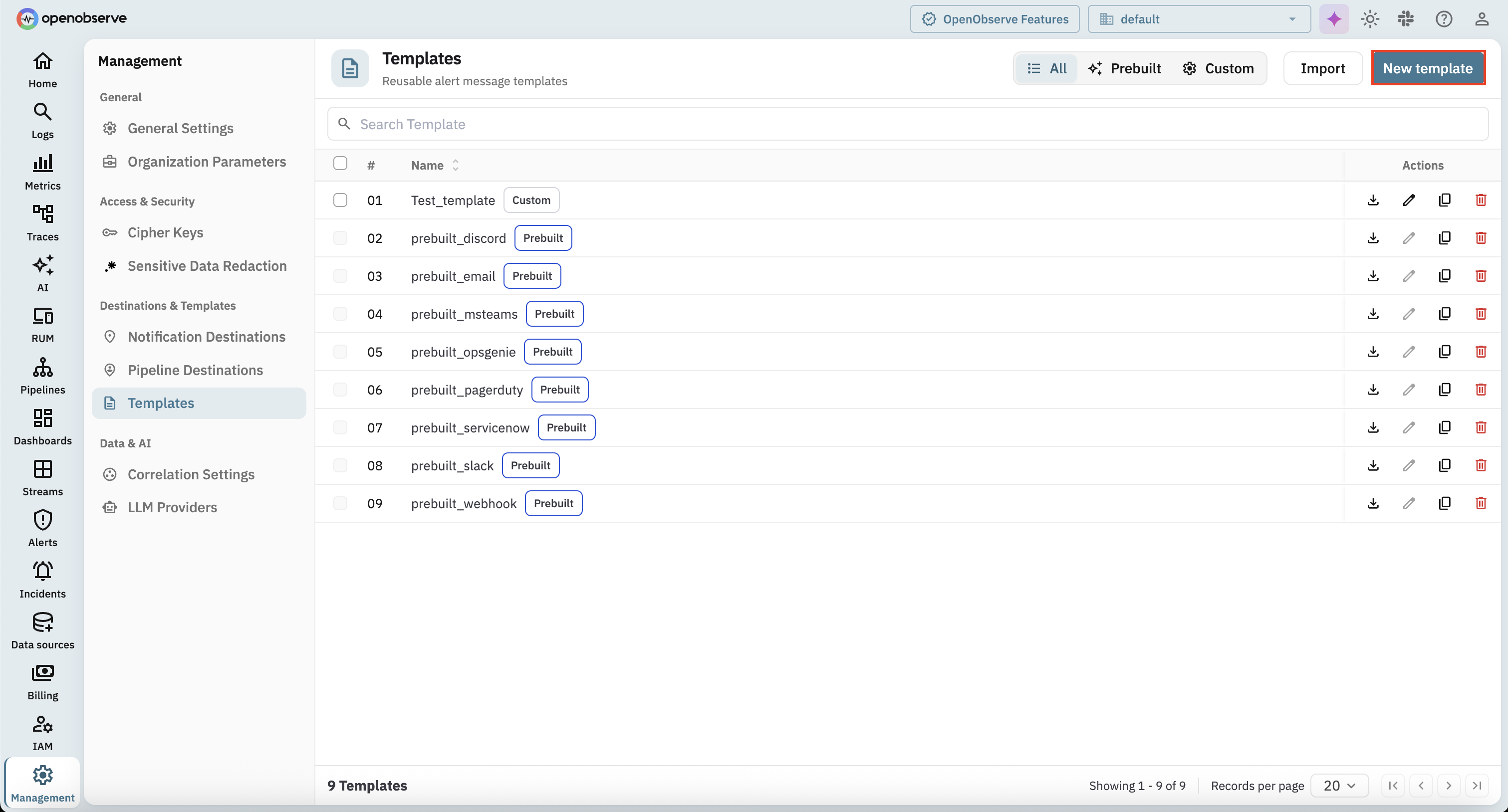
1. Click on **Management** in the left navigation.
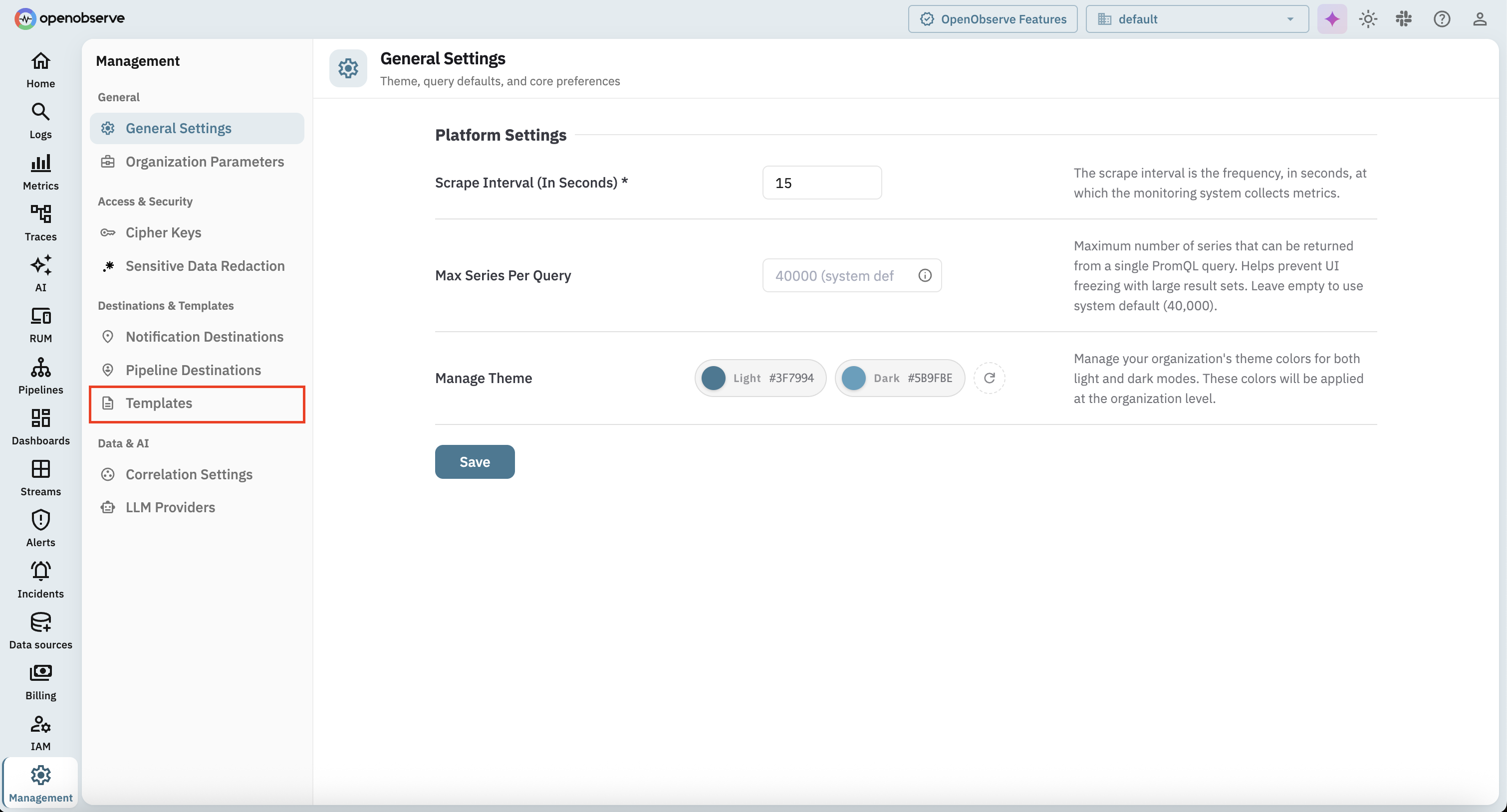
2. In the sidebar, click on **Templates**.
3. Click on **New template**.
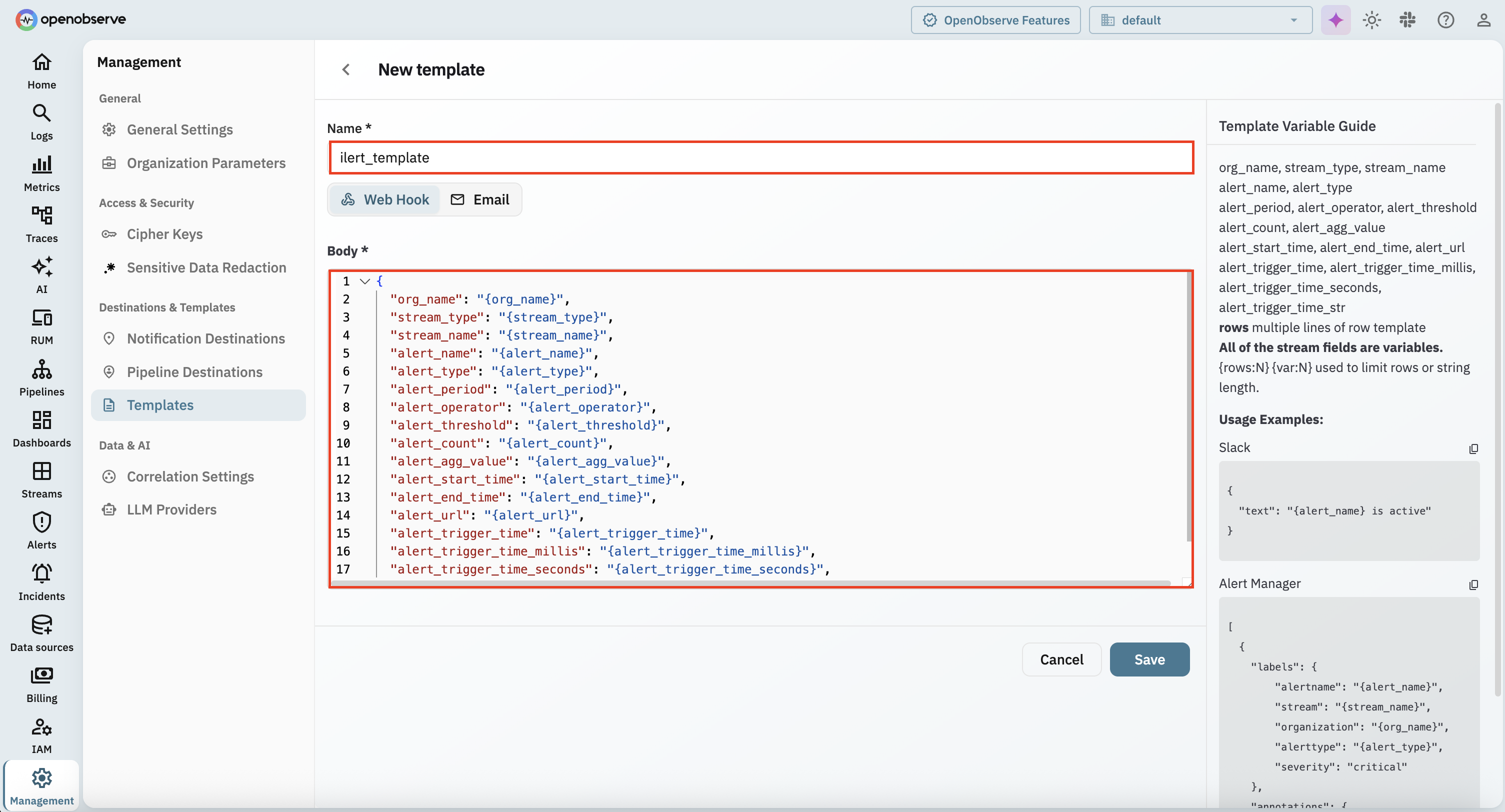
4. Give the template a name, for example `ilert_template`, keep **Web Hook** selected, copy and paste the template below into the **Body** field, and click **Save**.
### Payload template
```json
{
"org_name": "{org_name}",
"stream_type": "{stream_type}",
"stream_name": "{stream_name}",
"alert_name": "{alert_name}",
"alert_type": "{alert_type}",
"alert_period": "{alert_period}",
"alert_operator": "{alert_operator}",
"alert_threshold": "{alert_threshold}",
"alert_count": "{alert_count}",
"alert_agg_value": "{alert_agg_value}",
"alert_start_time": "{alert_start_time}",
"alert_end_time": "{alert_end_time}",
"alert_url": "{alert_url}",
"alert_trigger_time": "{alert_trigger_time}",
"alert_trigger_time_millis": "{alert_trigger_time_millis}",
"alert_trigger_time_seconds": "{alert_trigger_time_seconds}",
"alert_trigger_time_str": "{alert_trigger_time_str}"
}
```
{% hint style="info" %}
All fields of the alerted stream are available as variables too. The **Template Variable Guide** on the right side of the template editor lists every variable you can use, so you can enrich the payload with your own fields — they show up as custom details on the ilert alert.
{% endhint %}
## In OpenObserve: Create a notification destination
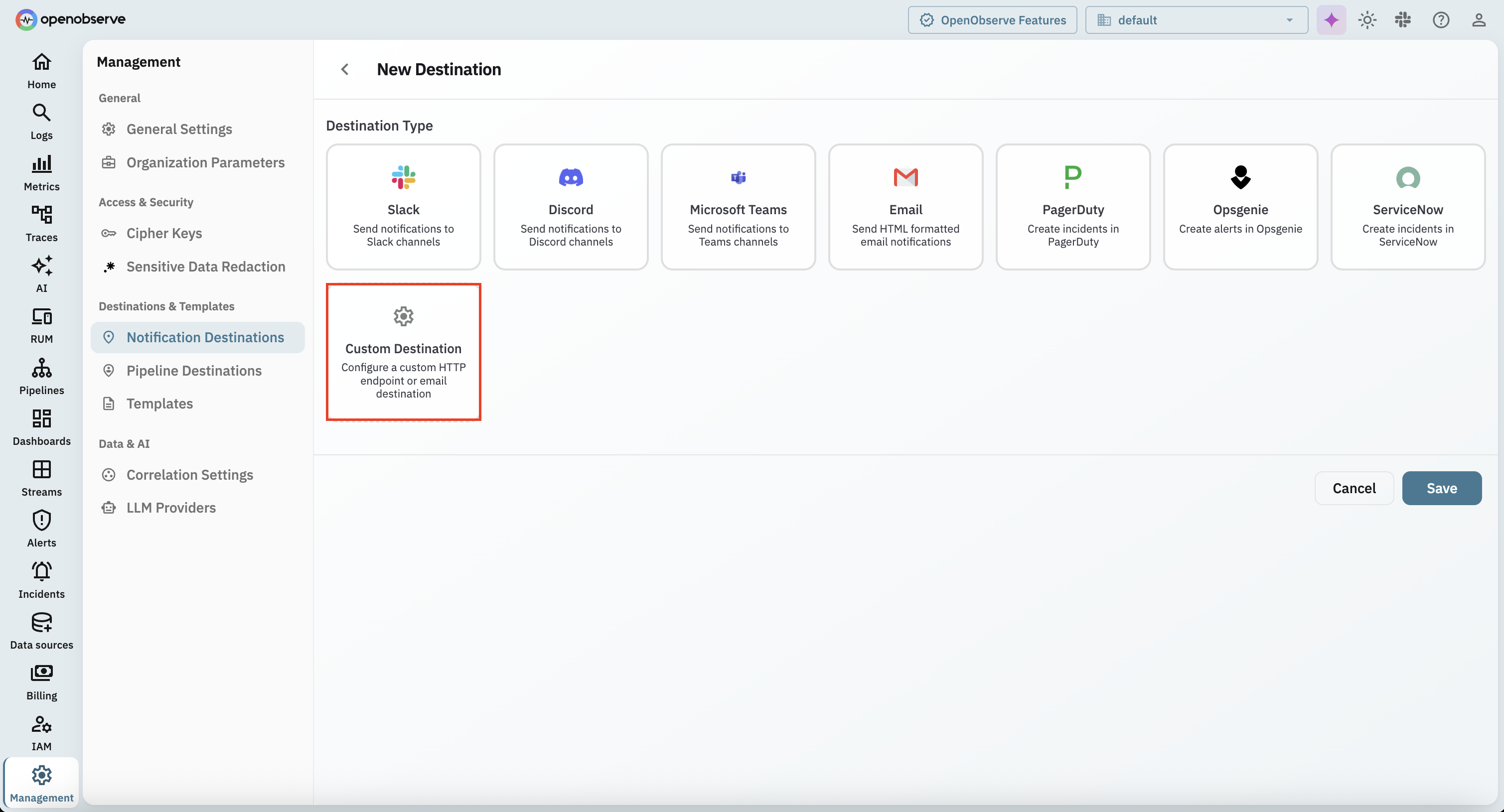
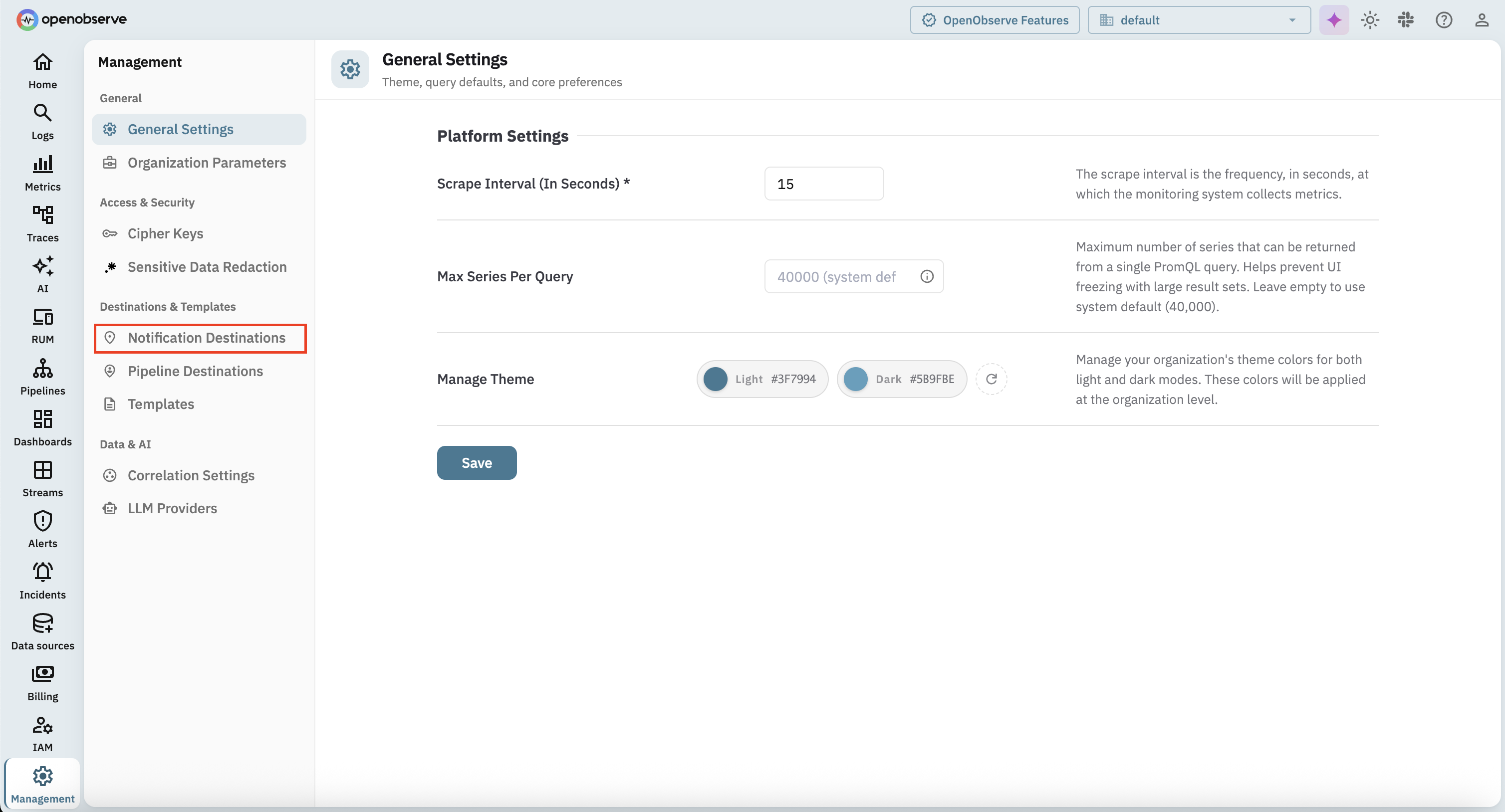
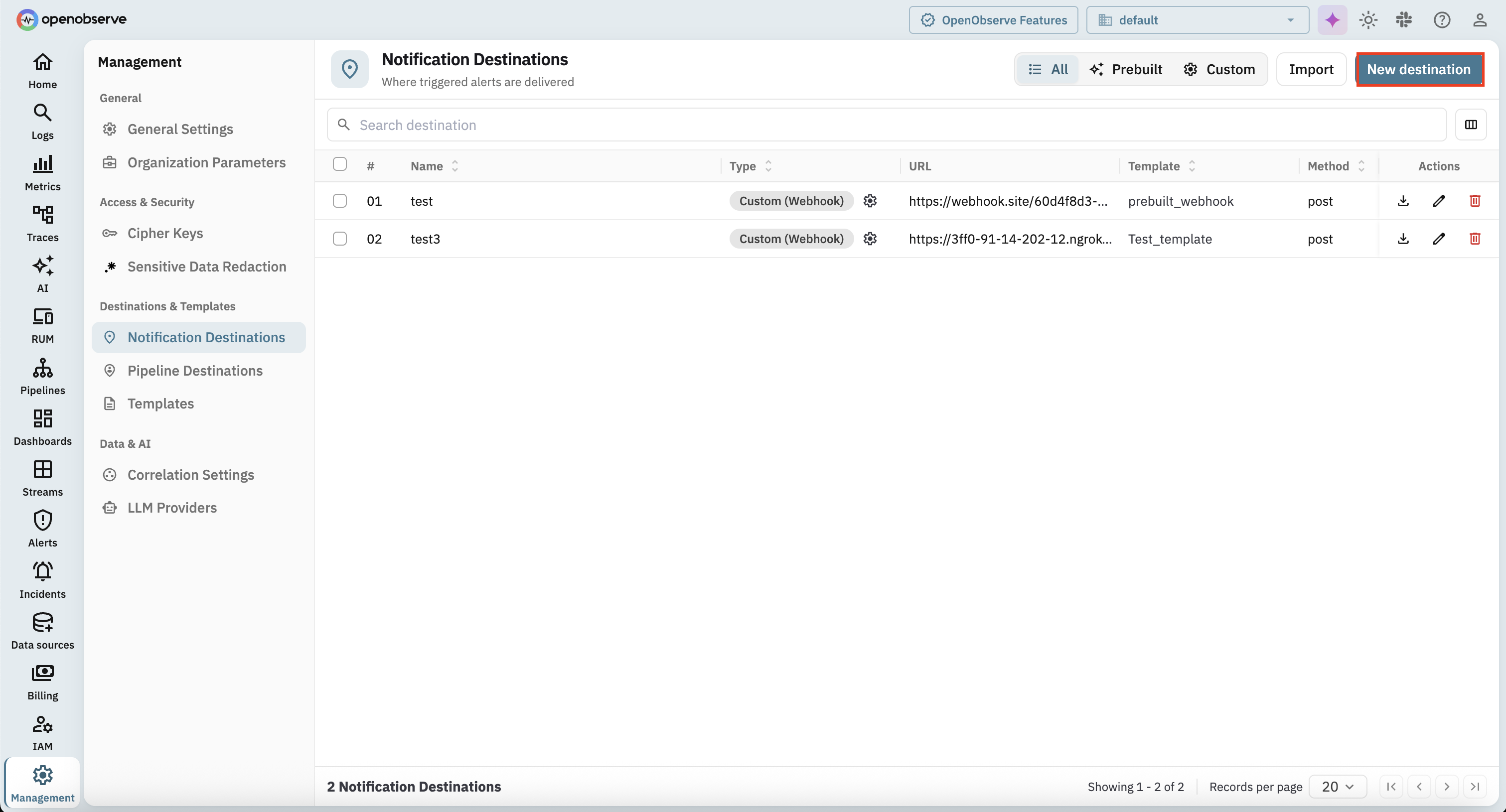
1. Still in **Management**, click on **Notification Destinations** and select **Custom Destination**.
2. Click on **New destination**.
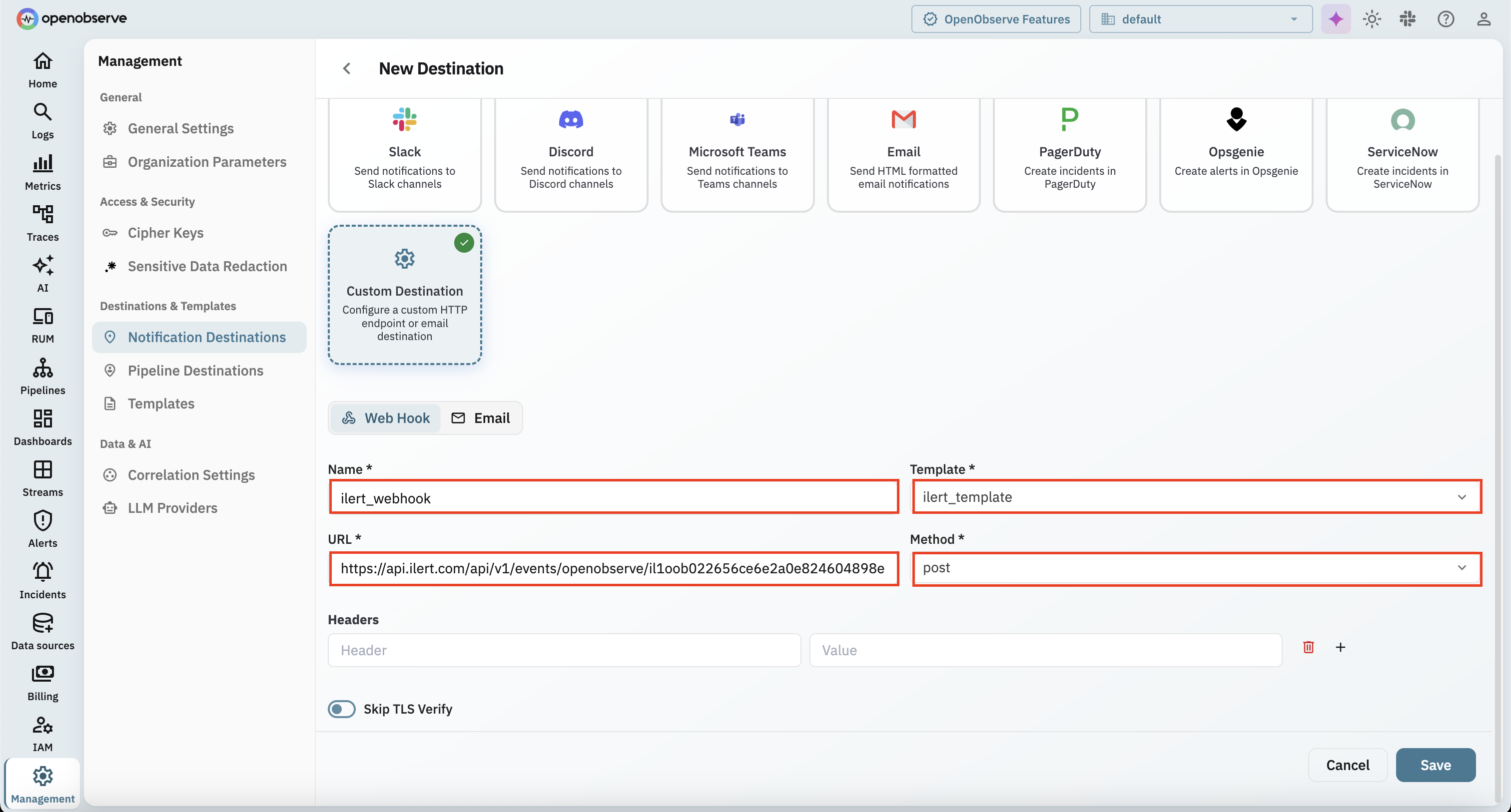
3. Choose **Custom Destination** as the destination type.
4. Keep **Web Hook** selected and fill in the fields:
* **Name**: a name for the destination, for example `ilert_webhook`
* **Template**: the template you created in the previous section, for example `ilert_template`
* **URL**: the webhook URL you copied from your ilert alert source
* **Method**: `post`
Then click **Save**.
## In OpenObserve: Use the destination in an alert
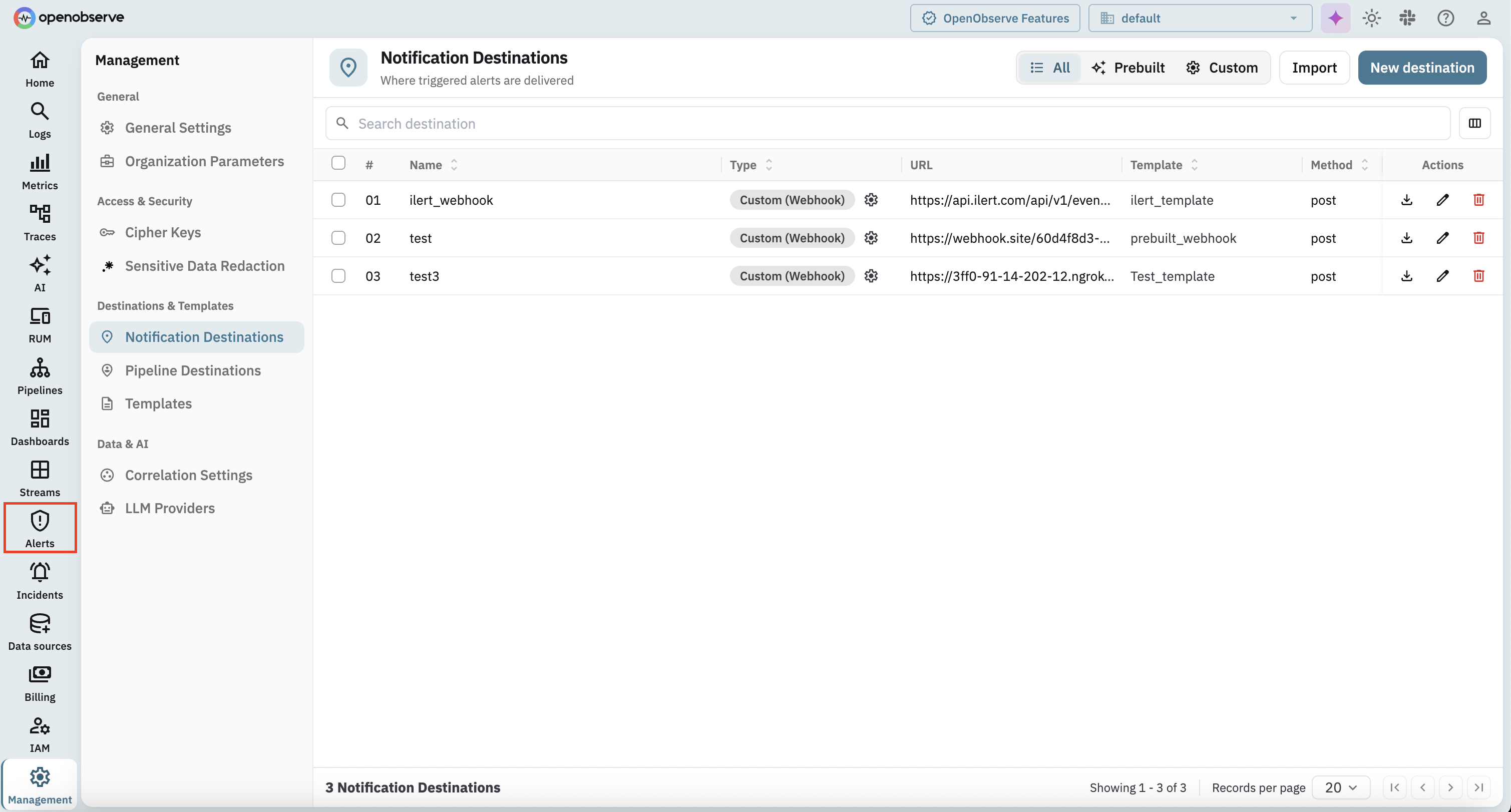
1. The destination now appears in the list. Click on **Alerts** in the left navigation.
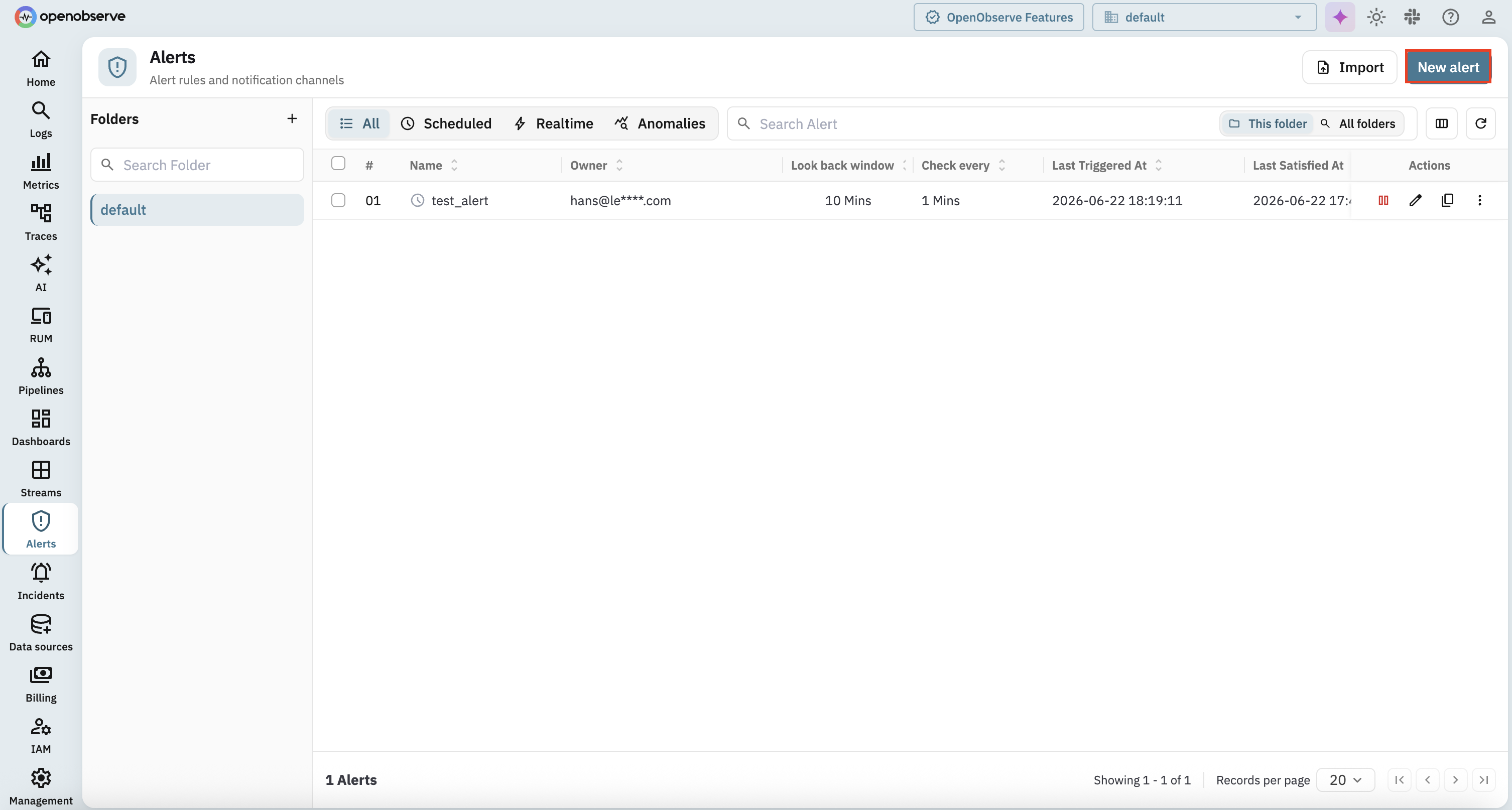
2. Create a **New alert**, or edit an existing one, and select the destination you created as its notification destination.
3. Save the alert. You are done.
When the alert's condition is met, OpenObserve renders the template and posts it to ilert, which creates an alert.
## FAQ
#### **Will alerts in ilert be resolved automatically?**
No. OpenObserve notifies its destinations while an alert condition is satisfied, but it does not send a separate recovery event. The ilert alert therefore stays open until it is resolved in ilert.
---
# Agent Instructions
This documentation is published with GitBook. GitBook is the documentation platform designed so that both humans and AI agents can read, navigate, and reason over technical content effectively. Learn more at gitbook.com.
## Querying This Documentation
If you need additional information that is not directly available in this page, you can query the documentation by asking a question.
Perform an HTTP GET request on the following URL with the `ask` and `goal` query parameters:
```
GET https://docs.ilert.com/integrations/inbound-integrations/openobserve.md?ask=&goal=
```
`ask` is the immediate question: it should be specific, self-contained, and written in natural language.
`goal` is what the user is ultimately trying to achieve, the reason they need the answer. Sharing it helps GitBook give you a better, more relevant answer. A goal is most helpful when it describes the outcome the user wants rather than restating the question. For example, with `ask=how do I create an API token`, a goal like `automate deployments from our CI pipeline` lets GitBook tailor the answer to that use case.
The response will contain a direct answer to the question and relevant excerpts and sources from the documentation.
Use this mechanism when the answer is not explicitly present in the current page, you need clarification or additional context, or you want to retrieve related documentation sections.