> For the complete documentation index, see [llms.txt](https://docs.ilert.com/llms.txt). Markdown versions of documentation pages are available by appending `.md` to page URLs; this page is available as [Markdown](https://docs.ilert.com/integrations/inbound-integrations/sciencelogic.md).

# ScienceLogic Integration

ScienceLogic SL1 is an IT operations and AIOps platform that monitors and manages IT infrastructure, applications and cloud environments.

With ilert's ScienceLogic integration, events detected by SL1 automatically create alerts in ilert. That way, you will never miss a critical event and always alert the right person using ilert's on-call schedules, automatic escalation, and multiple alerting channels including SMS, phone calls, push notifications and Slack. The integration is bi-directional in the sense that acknowledging an event in SL1 acknowledges the corresponding alert in ilert, and clearing (healthy) an event resolves the alert. Alerts created in ilert also contain a backlink to the originating event in SL1.

## In ilert: Create a ScienceLogic alert source <a href="#create-alert-source" id="create-alert-source"></a>

1. Go to **Alert sources** **→** **Alert sources** and click on **Create new alert source**.

   <figure><img src="/files/rmL9OoRxcWnDwcJZQm4Y" alt=""><figcaption></figcaption></figure>
2. Search for **ScienceLogic** in the search field, click on the ScienceLogic tile, and click on **Next**.

   <figure><img src="/files/1WoRRYB5U40PbeMJ7Hit" alt=""><figcaption></figcaption></figure>
3. Give your alert source a name, optionally assign teams, and click **Next**.
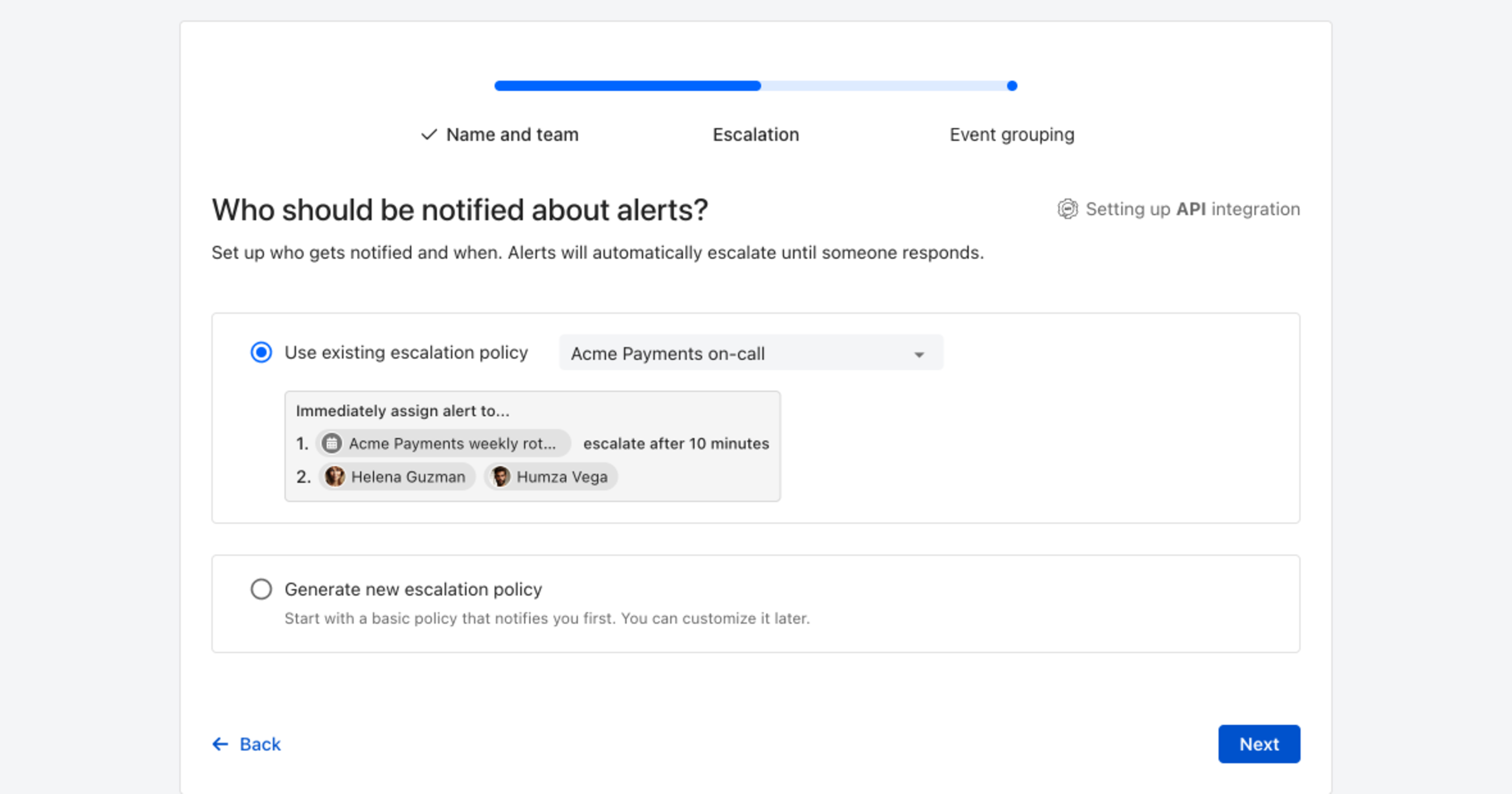
4. Select an **escalation policy** by creating a new one or assigning an existing one.

   <figure><img src="/files/y4Bakf2apGhBN56U8ZPR" alt=""><figcaption></figcaption></figure>
5. Select your [alert grouping](https://docs.ilert.com/alerting/alert-sources#alert-grouping) preference and click **Continue setup**. You may click **Do not group alerts** for now and change it later.

   <figure><img src="/files/nTlB0ZCIW1SP3dj6P9nO" alt=""><figcaption></figcaption></figure>
6. The next page shows additional settings such as custom alert templates or notification priority. Click on **Finish setup** for now.
7. On the final page, ilert generates a **ScienceLogic URL** for this alert source. Copy this URL — you will need it in ScienceLogic in the next step.

   <figure><img src="/files/ez1hMciAqSyfgKfwNFSv" alt="The ScienceLogic alert source settings page in ilert showing the ScienceLogic URL"><figcaption><p>You can find the ScienceLogic URL again later under the alert source's <strong>Settings</strong> tab.</p></figcaption></figure>

## In ScienceLogic: Configure the credential <a href="#configure-credential" id="configure-credential"></a>

ScienceLogic sends events to ilert through a Run Book automation that posts to the ilert ScienceLogic URL. The URL is stored in a SOAP/XML credential.

1. In the SL1 navigation, go to **Manage → Credentials**.

   <figure><img src="/files/wUG5M9v8bAEQq3irXFZf" alt="The Manage > Credentials menu item in ScienceLogic"><figcaption></figcaption></figure>
2. Click **Create New** to create a new SOAP/XML credential, or open the existing **ilert Credential** if it was provided by the ilert PowerPack.

   <figure><img src="/files/A3leuhQ9oDgBRkIBMX6v" alt="The ilert Credential in the ScienceLogic credentials list"><figcaption></figcaption></figure>
3. Configure the credential with the following values, then click **Save & Close**:

   * **Content Encoding:** `text/xml`
   * **Method:** `POST`
   * **HTTP Version:** `http/1.1`
   * **URL:** paste the **ScienceLogic URL** you copied from the ilert alert source
   * Assign the credential to the organization whose devices you want to monitor (e.g. `ILERT`).

   <figure><img src="/files/KCI7dMaDkvPrCUb0Ni6d" alt="The Edit Credential dialog in ScienceLogic with the ilert ScienceLogic URL"><figcaption></figcaption></figure>

## In ScienceLogic: Configure the automation policies <a href="#configure-automation-policies" id="configure-automation-policies"></a>

The integration uses three Run Book automation policies that keep alerts in ilert in sync with the state of the event in SL1:

| Automation policy               | Trigger                       | Result in ilert        |
| ------------------------------- | ----------------------------- | ---------------------- |
| **ilert policy (created)**      | An event is created           | Creates an alert       |
| **ilert policy (acknowledged)** | An event is acknowledged      | Acknowledges the alert |
| **ilert policy (cleared)**      | An event is cleared / healthy | Resolves the alert     |

1. In the SL1 navigation, go to **Registry → Run Book → Automation**.

   <figure><img src="/files/Jzm0bY4PnPfyD3c265qI" alt="The Registry > Run Book > Automation menu in ScienceLogic showing the three ilert policies"><figcaption></figcaption></figure>
2. Confirm that the three **ilert policy** entries are present and their **Policy State** is **Enabled**.
3. Open a policy by clicking its wrench (edit) icon to review its configuration. Each policy aligns the devices and events you want to forward and runs the matching ilert Run Book action (for example, **ilert action(accept)** for the acknowledged policy). Set the **Organization**, **Aligned Devices** and **Aligned Events** to match what you want to monitor, then click **Save**.

   <figure><img src="/files/6eoWscWBShkxYFmYxYMn" alt="The Automation Policy Editor in ScienceLogic showing an aligned ilert action"><figcaption></figcaption></figure>

That's it. When a matching event occurs in SL1, an alert is created in ilert. Acknowledging the event acknowledges the alert, and clearing the event resolves it.

## FAQ <a href="#faq" id="faq"></a>

**Will alerts in ilert be resolved automatically?**

Yes. As soon as the corresponding event in SL1 is cleared (returns to healthy), the **ilert policy (cleared)** automation policy resolves the alert in ilert.

**Can I use ScienceLogic with multiple alert sources in ilert?**

Yes. Create an additional ScienceLogic alert source in ilert, then add another credential in SL1 using the new ScienceLogic URL and align the relevant automation policies to it.

**Which events are forwarded to ilert?**

Only the events aligned in the automation policies. Adjust the **Aligned Devices** and **Aligned Events** of each policy to control what is forwarded. Selecting **(All events)** forwards every event for the aligned devices.


---

# Agent Instructions
This documentation is published with GitBook. GitBook is the documentation platform designed so that both humans and AI agents can read, navigate, and reason over technical content effectively. Learn more at gitbook.com.

## Querying This Documentation
If you need additional information that is not directly available in this page, you can query the documentation dynamically by asking a question.

Perform an HTTP GET request on the current page URL with the `ask` query parameter, and the optional `goal` query parameter:

```
GET https://docs.ilert.com/integrations/inbound-integrations/sciencelogic.md?ask=<question>&goal=<endgoal>
```

`ask` is the immediate question: it should be specific, self-contained, and written in natural language.
`goal` is optional and describes the broader end goal you are ultimately trying to accomplish on behalf of the user. GitBook uses it to tailor the answer towards what is most useful for that goal.

The response will contain a direct answer to the question and relevant excerpts and sources from the documentation.

Use this mechanism when the answer is not explicitly present in the current page, you need clarification or additional context, or you want to retrieve related documentation sections.
