> For the complete documentation index, see [llms.txt](https://docs.ilert.com/llms.txt). Markdown versions of documentation pages are available by appending `.md` to page URLs; this page is available as [Markdown](https://docs.ilert.com/mobile-app/mobile-app-notification-settings/critical-push-notifications-and-dnd-overrides/android-push-notification-dnd-configuration.md).

# Android Push Notification DND Configuration

{% hint style="info" %}
Note: this guide is meant for Android users only. For iOS, please refer to [this page](/mobile-app/mobile-app-notification-settings/critical-push-notifications-and-dnd-overrides/ios-critical-alerts-configuration.md).
{% endhint %}

{% hint style="success" %}
[Download ilert app for Android](https://play.google.com/store/apps/details?id=de.ilert.client.iphone\&hl=en_US\&pli=1).
{% endhint %}

On Android devices, ilert’s push notification configuration for Do Not Disturb mode ensures that urgent alerts break through silence when every second counts. By customizing notification channels and priority settings, ilert can deliver high-priority incident alerts that bypass DND restrictions, guaranteeing that on-call engineers receive timely notifications regardless of device settings. This setup is crucial for maintaining rapid incident response, enabling teams to react instantly to critical situations without being hindered by muted or restricted notifications.

## Prerequisite

Make sure that you have installed and logged into the ilert mobile app on your device. Which will automatically generate and store a push token for your device in your ilert account.

Under your **profile** settings (in web or mobile app) navigate to **Notification settings** and select Android push notifications for any desired notification option.

## Overriding DND settings for your device

* open the **Navigation** in your app (top left icon)
* tap on the cog icon (top right in navigation) to open the **Settings** menu
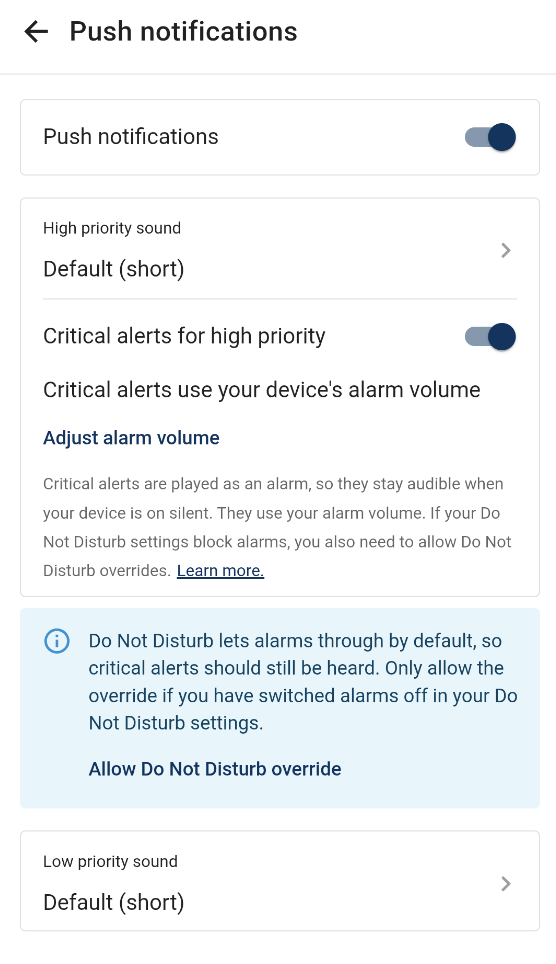
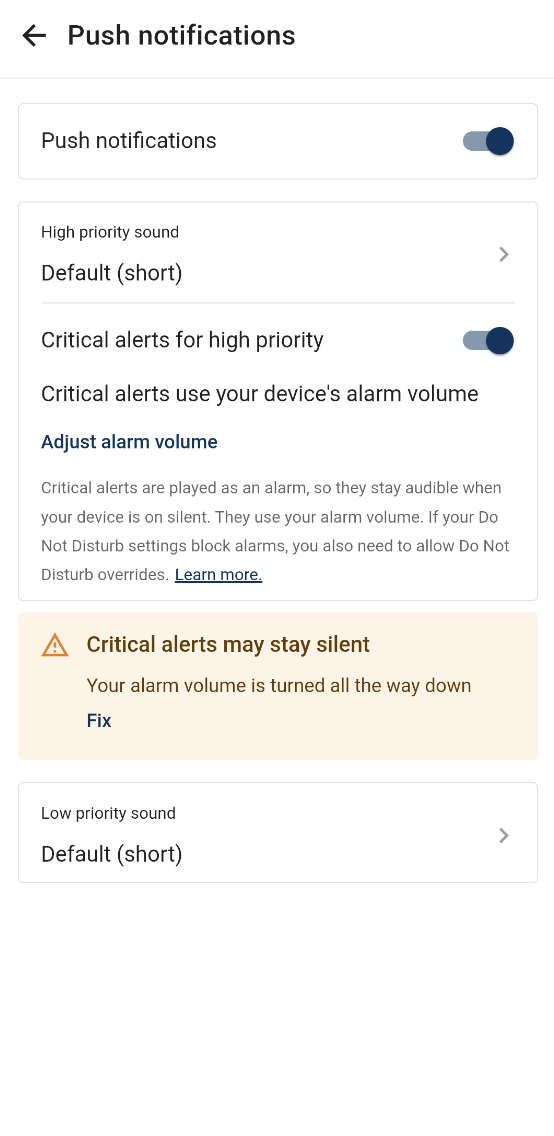
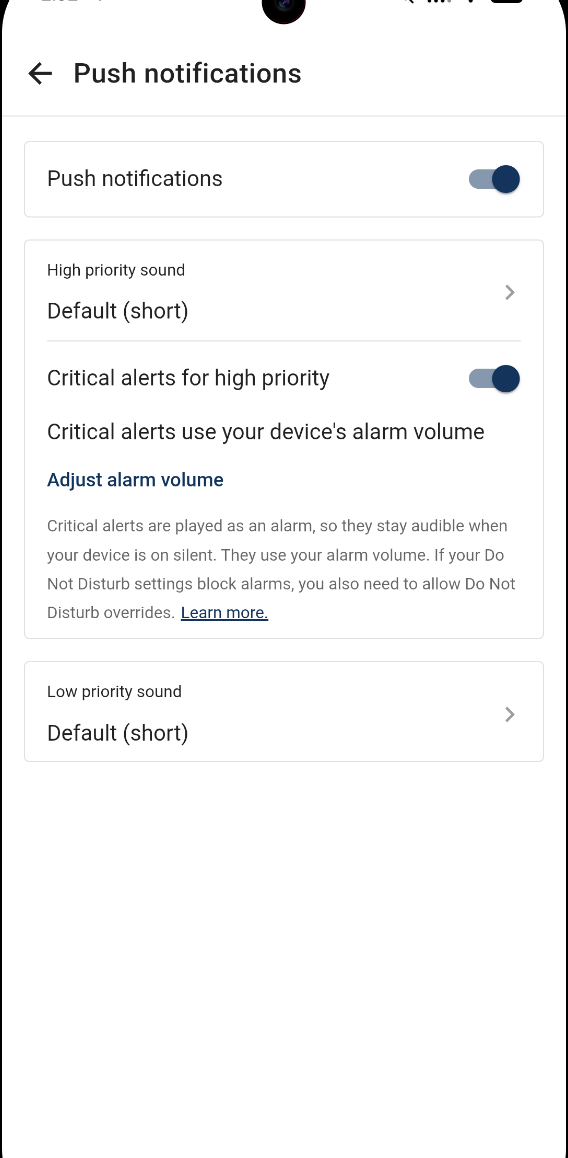
* tap on Push notification settings
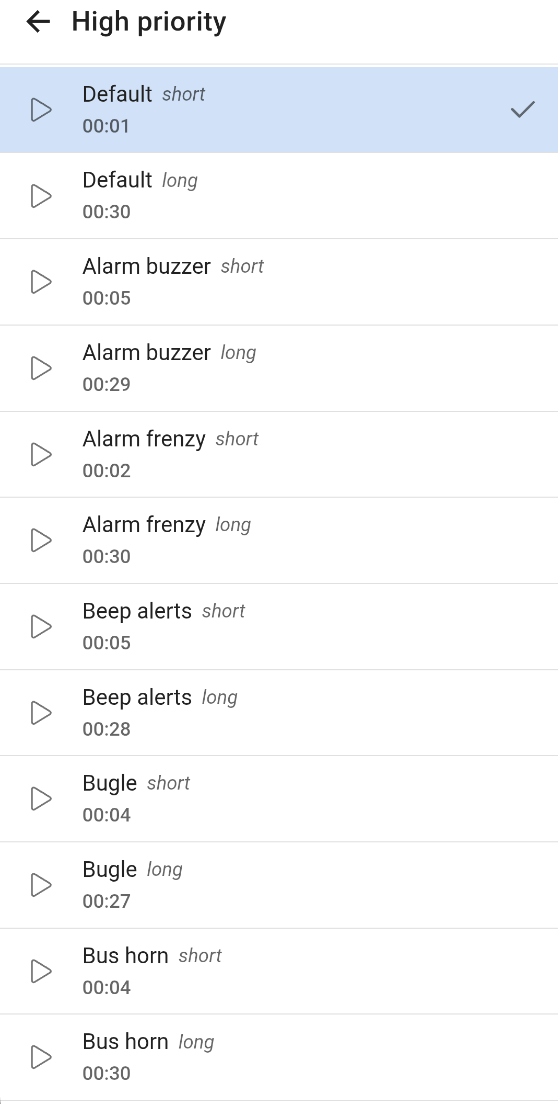
* select a custom sound (if desired) for **High** and **low priority** notifications (make sure that the radio button in the sound list is selected, just playing back the sound won't change your settings)
* ensure you have enabled the toggle for **Critical alerts for high priority**
* adjust **Critical alerts volume** to your needs

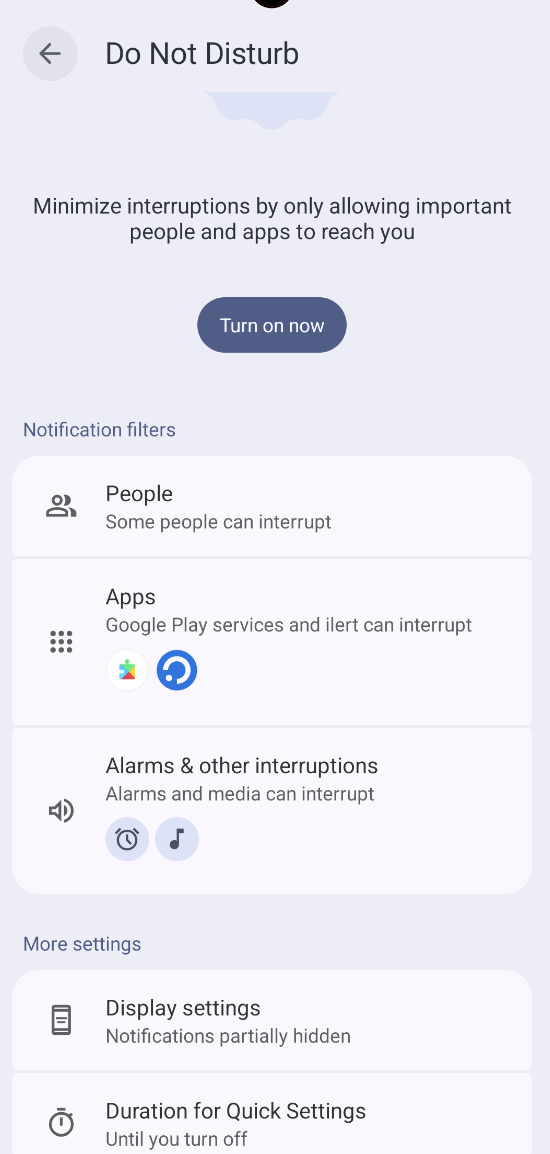
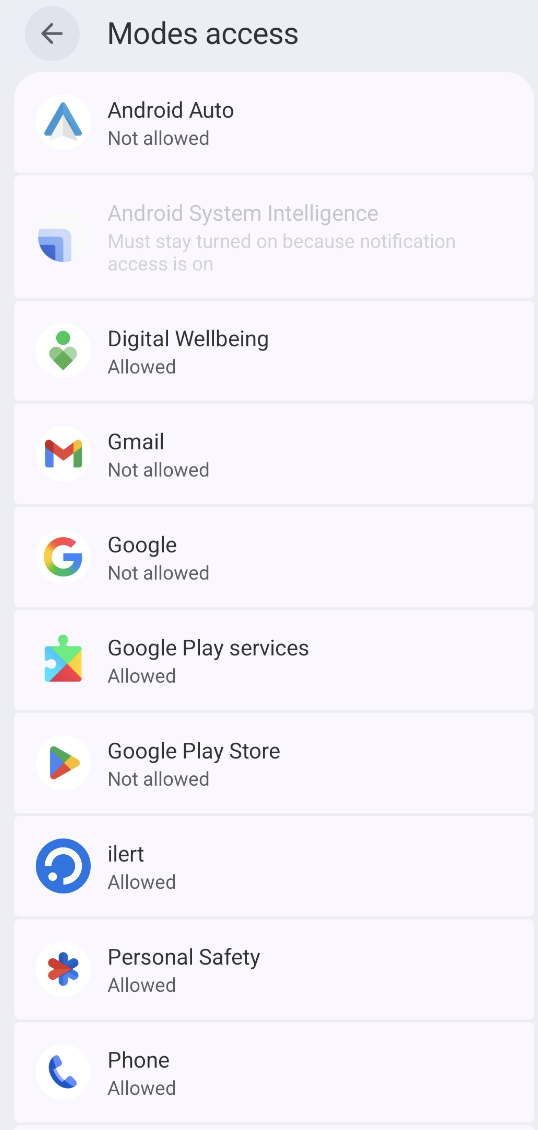
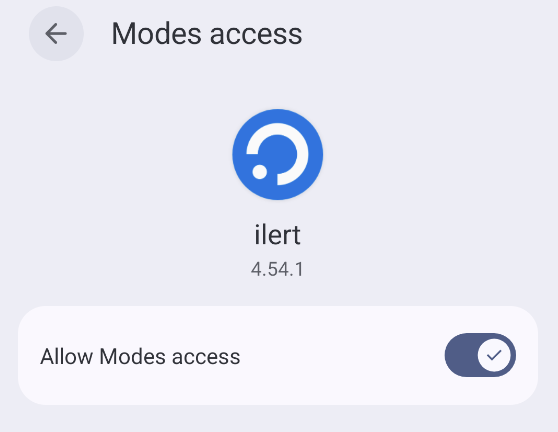
When enabling **Critical alerts for high priority** you may be prompted to allow the ilert app to override DND settings on your device. By clicking on **Go to settings** you will be redirected to the device settings page. Search for **ilert** and allow DND overrides for the app.

{% hint style="warning" %}
Note: when allowing DND overrides, the first notification received will **disable DND mode** and also set your system sound mode to **Sound,** without reverting it back to the previous state.
{% endhint %}

## FAQ

**Why is my DND mode turned off, and my device's sound mode set to Sound?**

To be able to deliver critical alerts, ilert ensures those notifications are always heard. Unfortunately, Android is quite limited in enabling this functionality and does not provide a possibility to revert sound/DND settings to previous states.


---

# Agent Instructions
This documentation is published with GitBook. GitBook is the documentation platform designed so that both humans and AI agents can read, navigate, and reason over technical content effectively. Learn more at gitbook.com.

## Querying This Documentation
If you need additional information that is not directly available in this page, you can query the documentation dynamically by asking a question.

Perform an HTTP GET request on the current page URL with the `ask` query parameter, and the optional `goal` query parameter:

```
GET https://docs.ilert.com/mobile-app/mobile-app-notification-settings/critical-push-notifications-and-dnd-overrides/android-push-notification-dnd-configuration.md?ask=<question>&goal=<endgoal>
```

`ask` is the immediate question: it should be specific, self-contained, and written in natural language.
`goal` is optional and describes the broader end goal you are ultimately trying to accomplish on behalf of the user. GitBook uses it to tailor the answer towards what is most useful for that goal.

The response will contain a direct answer to the question and relevant excerpts and sources from the documentation.

Use this mechanism when the answer is not explicitly present in the current page, you need clarification or additional context, or you want to retrieve related documentation sections.