> For the complete documentation index, see [llms.txt](https://docs.ilert.com/llms.txt). Markdown versions of documentation pages are available by appending `.md` to page URLs; this page is available as [Markdown](https://docs.ilert.com/users-and-access-management/single-sign-on/setting-up-sso-with-auth0.md).
# Setting up SSO with Auth0
Connect ilert to Auth0 using the SAML2 Web App addon, including the settings object that makes Auth0 send the user's email address as the name ID.
Auth0 exposes SAML through an addon on a regular application rather than a dedicated app type, which is the part most people get stuck on.
**Prerequisites**
* The [Pro plan](https://www.ilert.com/pricing) or higher
* The **account owner** role in ilert — no other role can change login authentication
* Access to your Auth0 Dashboard
## Open the ilert side first
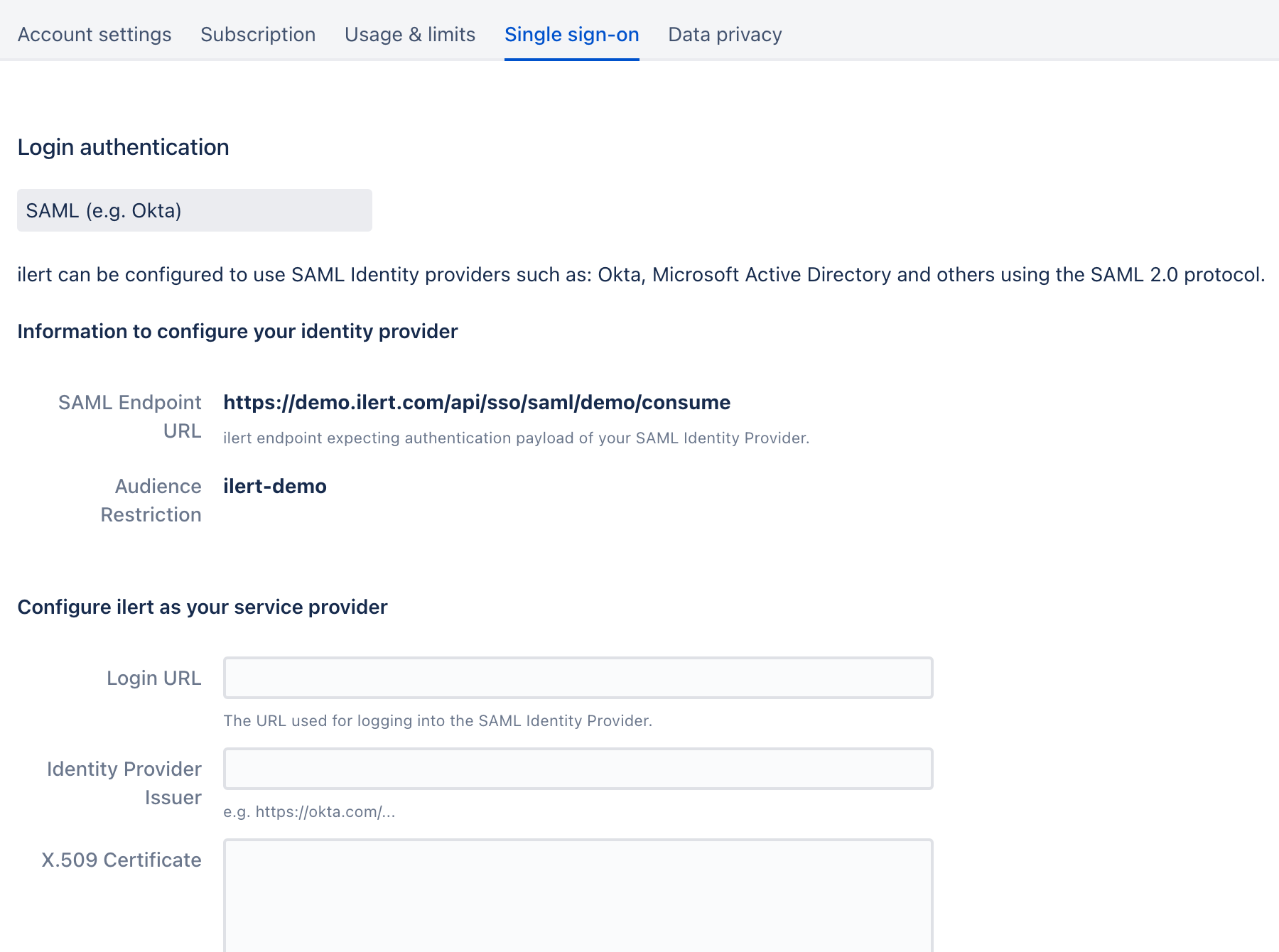
In the sidebar, go to **Settings** → **Account settings** → **Single sign-on** and choose **SAML (e.g. Okta)** from the dropdown. That option covers every SAML 2.0 provider, Auth0 included.
Under **Information to configure your identity provider**, ilert shows two read-only values. Auth0 needs both:
| ilert shows | Looks like |
| ------------------------ | -------------------------------------------------- |
| **SAML Endpoint URL** | `https://acme.ilert.com/api/sso/saml/acme/consume` |
| **Audience Restriction** | `ilert-acme` |
ilert hands over the top two values and expects the bottom three back.
## Create the application in Auth0
{% stepper %}
{% step %}
### Create a regular web application
In the Auth0 Dashboard, go to **Applications** → **Applications** and click **Create Application**. Name it `ilert`, choose the **Regular Web Application** tile, and click **Create**.
{% endstep %}
{% step %}
### Enable the SAML2 addon
Open the **Addons** tab and click the slider on the **SAML2 Web App** box.
{% endstep %}
{% step %}
### Configure the addon
In the dialog that opens, go to the **Settings** tab.
Paste ilert's **SAML Endpoint URL** into **Application Callback URL**.
Replace the sample settings object with this one, substituting your own **Audience Restriction**:
```json
{
"audience": "ilert-acme",
"nameIdentifierProbes": [
"http://schemas.xmlsoap.org/ws/2005/05/identity/claims/emailaddress"
]
}
```
`nameIdentifierProbes` is what makes Auth0 send the user's email address as the SAML name ID. ilert matches users by email, so without it the login fails to resolve to an ilert account.
{% endstep %}
{% step %}
### Check and save
Click **Debug** to have Auth0 validate the settings, then **Save**.
{% endstep %}
{% endstepper %}
## Copy Auth0's values back into ilert
Reopen the SAML2 addon and switch to the **Usage** tab. It lists the values ilert needs, under **Configure ilert as your service provider**:
| Auth0 gives you | Paste it into ilert's |
| ----------------------------------- | ---------------------------- |
| Identity Provider Login URL | **Login URL** |
| Issuer | **Identity Provider Issuer** |
| Contents of the signing certificate | **X.509 Certificate** |
Download the certificate, open it in a text editor, and paste everything including the `-----BEGIN CERTIFICATE-----` and `-----END CERTIFICATE-----` lines.
Click **Save** in ilert.
To verify, open [app.ilert.com](https://app.ilert.com) in a private browser window, click **Login with SSO**, and enter your ilert subdomain. Auth0 should take over the sign-in.
## Optional settings
These sit below the provider fields on the ilert **Single sign-on** tab.
| Setting | What it does |
| ------------------------------------------ | ---------------------------------------------------------------------------------------------------------------------------------------------------------------------------------------------------------------------------------------------------------------------------------- |
| **Provision new users on first sso login** | Creates the ilert user automatically on first successful sign-in, with the **Responder** role. Requires a free seat of that kind. Pass [additional attributes](/users-and-access-management/single-sign-on/auto-provisioning-users-and-teams.md) to set the role and team instead. |
| **Allow login with username and password** | Turn it off to require SSO for everyone except the account owner. Read the warning below first. |
| **Check provisioning attribute** | Restricts auto-provisioning to responses carrying a named SAML attribute. See [auto provisioning](/users-and-access-management/single-sign-on/auto-provisioning-users-and-teams.md#preventing-unwanted-auto-provisioning). |
| **Compress AuthnRequests** | Deflates the authentication request. Only if your Auth0 configuration requires it. |
| **Longer sessions** | Keeps users signed in longer, as though they had ticked **Keep me logged in**. |
{% hint style="warning" %}
**Test before you turn off password login.**
With **Allow login with username and password** cleared, a misconfigured SAML setup stops everyone signing in except the account owner, who can still use a password in the web app. Sign in through Auth0 in a private browser window first, and only then clear the checkbox.
{% endhint %}
## Pass roles and teams from Auth0
Beyond the name identifier, Auth0 can send attributes that set an ilert user's role, team, and profile details at provisioning time.
{% content-ref url="/pages/-MUDUwi7p1W7fdZyonRf" %}
[Auto provisioning users & teams](/users-and-access-management/single-sign-on/auto-provisioning-users-and-teams.md)
{% endcontent-ref %}
---
# Agent Instructions
This documentation is published with GitBook. GitBook is the documentation platform designed so that both humans and AI agents can read, navigate, and reason over technical content effectively. Learn more at gitbook.com.
## Querying This Documentation
If you need additional information that is not directly available in this page, you can query the documentation by asking a question.
Perform an HTTP GET request on the following URL with the `ask` and `goal` query parameters:
```
GET https://docs.ilert.com/users-and-access-management/single-sign-on/setting-up-sso-with-auth0.md?ask=&goal=
```
`ask` is the immediate question: it should be specific, self-contained, and written in natural language.
`goal` is what the user is ultimately trying to achieve, the reason they need the answer. Sharing it helps GitBook give you a better, more relevant answer. A goal is most helpful when it describes the outcome the user wants rather than restating the question. For example, with `ask=how do I create an API token`, a goal like `automate deployments from our CI pipeline` lets GitBook tailor the answer to that use case.
The response will contain a direct answer to the question and relevant excerpts and sources from the documentation.
Use this mechanism when the answer is not explicitly present in the current page, you need clarification or additional context, or you want to retrieve related documentation sections.