> For the complete documentation index, see [llms.txt](https://docs.ilert.com/llms.txt). Markdown versions of documentation pages are available by appending `.md` to page URLs; this page is available as [Markdown](https://docs.ilert.com/users-and-access-management/single-sign-on/setting-up-sso-with-okta.md).
# Setting up SSO with Okta
Connect ilert to Okta over SAML 2.0, mapping each value Okta produces to the field in ilert that expects it.
This guide creates a SAML application in Okta and connects it to ilert. Both sides exchange values, so you will move between the two consoles a few times.
**Prerequisites**
* The [Pro plan](https://www.ilert.com/pricing) or higher
* The **account owner** role in ilert — no other role can change login authentication
* Administrator access in Okta
## Open the ilert side first
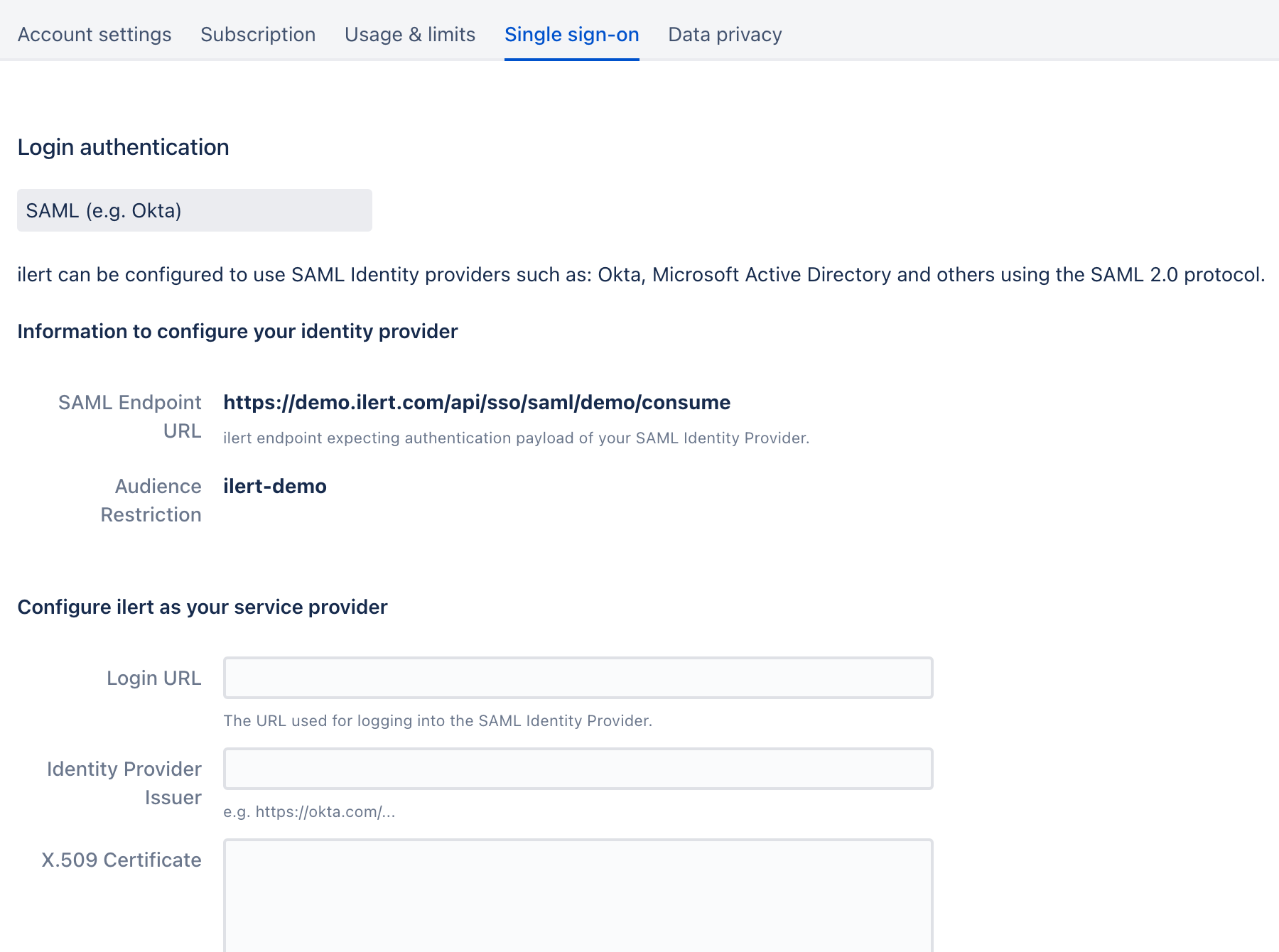
In the sidebar, go to **Settings** → **Account settings** → **Single sign-on** and choose **SAML (e.g. Okta)** from the dropdown.
Under **Information to configure your identity provider**, ilert shows two read-only values. Keep this tab open — Okta needs both:
| ilert shows | Looks like |
| ------------------------ | -------------------------------------------------- |
| **SAML Endpoint URL** | `https://acme.ilert.com/api/sso/saml/acme/consume` |
| **Audience Restriction** | `ilert-acme` |
ilert hands over the top two values and expects the bottom three back.
## Create the SAML app in Okta
{% stepper %}
{% step %}
### Start the app integration
In the Okta Admin Console, go to **Applications** → **Applications**, click **Create App Integration**, and select the **Classic experience**. Choose **SAML 2.0** as the sign-in method and click **Next**.
{% endstep %}
{% step %}
### Name the app
Enter an app name — `ilert` — add a logo if you want one, and click **Next**.
{% endstep %}
{% step %}
### Fill in the SAML settings
Paste the two values from ilert, and set the name ID format:
| Okta field | Value |
| --------------------------- | -------------------------------- |
| Single sign-on URL | ilert's **SAML Endpoint URL** |
| Audience URI (SP Entity ID) | ilert's **Audience Restriction** |
| Name ID format | `EmailAddress` |
Scroll to the bottom and click **Next**.
{% endstep %}
{% step %}
### Answer the feedback questions
Select **I'm an Okta customer adding an internal app**, then **This is an internal app that we have created**, and click **Finish**.
{% endstep %}
{% step %}
### Pin the application username
Open the app's **Sign On** settings and set the application username to a value that does not change when someone's Okta username changes. This keeps ilert accounts bound to the right people later — see [account bindings](#how-okta-and-ilert-stay-bound) for why it matters.
{% endstep %}
{% endstepper %}
## Copy Okta's values back into ilert
On the app's **Sign On** tab, click **View Setup Instructions**. Okta shows three values. Each has a field waiting for it in ilert, under **Configure ilert as your service provider**:
| Okta gives you | Paste it into ilert's |
| ------------------------------------ | ---------------------------- |
| Identity Provider Single Sign-On URL | **Login URL** |
| Identity Provider Issuer | **Identity Provider Issuer** |
| X.509 Certificate | **X.509 Certificate** |
Click **Save** in ilert.
SSO is now configured — but nobody can use it yet, because no one is assigned to the Okta app.
## Assign users to the app
In Okta, open the app's **Assignments**, click **Assign**, and choose **Assign to People** or **Assign to Groups**. Click **Assign** next to each person who should reach ilert, confirm, and click **Done**.
To verify, have one assigned user open [app.ilert.com](https://app.ilert.com), click **Login with SSO**, and enter your ilert subdomain. They should land in ilert without typing a password.
## Optional settings
These sit below the provider fields on the ilert **Single sign-on** tab.
| Setting | What it does |
| ------------------------------------------ | ---------------------------------------------------------------------------------------------------------------------------------------------------------------------------------------------------------------------------------------------------------------------------------- |
| **Provision new users on first sso login** | Creates the ilert user automatically on first successful sign-in, with the **Responder** role. Requires a free seat of that kind. Pass [additional attributes](/users-and-access-management/single-sign-on/auto-provisioning-users-and-teams.md) to set the role and team instead. |
| **Allow login with username and password** | Turn it off to require SSO for everyone except the account owner. Read the warning below first. |
| **Check provisioning attribute** | Restricts auto-provisioning to responses carrying a named SAML attribute. See [auto provisioning](/users-and-access-management/single-sign-on/auto-provisioning-users-and-teams.md#preventing-unwanted-auto-provisioning). |
| **Compress AuthnRequests** | Deflates the authentication request. Only if Okta's configuration requires it. |
| **Longer sessions** | Keeps users signed in longer, as though they had ticked **Keep me logged in**. |
{% hint style="warning" %}
**Test before you turn off password login.**
With **Allow login with username and password** cleared, a misconfigured SAML setup stops everyone signing in except the account owner, who can still use a password in the web app. Sign in through Okta in a private browser window first, and only then clear the checkbox.
{% endhint %}
## How Okta and ilert stay bound
Okta creates a binding between a user and an app when you assign them. By default that binding uses the Okta username, which is usually the person's primary email address.
ilert reads the value Okta sends in the SAML `NameID` field and maps it to an internal ilert user ID. That mapping is what keeps someone's ilert account, on-call shifts and history attached to them.
The consequence worth knowing:
* **Changing a user's email address in Okta does not break their ilert login.** The app-level username assignment stays as it was, and ilert's internal mapping does not depend on the address either.
* **Changing the Okta username itself does not break it either**, provided you pinned the application username as described above.
* Okta may warn that a renamed user must be deprovisioned from the application manually. You can ignore that warning.
{% hint style="info" %}
An ilert user's email address can be changed freely without breaking sign-in — but ilert keeps sending **notifications** to the old address until they update it themselves under **My profile** → **Contact details**.
{% endhint %}
## Pass roles and teams from Okta
Beyond `NameID`, Okta can send attributes that set an ilert user's role, team, and profile details at provisioning time.
{% content-ref url="/pages/-MUDUwi7p1W7fdZyonRf" %}
[Auto provisioning users & teams](/users-and-access-management/single-sign-on/auto-provisioning-users-and-teams.md)
{% endcontent-ref %}
---
# Agent Instructions
This documentation is published with GitBook. GitBook is the documentation platform designed so that both humans and AI agents can read, navigate, and reason over technical content effectively. Learn more at gitbook.com.
## Querying This Documentation
If you need additional information that is not directly available in this page, you can query the documentation by asking a question.
Perform an HTTP GET request on the following URL with the `ask` and `goal` query parameters:
```
GET https://docs.ilert.com/users-and-access-management/single-sign-on/setting-up-sso-with-okta.md?ask=&goal=
```
`ask` is the immediate question: it should be specific, self-contained, and written in natural language.
`goal` is what the user is ultimately trying to achieve, the reason they need the answer. Sharing it helps GitBook give you a better, more relevant answer. A goal is most helpful when it describes the outcome the user wants rather than restating the question. For example, with `ask=how do I create an API token`, a goal like `automate deployments from our CI pipeline` lets GitBook tailor the answer to that use case.
The response will contain a direct answer to the question and relevant excerpts and sources from the documentation.
Use this mechanism when the answer is not explicitly present in the current page, you need clarification or additional context, or you want to retrieve related documentation sections.