> For the complete documentation index, see [llms.txt](https://docs.ilert.com/llms.txt). Markdown versions of documentation pages are available by appending `.md` to page URLs; this page is available as [Markdown](https://docs.ilert.com/integrations/inbound-integrations/jumpcloud.md).
# JumpCloud Integration
JumpCloud is a cloud-based open directory platform that is used to securely manage users' identity, devices, and access across things such as VPN, Wi-Fi, Servers, and workstations.
## In ilert: Create a JumpCloud alert source
1. Go to **Alerting** → **Alert sources** and click **Create new alert source**.
2. Search for **JumpCloud**, click its tile, and click **Next**.
3. Give your alert source a name, optionally assign teams, and click **Next**.
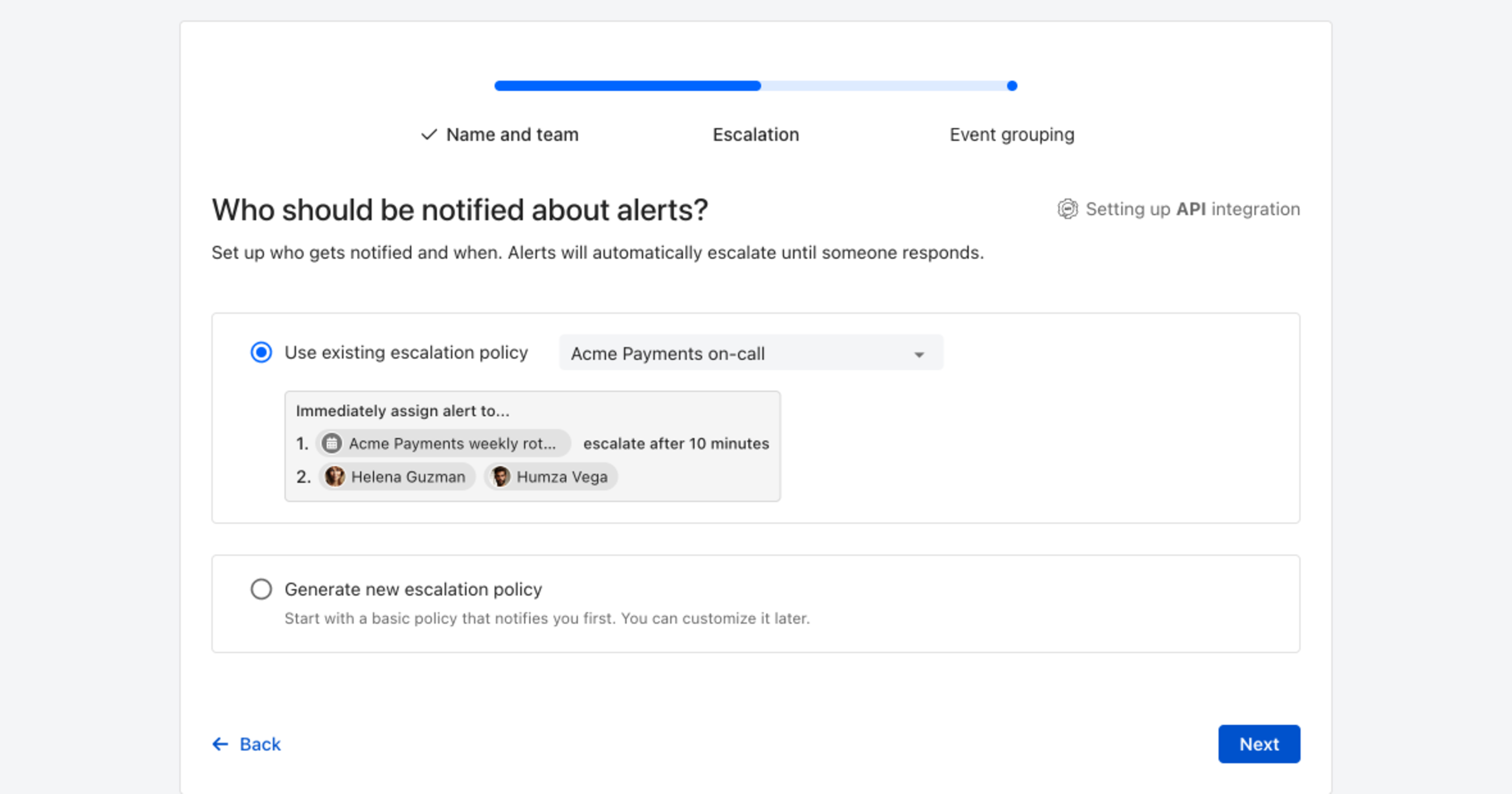
4. Choose who gets notified: select **Use existing escalation policy** and pick a policy, or **Generate new escalation policy** to start with a basic one that notifies you first. Click **Next**.
Pick an existing escalation policy, or generate a basic one without leaving the wizard.
5. Select **Default grouping** and click **Continue setup**. It groups events by the alert key the integration sets; the other [grouping options](/alerting/configure-alerting/alert-sources.md#event-grouping) are easier to judge once events are arriving.
6. The next page shows more settings, such as notification priority and alert templates. Click **Finish setup** for now; you can change them later.
7. On the final page, ilert shows the integration key and URL for this alert source. You will need them later in this guide.
## In JumpCloud
1. Make sure you have Devices added in JumpCloud dashboard, if you haven't done so, navigate to **Devices** and **Add Device**


2. Add **Command** to by clicking **Command** on the left side Menu and Add by clicking the plus Green Button

3. After that you need to enter the command manually, put the following in the **Command** field, make sure that you replace `API_KEY` and the URL that are received from ilert, and replace the Test Incident with the proper summary, you can also add more information to the incident based on the [Event creation API](https://api.ilert.com/api-docs/#tag/Events/paths/~1events/post)
```
curl -X POST \
-H "Accept: application/json" \
-H "Content-Type: application/json" \
-d '{"apiKey":"API_KEY", "eventType": "ALERT", "summary": "Test Incident"}' \
https://api.ilert.com/api/v1/events/sensu/API_KEY
```
4. In order to trigger the creation, make sure the Device is listed in the command, click the **Command** entry and click **Devices** and make sure the device is there.

5. In order to create Manually, we can choose **"Run Manually"** in the Launch Event > Event on the command entry property

---
# Agent Instructions
This documentation is published with GitBook. GitBook is the documentation platform designed so that both humans and AI agents can read, navigate, and reason over technical content effectively. Learn more at gitbook.com.
## Querying This Documentation
If you need additional information that is not directly available in this page, you can query the documentation by asking a question.
Perform an HTTP GET request on the following URL with the `ask` and `goal` query parameters:
```
GET https://docs.ilert.com/integrations/inbound-integrations/jumpcloud.md?ask=&goal=
```
`ask` is the immediate question: it should be specific, self-contained, and written in natural language.
`goal` is what the user is ultimately trying to achieve, the reason they need the answer. Sharing it helps GitBook give you a better, more relevant answer. A goal is most helpful when it describes the outcome the user wants rather than restating the question. For example, with `ask=how do I create an API token`, a goal like `automate deployments from our CI pipeline` lets GitBook tailor the answer to that use case.
The response will contain a direct answer to the question and relevant excerpts and sources from the documentation.
Use this mechanism when the answer is not explicitly present in the current page, you need clarification or additional context, or you want to retrieve related documentation sections.