> For the complete documentation index, see [llms.txt](https://docs.ilert.com/llms.txt). Markdown versions of documentation pages are available by appending `.md` to page URLs; this page is available as [Markdown](https://docs.ilert.com/integrations/inbound-integrations/aws-phd.md).
# AWS Personal Health Dashboard Integration
Create alerts in ilert from issues AWS Personal Health Dashboard.
[AWS Personal Health Dashboard](https://aws.amazon.com/premiumsupport/technology/personal-health-dashboard/) provides alerts and remediation guidance when AWS is experiencing events that may impact you.
With ilert's AWS Personal Health Dashboard integration, you can automatically create alerts in ilert from problems in AWS Personal Health Dashboard. That way, you will never miss a critical alert and always alert the right person using ilert's on-call schedules, automatic escalation, and multiple alerting channels. When AWS Personal Health Dashboard reports an issue, ilert will alert the on-call person through their preferred channel, including SMS, phone calls, push notifications and Slack. ilert will automatically escalate to the next person, if the alert is not acknowledged. ilert also lets you define alerting rules based on support hours and delay alerts until your support hours start.
## In ilert: Create an AWS Personal Health Dashboard alert source
1. Go to **Alerting** → **Alert sources** and click **Create new alert source**.
2. Search for **AWS Personal Health Dashboard**, click its tile, and click **Next**.
3. Give your alert source a name, optionally assign teams, and click **Next**.
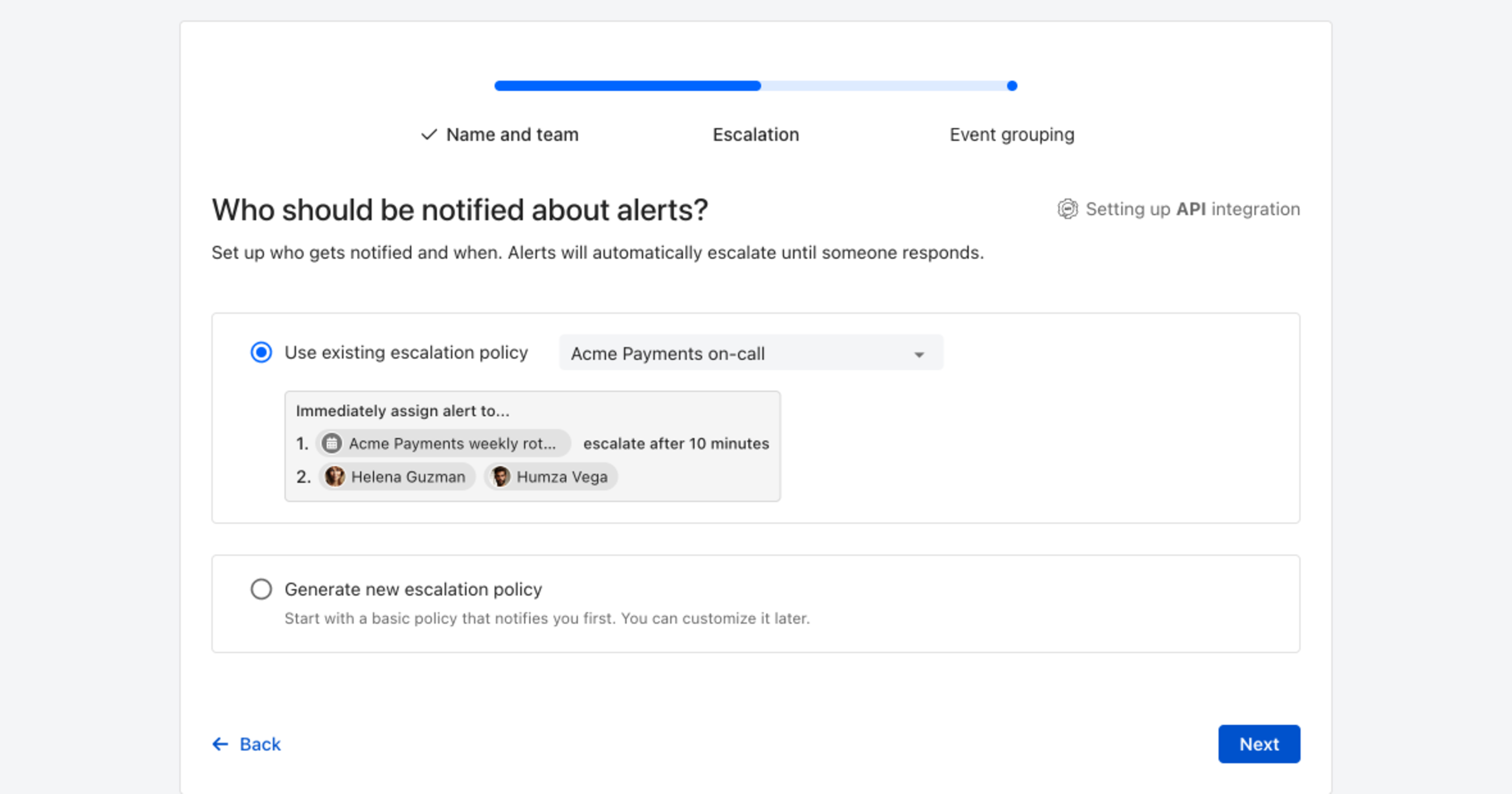
4. Choose who gets notified: select **Use existing escalation policy** and pick a policy, or **Generate new escalation policy** to start with a basic one that notifies you first. Click **Next**.
Pick an existing escalation policy, or generate a basic one without leaving the wizard.
5. Select **Default grouping** and click **Continue setup**. It groups events by the alert key the integration sets; the other [grouping options](/alerting/configure-alerting/alert-sources.md#event-grouping) are easier to judge once events are arriving.
6. The next page shows more settings, such as notification priority and alert templates. Click **Finish setup** for now; you can change them later.
7. On the final page, ilert shows the integration key and URL for this alert source. You will need them later in this guide.
## In AWS: Create a SNS topic
> If you have already created an SNS topic for your AWS Personal Health Dashboard that you want to reuse, you can proceed to step 3.
1. In the SNS Dashboard click on **Create topic**

2. Name the topic and click on **Create topic**

3. Click on **Create subscription** on the Topic Detail page

4. In the **Topic ARN** section, ensure that the **SNS Topic** that you generated is selected
5. In the **Protocol** section, choose the **HTTPS** protocol
6. In the **Endpoint** section, paste the **Webhook URL** that you generated in ilert
7. In the **Enable raw message delivery** section, ensure that the checkbox is unchecked
8. Click on **Create subscription**

9. The subscription is **automatically confirmed by ilert** when it is created. After updating the overview, the status "PendingConfirmation" should disappear, and the ID should be displayed.
## In AWS EventBridge: Create an Event bus Rule
AWS Health generates events that are relayed by AWS EventBridge. You now create an EventBridge rule that matches these events and publishes them to the SNS topic you created above.
1. In the AWS EventBridge console, click on **Rules** and then on **Create rule**.
2. Select **Advanced builder** as builder mode, enter a **Name** for the rule, leave the **default** event bus selected and click on **Next**.
3. Select **Custom pattern (JSON editor)** as creation method, enter the following **Event pattern** and click on **Next**:
```json
{
"source": ["aws.health"],
"detail-type": ["AWS Health Event"]
}
```
> To only receive events for specific AWS services, add a `service` filter to the `detail` object, e.g. `"detail": { "service": ["EC2", "RDS"] }`.
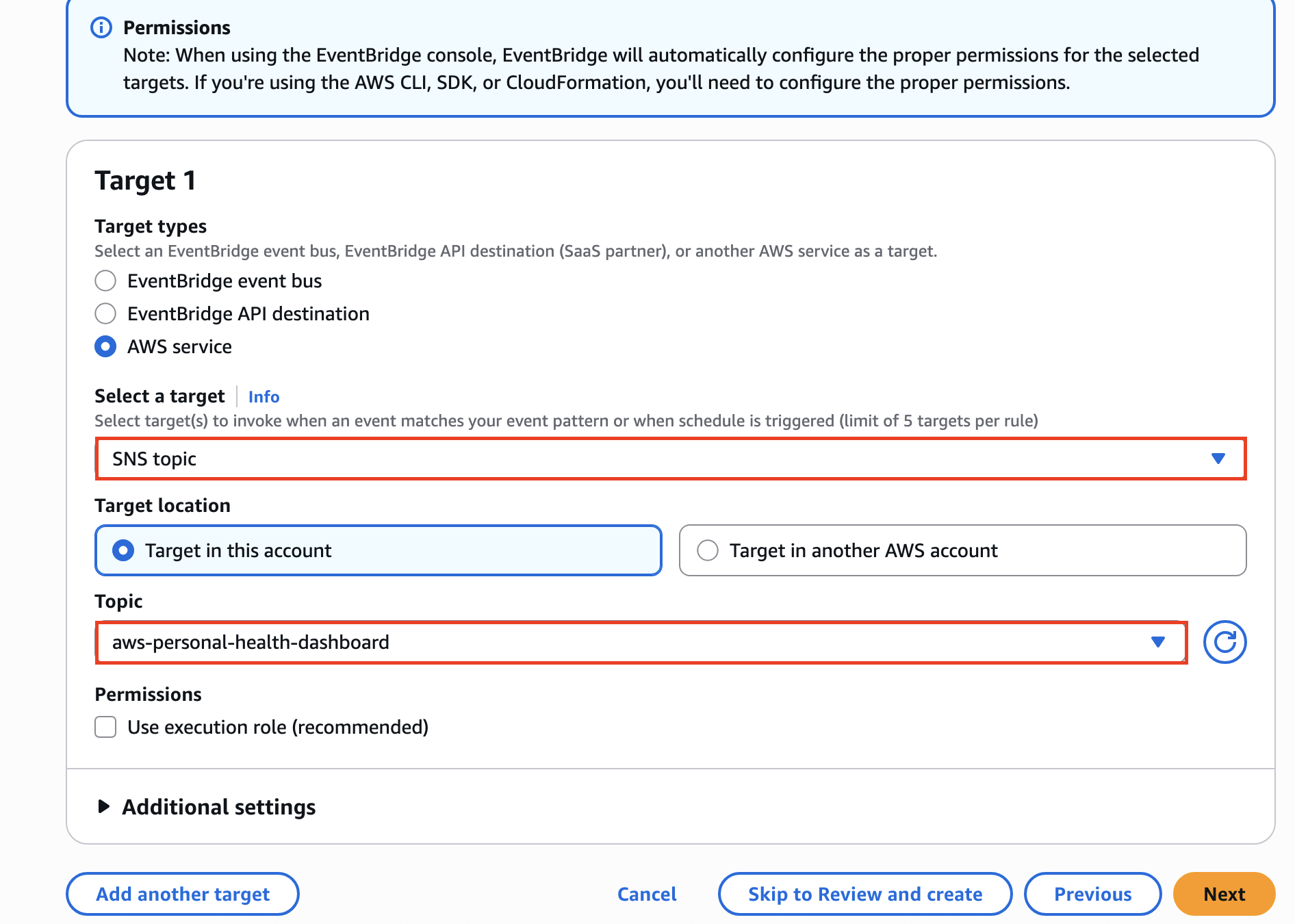
4. As **Target types** select **AWS service**, choose **SNS topic** as target, select the topic you created before and click on **Next**. You may skip the tags step.
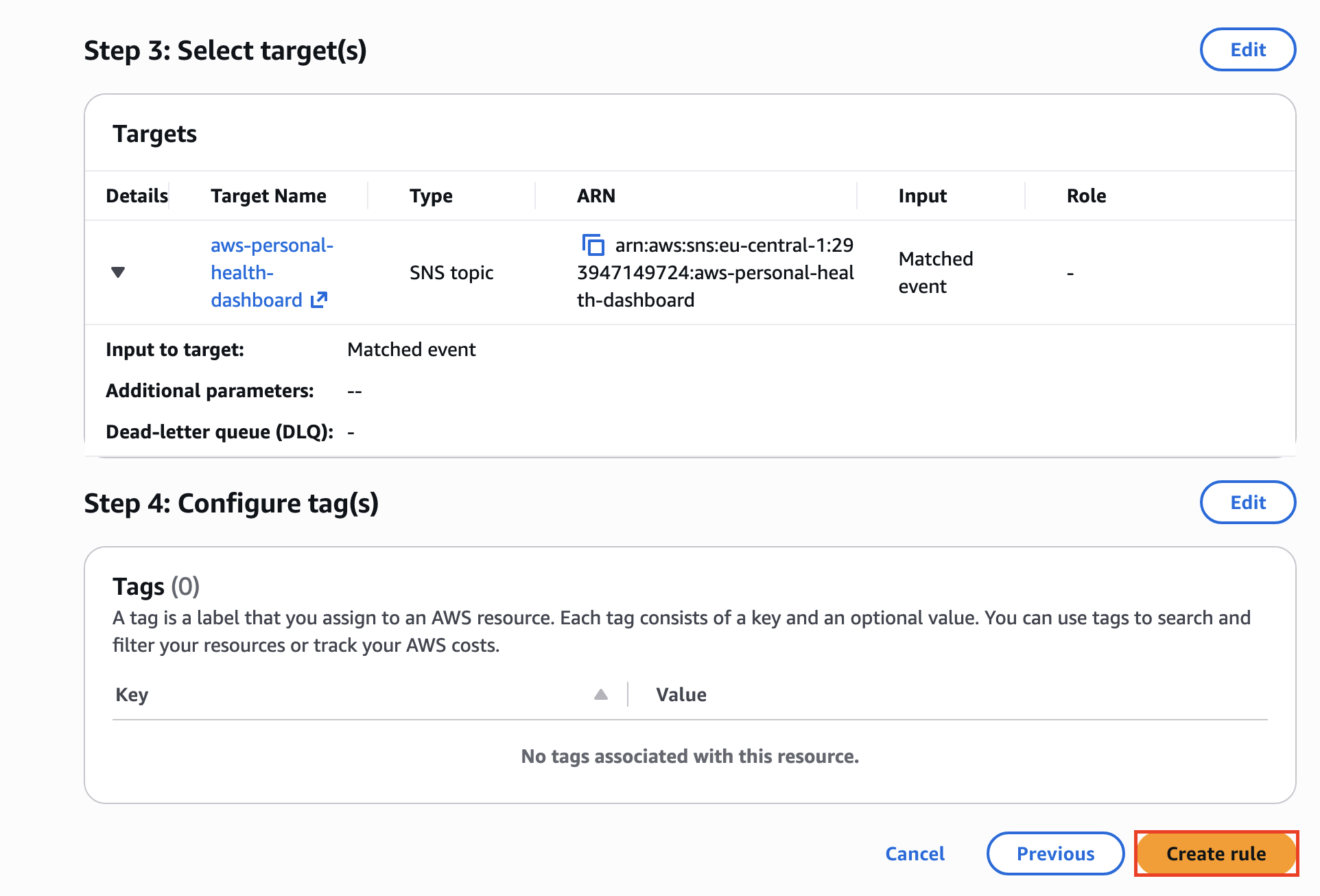
5. Review your settings and click on **Create rule** to finish the setup.
## FAQ
**Will alerts in ilert be resolved automatically?**
Yes, as soon as the Personal Health Issue is solved in AWS, the alert in ilert will be closed.
**Can I link AWS Personal Health Dashboard to multiple alert sources in ilert?**
Yes, create an SNS topic subscription in AWS for each alert source.
---
# Agent Instructions
This documentation is published with GitBook. GitBook is the documentation platform designed so that both humans and AI agents can read, navigate, and reason over technical content effectively. Learn more at gitbook.com.
## Querying This Documentation
If you need additional information that is not directly available in this page, you can query the documentation by asking a question.
Perform an HTTP GET request on the following URL with the `ask` and `goal` query parameters:
```
GET https://docs.ilert.com/integrations/inbound-integrations/aws-phd.md?ask=&goal=
```
`ask` is the immediate question: it should be specific, self-contained, and written in natural language.
`goal` is what the user is ultimately trying to achieve, the reason they need the answer. Sharing it helps GitBook give you a better, more relevant answer. A goal is most helpful when it describes the outcome the user wants rather than restating the question. For example, with `ask=how do I create an API token`, a goal like `automate deployments from our CI pipeline` lets GitBook tailor the answer to that use case.
The response will contain a direct answer to the question and relevant excerpts and sources from the documentation.
Use this mechanism when the answer is not explicitly present in the current page, you need clarification or additional context, or you want to retrieve related documentation sections.