> For the complete documentation index, see [llms.txt](https://docs.ilert.com/llms.txt). Markdown versions of documentation pages are available by appending `.md` to page URLs; this page is available as [Markdown](https://docs.ilert.com/incidents-and-status-pages/status-pages.md).

# Status pages

Create a status page, put it on your own domain, let it update itself from the services behind it, and manage who subscribes.

A status page is where your users go when something looks wrong, so that they do not have to ask. It shows the current state of the [services](/incidents-and-status-pages/services.md) you put on it, the [status updates](/incidents-and-status-pages/status-updates.md) you post, and — if you want — [metrics](/incidents-and-status-pages/metrics.md) and scheduled maintenance.

{% hint style="info" %}
**Which kind of page?** [Public vs private](/incidents-and-status-pages/status-pages/public-vs-private-status-pages.md) covers the first decision. If you need different customers to see different services on the same page, read [audience-specific status pages](/incidents-and-status-pages/status-pages/audience-specific-status-page.md).
{% endhint %}

{% hint style="warning" %}
The Free plan includes a limited public status page. A public page for a wide audience, or any private or audience-specific page, is a paid add-on — see [pricing](https://www.ilert.com/pricing).
{% endhint %}

## Create a page

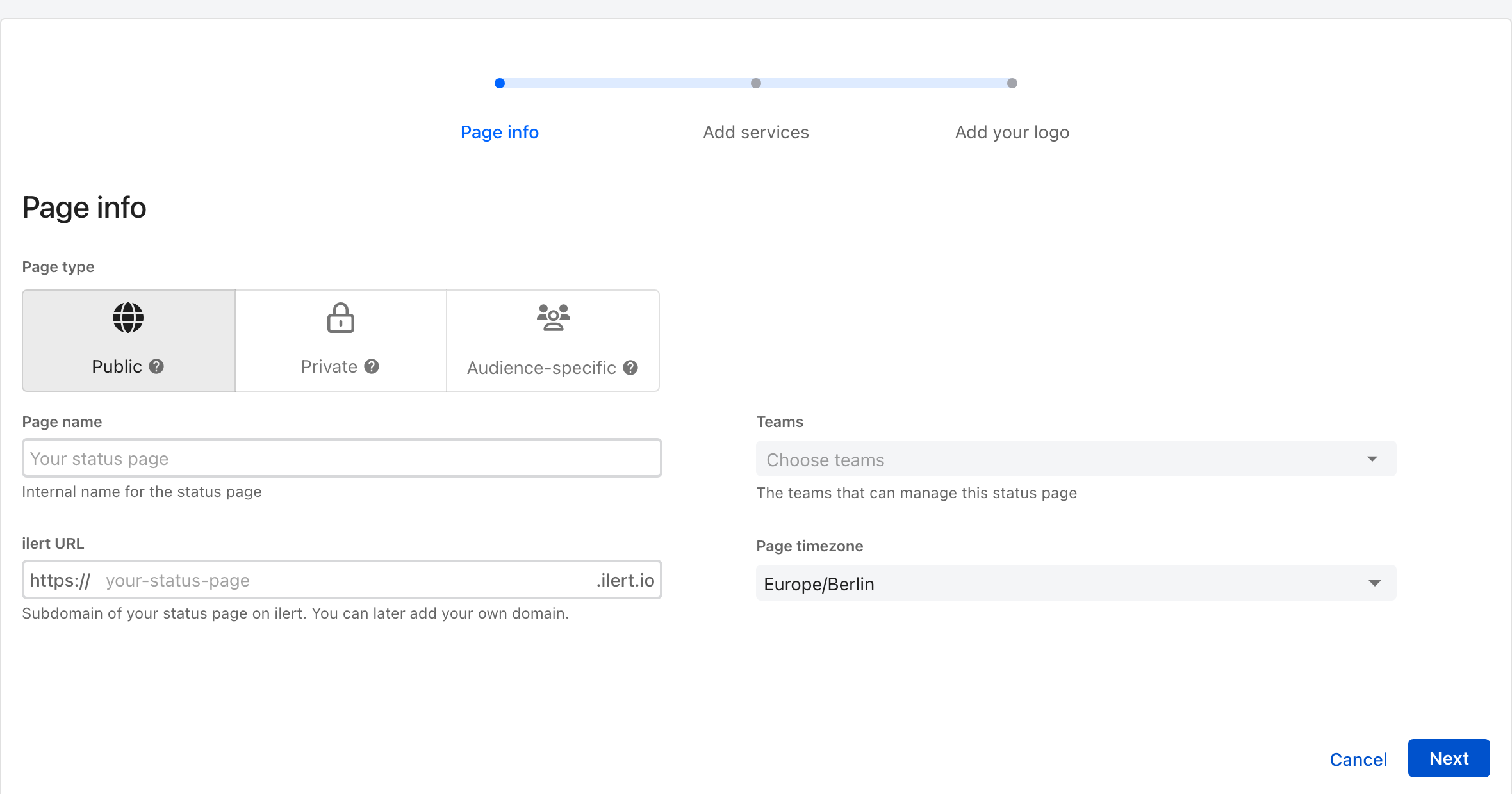
Go to **Status pages** in the sidebar and click **Create status page**. It is a three-step wizard with a live preview beside it, so you can see the page taking shape as you fill it in.

<figure><img src="https://3394882078-files.gitbook.io/~/files/v0/b/gitbook-x-prod.appspot.com/o/spaces%2F-M76ygPnS4HUcFSX8ulm%2Fuploads%2Fgit-blob-bdc472938fce8c6e8c6770e088631cce4cbd87a9%2Fstatus-page-create-page-info.png?alt=media" alt="Step one of the ilert Create status page wizard, with a page type choice of Public, Private or Audience-specific, a page name, an ilert URL ending in .ilert.io, teams, and a page timezone, beside a live preview of the page."><figcaption><p>The page type is the one choice you cannot revisit after the page goes live.</p></figcaption></figure>

{% stepper %}
{% step %}

### Page info

| Field             | Notes                                                                                                           |
| ----------------- | --------------------------------------------------------------------------------------------------------------- |
| **Page type**     | **Public**, **Private**, or **Audience-specific**. Changeable until the page is activated, and fixed afterwards |
| **Page name**     | Internal — how you find the page in ilert                                                                       |
| **ilert URL**     | A subdomain on `ilert.io`. You can add your own domain later                                                    |
| **Teams**         | Who can manage the page                                                                                         |
| **Page timezone** | The timezone timestamps are shown in to your readers                                                            |
| {% endstep %}     |                                                                                                                 |

{% step %}

### Add services

Choose the [services](/incidents-and-status-pages/services.md) the page covers. Their statuses are what the page displays. You can create a new service here without leaving the wizard.
{% endstep %}

{% step %}

### Add your logo

Upload a **page logo** (630×420 px) and a **favicon** (96×96 px). Both are optional now and editable later.
{% endstep %}

{% step %}

### Preview, then activate

**Visit status page** shows you the real thing. When it looks right, click **Activate** — until you do, the page is not reachable, which is the single commonest reason a public page appears not to work.
{% endstep %}
{% endstepper %}

An existing page opens on its own settings, with tabs for **Status updates**, **Settings**, **Services**, **Metrics**, **Subscribers**, and **Embed status**. Private pages have an **Authentication** tab as well.

## How the page keeps itself current

You do not update a status page. You update the things it watches, and it follows:

* changing a **service's status** — say, setting it to *Degraded* — moves it on every page that includes it;
* posting a [**status update**](/incidents-and-status-pages/status-updates.md) that names one of its services publishes the message and sets that service's public status.

### Without anyone doing it

An alert source can do both unattended, through the **Update status page** alert action: set a service's status, and post a status update from an [incident template](/incidents-and-status-pages/status-updates/incident-templates.md), optionally notifying subscribers. See [Services: automation with alert sources](/incidents-and-status-pages/services.md#automation-with-alert-sources).

{% embed url="<https://youtu.be/pDr8_ALyE14>" %}
<https://www.youtube.com/@ilertVideos>
{% endembed %}

## Subscribers <a href="#add-remove-subscribers-to-a-status-page" id="add-remove-subscribers-to-a-status-page"></a>

Subscribers hear about a [status update](/incidents-and-status-pages/status-updates.md) without having to visit the page. They are notified when an update names a service on the page and **Notify subscribers** is on. A [maintenance window](/alerting/configure-alerting/maintenance-windows.md#notifications) on the page's services can notify them too. Changing a service's status by hand notifies nobody.

A page has two kinds of subscriber, and the **Subscribers** tab keeps them apart:

| Kind                      | Who                                                    | How they join                                   | Confirmation                                                         | Count toward the page's limit |
| ------------------------- | ------------------------------------------------------ | ----------------------------------------------- | -------------------------------------------------------------------- | ----------------------------- |
| **ilert users and teams** | People who log in to ilert                             | Someone adds them, or they subscribe themselves | None                                                                 | No                            |
| **Public subscribers**    | Anyone, by email address, phone number, or webhook URL | They subscribe on the status page               | Email and SMS subscribers confirm through a link. Webhooks need none | Yes                           |

On a public page, the top of the tab counts both, for example **Subscriber count: 12 of 250 public subscribers, 2 ilert users**. The public figure includes subscribers who have not confirmed yet, and a subscribed team counts once.

### Add ilert users and teams

1. Open the page and go to the **Subscribers** tab.
2. Click **Add subscribers**, choose people or teams under **Users or teams**, and click **Add subscribers**.

Adding a team subscribes everyone in it. The page has to be activated first. Everyone you add is told they were subscribed, except you and anyone who was already subscribed or had unsubscribed.

People can also subscribe themselves. Under **Status pages**, every row has a **Subscribe** button, which turns into **Unsubscribe**; it stays grayed out until the page is activated. Private and audience-specific pages show the same button in their header.

ilert users receive updates through the **Status update notifications** rule in their own [notification settings](/alerting/configure-alerting/notification-settings.md#notification-rules). Someone with no rule there is subscribed but hears nothing.

{% hint style="info" %}
**Unsubscribing wins.** Someone who unsubscribes is listed under **Unsubscribed** and gets no updates from this page, even if you add them again or their team is subscribed. Only they can undo it, by subscribing again.
{% endhint %}

### Let visitors subscribe

On a public page, visitors click **Subscribe** in the header and choose a tab:

| Tab         | What the visitor enters                                        | Plans                  |
| ----------- | -------------------------------------------------------------- | ---------------------- |
| **Email**   | An email address                                               | Pro, Scale, Enterprise |
| **SMS**     | A phone number in international format, such as `+14155552671` | Scale, Enterprise      |
| **Webhook** | A URL that ilert sends a request to for each update            | Scale, Enterprise      |
| **Feed**    | Nothing. The tab links the page's RSS and Atom feeds           | Every plan             |

A tab your plan does not include is not shown. The Free plan's public page has no subscribers at all, only the feeds. To hide the button altogether, turn off **Show subscribe button** on the page's **Settings** tab.

On a private page with an IP whitelist or passwordless email login (see [authentication options](/incidents-and-status-pages/status-pages/public-vs-private-status-pages.md#private-status-page-authentication-options)), visitors without an ilert login get the same choice.

By default, a subscriber hears about every service on the page. Under **Services**, they can limit that to the services they rely on. Subscribing again with the same address and a different choice of services replaces the subscription, and it has to be confirmed again.

Email and SMS subscribers get nothing until they click the confirmation link in the first message. ilert reminds them up to twice: the next day, and about three days after that. Until they confirm, the **Subscribers** tab marks them **Subscription is not verified**.

How many public subscribers a page can have depends on its status page add-on (see [pricing](https://www.ilert.com/pricing)). Unconfirmed subscribers count toward it. Once the page is full, new subscriptions are refused.

Moving from another status page provider? [Import your subscribers through the API](/developer-docs/api-samples/importing-public-status-page-subscribers.md). People you import are treated as already confirmed, so they are not asked again.

### Remove a subscriber

On the **Subscribers** tab, find the subscriber. The search box matches names, and on a public page email addresses and phone numbers as well. Click the delete icon on their row, then **Delete** in the **Remove subscriber** dialog. ilert users and confirmed email and SMS subscribers are told they were removed.

Removing a person does not stop updates that reach them through a subscribed team.

### Export the list

Click **Download subscribers** at the top of the tab to get a CSV of the public subscribers: each one's email address, phone number, or URL, its channel, and when it was confirmed. ilert users and teams are not in it.

## Your own domain <a href="#custom-domain" id="custom-domain"></a>

Every page, public or private, can live at your own subdomain — `status.example.com` rather than `example.ilert.io`.

{% stepper %}
{% step %}

### Set it in ilert

On the page's **Settings** tab, enter the custom domain and save.
{% endstep %}

{% step %}

### Point DNS at it

At your DNS provider, create a **CNAME** record. The **name** is your subdomain — some providers want the whole thing (`status.example.com`), others just the label (`status`). The **value** is your page's ilert URL, for example `ilert-demo.ilert.io`.

If asked for a **TTL** and you have no reason to prefer another, 43200 (12 hours) or 86400 (24 hours) is a fine default; matching your existing records is fine too.

{% hint style="warning" %}
**On Cloudflare, turn proxying off** — the orange cloud, listed as *Proxy status*. Proxied, the page can fail to serve correctly and ilert cannot monitor it.
{% endhint %}
{% endstep %}

{% step %}

### Wait

Anywhere from an hour to two days, depending on your TTL and how fast the change propagates.
{% endstep %}
{% endstepper %}

## Analytics

Pages on a custom domain can report to **Google Analytics** or **PostHog**; both need a key from that provider.

{% hint style="info" %}
External analytics usually means consent obligations for whoever visits the page. Check with whoever owns that question at your company before turning it on.
{% endhint %}

## Questions people actually ask

### We are an MSP. Can each customer have their own private page without seeing each other's?

Yes, and it does not cost a licence per customer — every paid plan includes unlimited [Viewer](/users-and-access-management/user-roles-and-permissions.md#viewer) licences.

1. Create a [private team](/users-and-access-management/teams.md#private-teams) per customer.
2. Invite the customer with the **Stakeholder** role.
3. Add them to their team.
4. Assign the status page to that team.

### My page is Public but not reachable <a href="#i-have-set-my-status-page-to-public-but-its-still-not-accessible-from-the-internet.-what-am-i-missin" id="i-have-set-my-status-page-to-public-but-its-still-not-accessible-from-the-internet.-what-am-i-missin"></a>

It is almost certainly not activated. Open the page and click **Activate**.

## In this section

<table data-view="cards"><thead><tr><th></th><th></th><th data-hidden data-card-target data-type="content-ref"></th></tr></thead><tbody><tr><td><strong>Status page layout</strong></td><td>Service groups, column layouts, the embed widget, and the announcement bar.</td><td><a href="/incidents-and-status-pages/status-pages/status-page-layout.md">Status page layout</a></td></tr><tr><td><strong>Public vs private</strong></td><td>Who can see the page, and how they prove it.</td><td><a href="/incidents-and-status-pages/status-pages/public-vs-private-status-pages.md">Public vs private status pages</a></td></tr><tr><td><strong>Audience-specific</strong></td><td>One page that shows each customer only their own services.</td><td><a href="/incidents-and-status-pages/status-pages/audience-specific-status-page.md">Audience-specific status page</a></td></tr></tbody></table>


---

# Agent Instructions
This documentation is published with GitBook. GitBook is the documentation platform designed so that both humans and AI agents can read, navigate, and reason over technical content effectively. Learn more at gitbook.com.

## Querying This Documentation
If you need additional information that is not directly available in this page, you can query the documentation by asking a question.

Perform an HTTP GET request on the following URL with the `ask` and `goal` query parameters:

```
GET https://docs.ilert.com/incidents-and-status-pages/status-pages.md?ask=<question>&goal=<user_goal>
```

`ask` is the immediate question: it should be specific, self-contained, and written in natural language.
`goal` is what the user is ultimately trying to achieve, the reason they need the answer. Sharing it helps GitBook give you a better, more relevant answer. A goal is most helpful when it describes the outcome the user wants rather than restating the question. For example, with `ask=how do I create an API token`, a goal like `automate deployments from our CI pipeline` lets GitBook tailor the answer to that use case.

The response will contain a direct answer to the question and relevant excerpts and sources from the documentation.

Use this mechanism when the answer is not explicitly present in the current page, you need clarification or additional context, or you want to retrieve related documentation sections.
